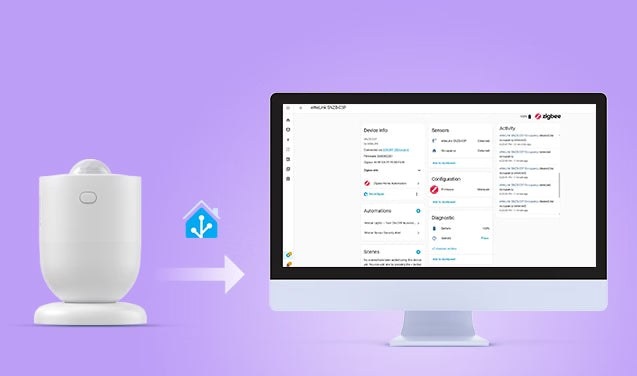
Home Assistant brings motion sensors and other smart devices into one system, reducing dependence on separate apps and enabling local, coordinated automations. This guide explains how to pair a Zigbee sensor through ZHA, build motion-triggered lighting and security routines, and troubleshoot common problems.
Choosing a motion sensor for Home Assistant
For a 2026 setup, compare communication protocol, cooldown, battery life, detection coverage and mounting options. These affect both responsiveness and long-term reliability.
| Factor | What to look for |
|---|---|
| Communication protocol | Zigbee offers fast, stable local control with low power use. Z-Wave is reliable but more expensive. Wi-Fi devices connect directly to a router without a hub, but most depend on cloud control, which may add latency, and consume more power. Bluetooth has limited range. |
| Reset time (cooldown) | Prefer an adjustable 5–10s cooldown; avoid fixed cooldowns longer than 60–120 seconds. |
| Battery performance | A 2–3 year lifespan reduces maintenance. CR2477 / AAA batteries are preferred for easy replacement. |
| Detection range and angle | Look for 4–12m coverage and a wide field of view, such as 110°–170°. |
| Mounting | Magnetic, adhesive or screw mounting provides placement flexibility. |
Add a Zigbee motion sensor through ZHA
The best protocol depends on your existing equipment and automation needs. Zigbee is the example here because it combines local operation, quick responses and low power consumption.
The two common integration choices are ZHA (Zigbee Home Automation) and Zigbee2MQTT (Z2M). They differ in device compatibility, customization and setup complexity. For a broader comparison, see “ZHA vs. Zigbee2MQTT: The Best Zigbee Integration for Home Assistant?”
This walkthrough uses ZHA, which is built into Home Assistant and needs no additional software.
Prerequisites
- A working Home Assistant installation.
- A computer or a Raspberry Pi.
- A Zigbee motion sensor, such as SONOFF Zigbee Motion Sensor | SNZB-03P.
- A Zigbee coordinator, such as SONOFF Zigbee 3.0 USB Dongle | ZBDongle-P / ZBDongle-E, PoE Dongle | Dongle-M, Dongle Plus MG24, Dongle-LMG21.
Connect and locate the coordinator
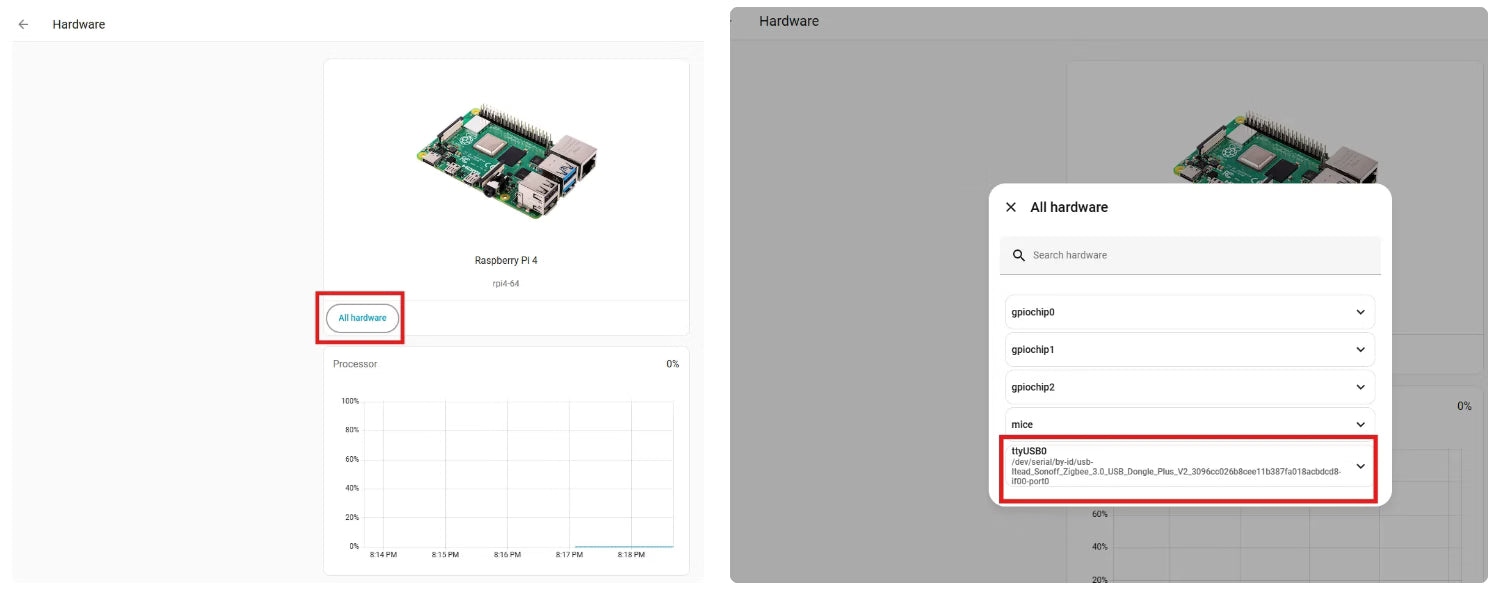
- Connect your Zigbee coordinator to the computer or Raspberry Pi. Examples include SONOFF Zigbee 3.0 USB Dongle Plus-P / -E, Dongle Plus MG2 and Dongle-LMG21. It should be discovered automatically.
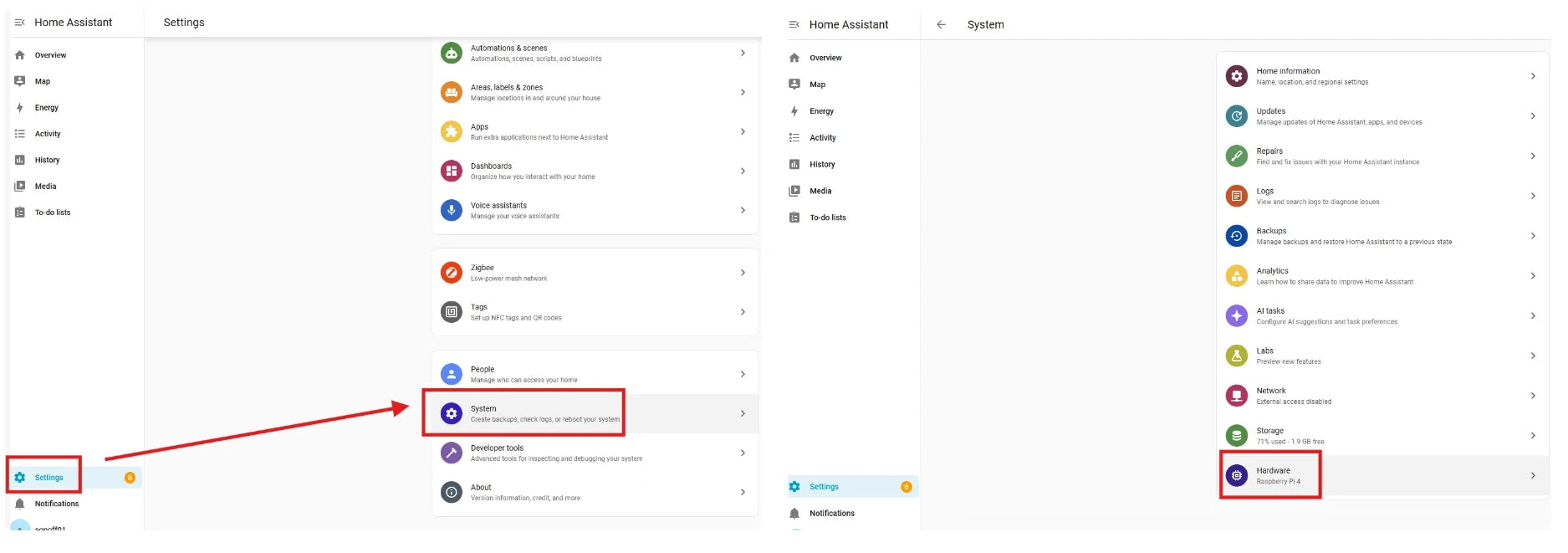
- Open Settings > System > Hardware > All Hardware.
- Find the dongle’s serial port, which may appear as
/ttyUSB0
or/ttyACM0
.
For further setup and firmware details, consult “How to Use SONOFF Zigbee Dongle Plus on Home Assistant? How to Flash Firmware?”
Configure ZHA
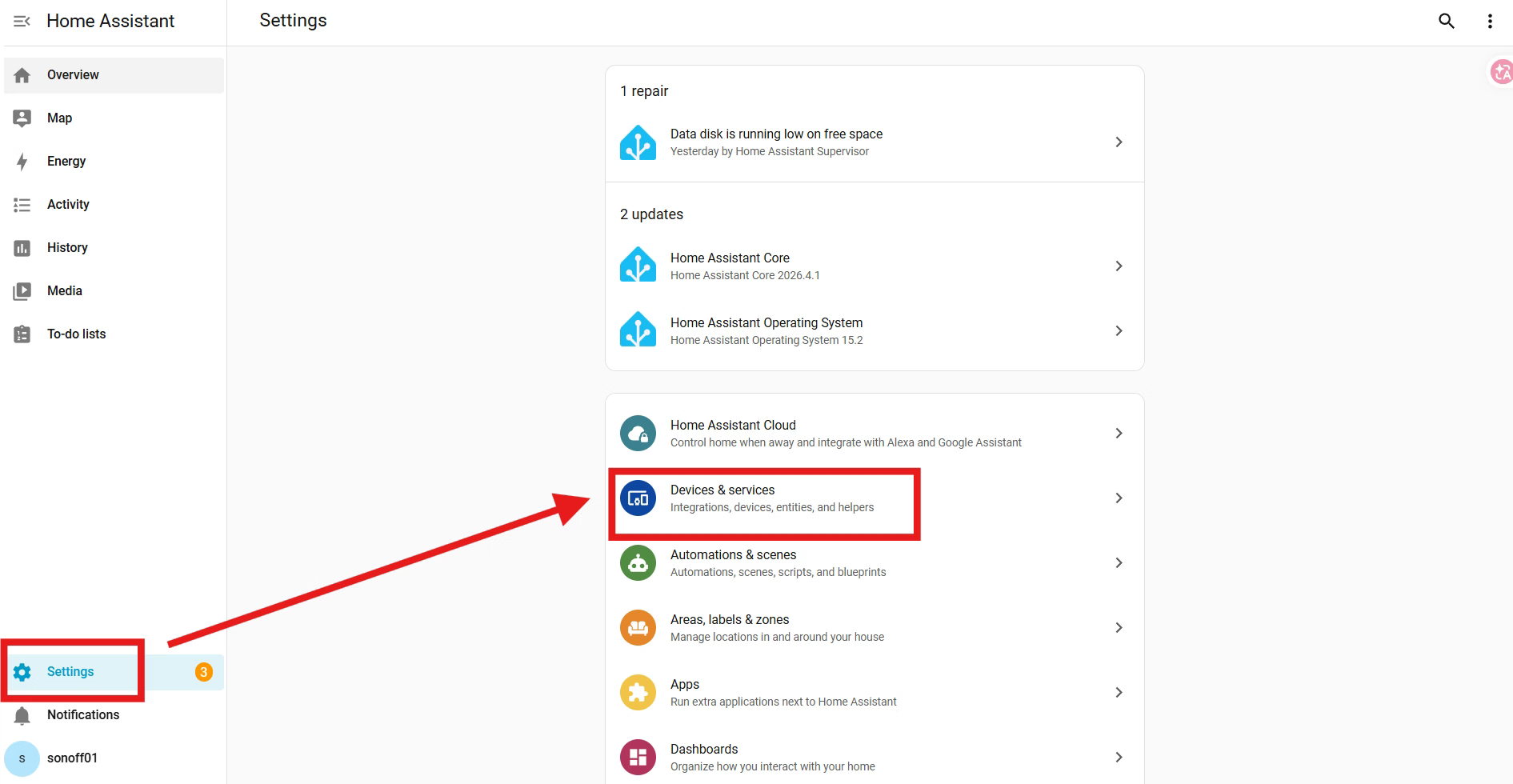
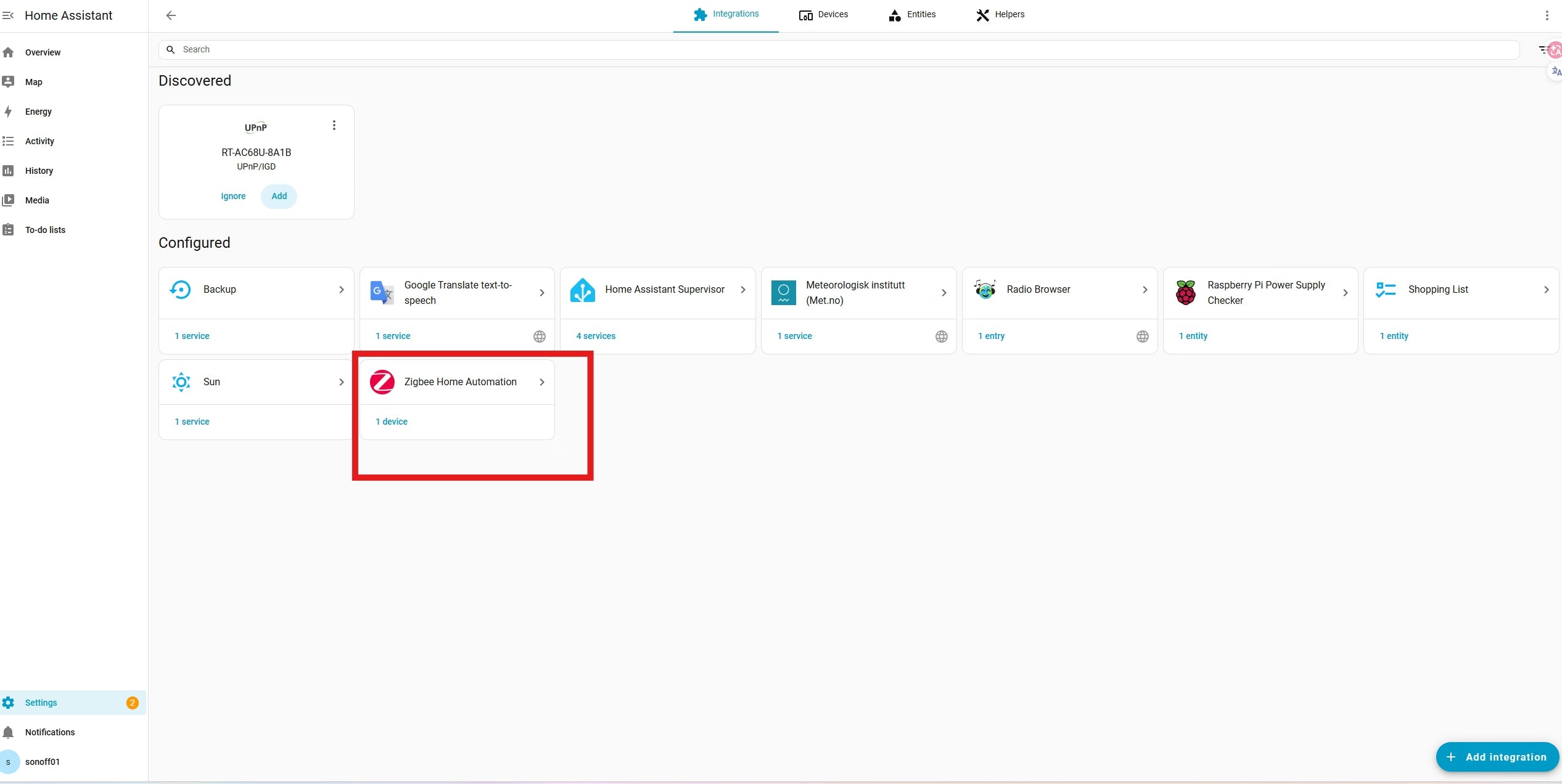
- Open Settings > Devices & Services.
- Choose “Add Integration” and search for Zigbee Home Automation (ZHA).
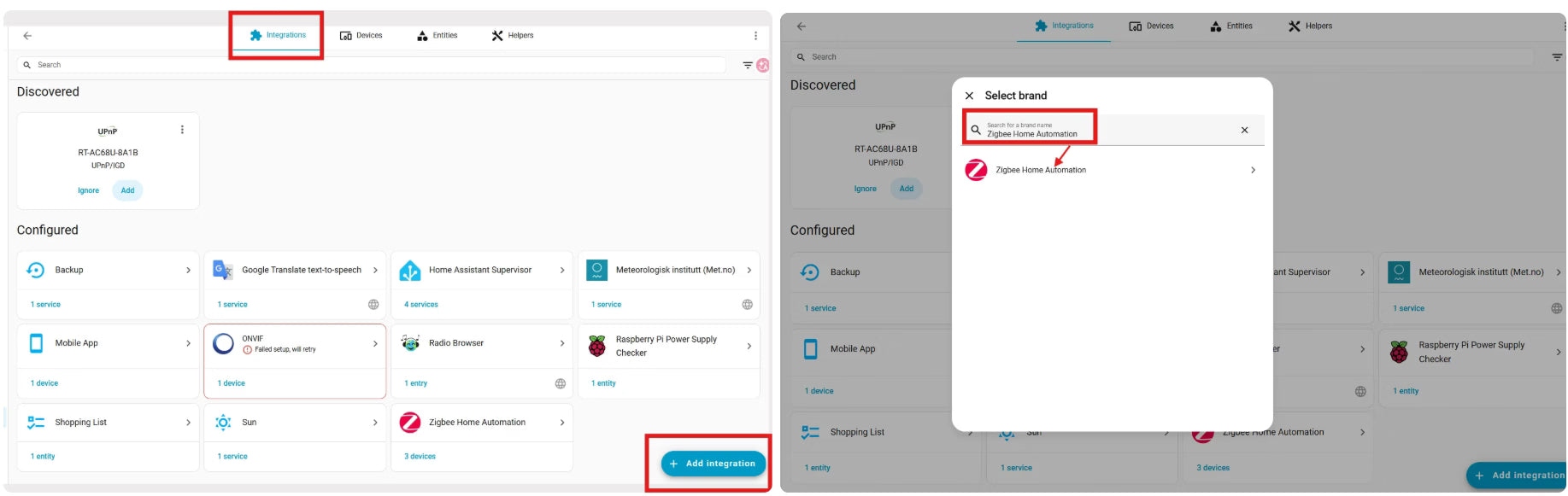
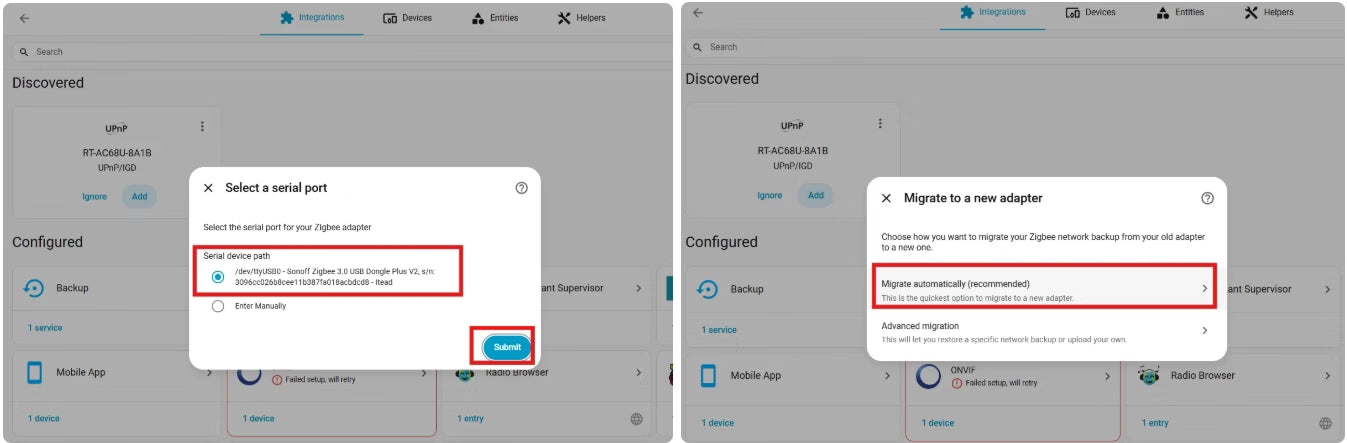
- Select ZHA, then proceed through these options in order:
- Serial port > Serial device path (your Zigbee dongle port)
- Migrate a new adapter
- Migrate automatically (recommended)
- Device created
- Skip and finish
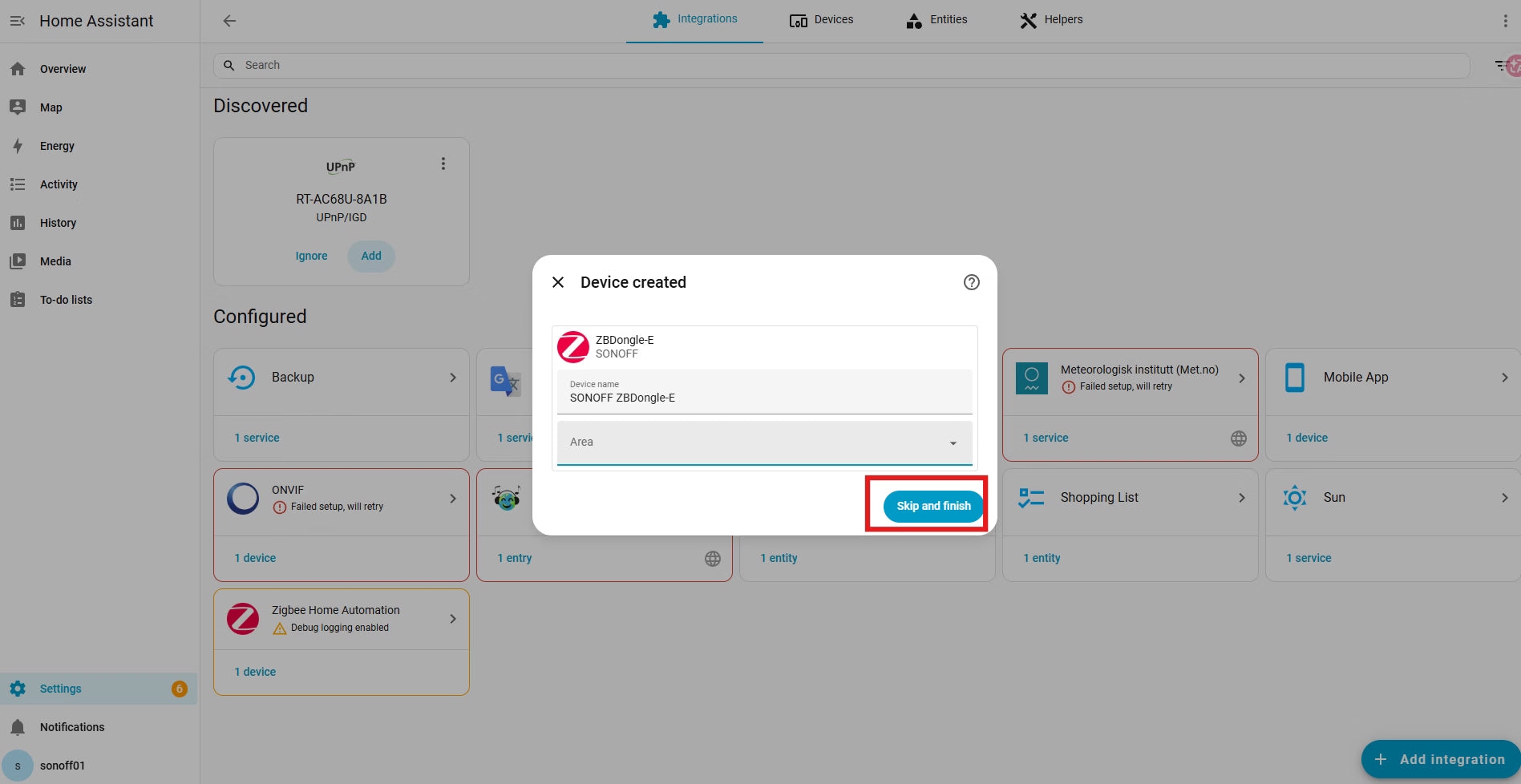
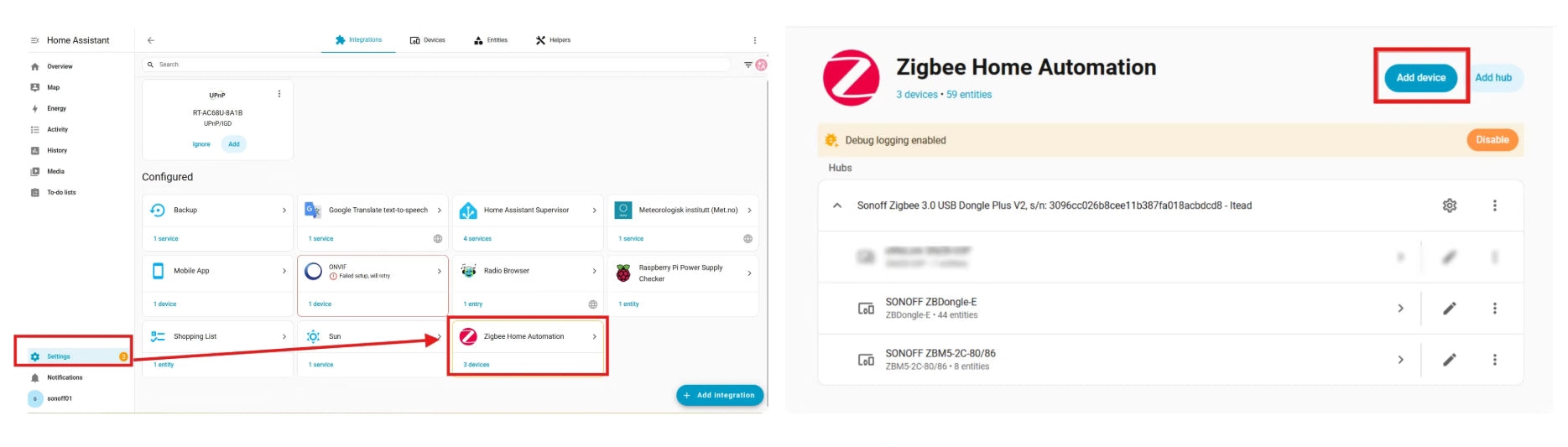
- Check that ZHA (Zigbee Home Automation) now appears as configured.
Pair the SNZB-03P
- Power on the SNZB-03P.
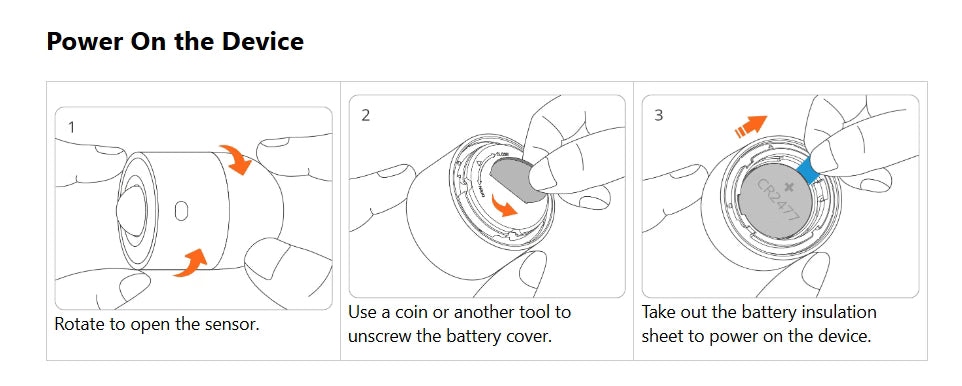
- Hold its button for 5 seconds, until the LED blinks, to reset it and enter pairing mode.
- Open Settings > Devices & Services > ZHA > Add devices and wait for discovery.
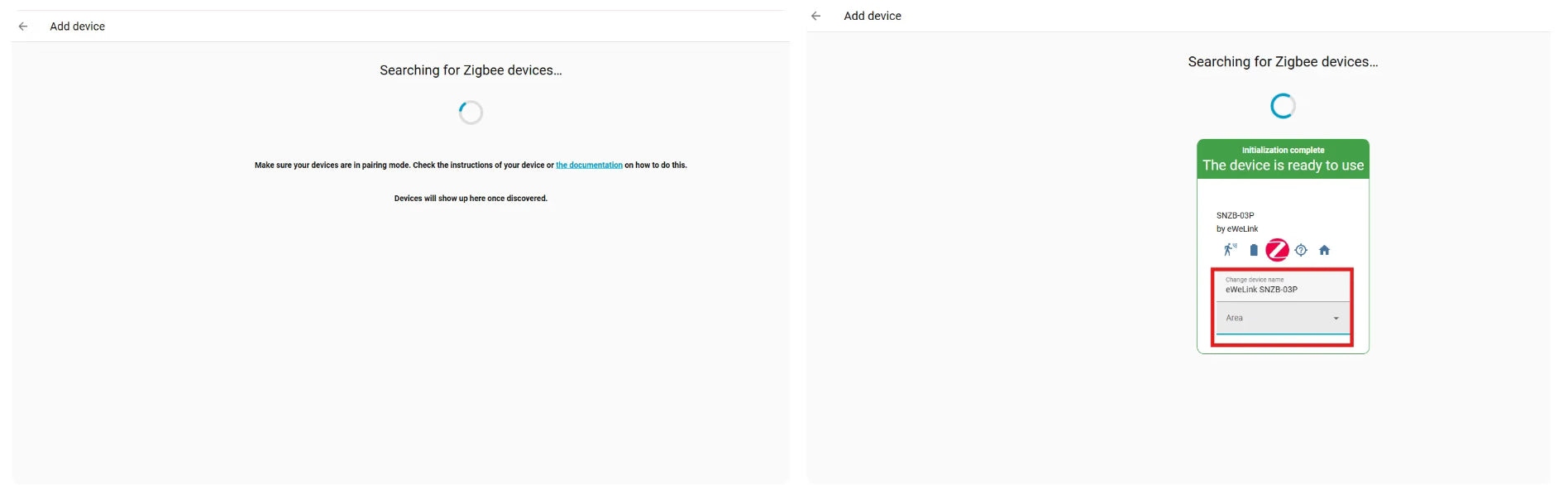
- Give the discovered sensor a name and assign an area as needed.
Verify detection
- Find the sensor under Settings > Devices & Services > ZHA.
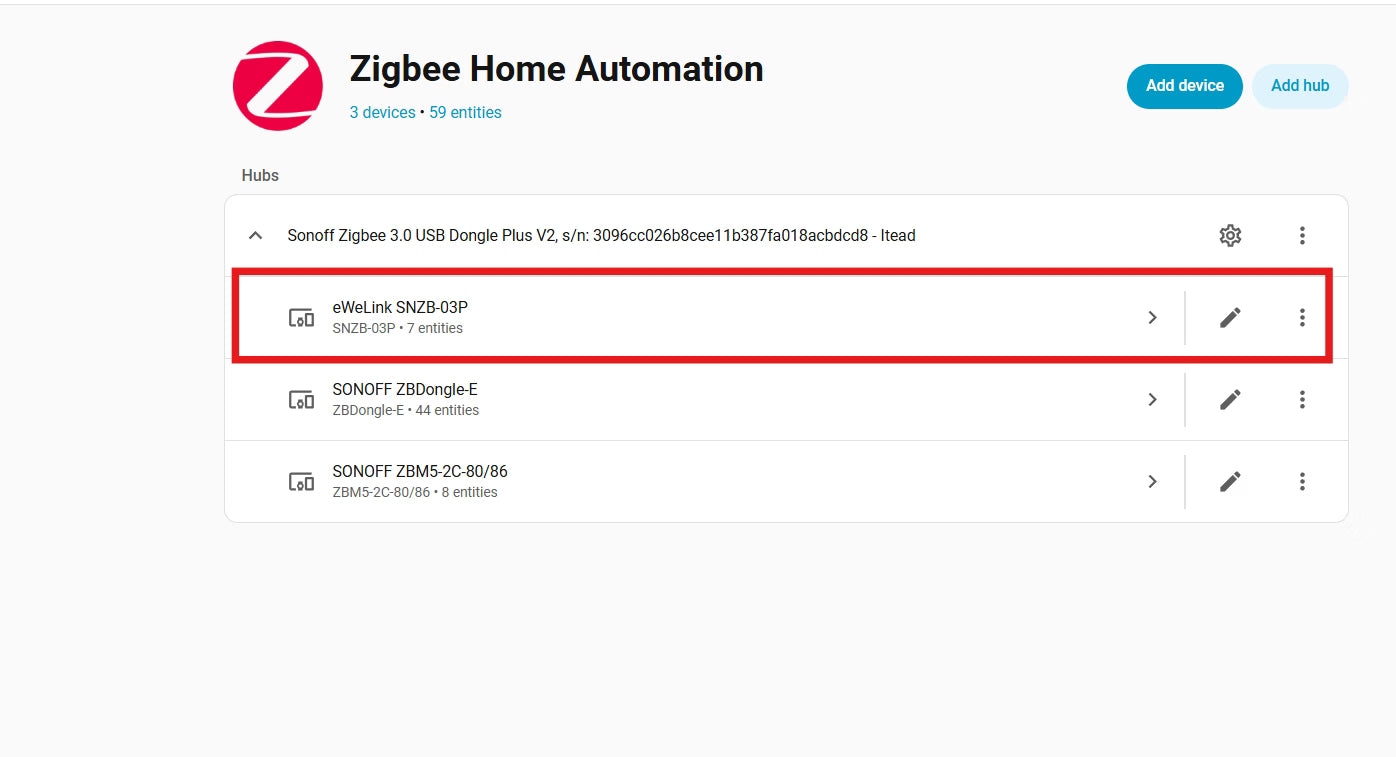
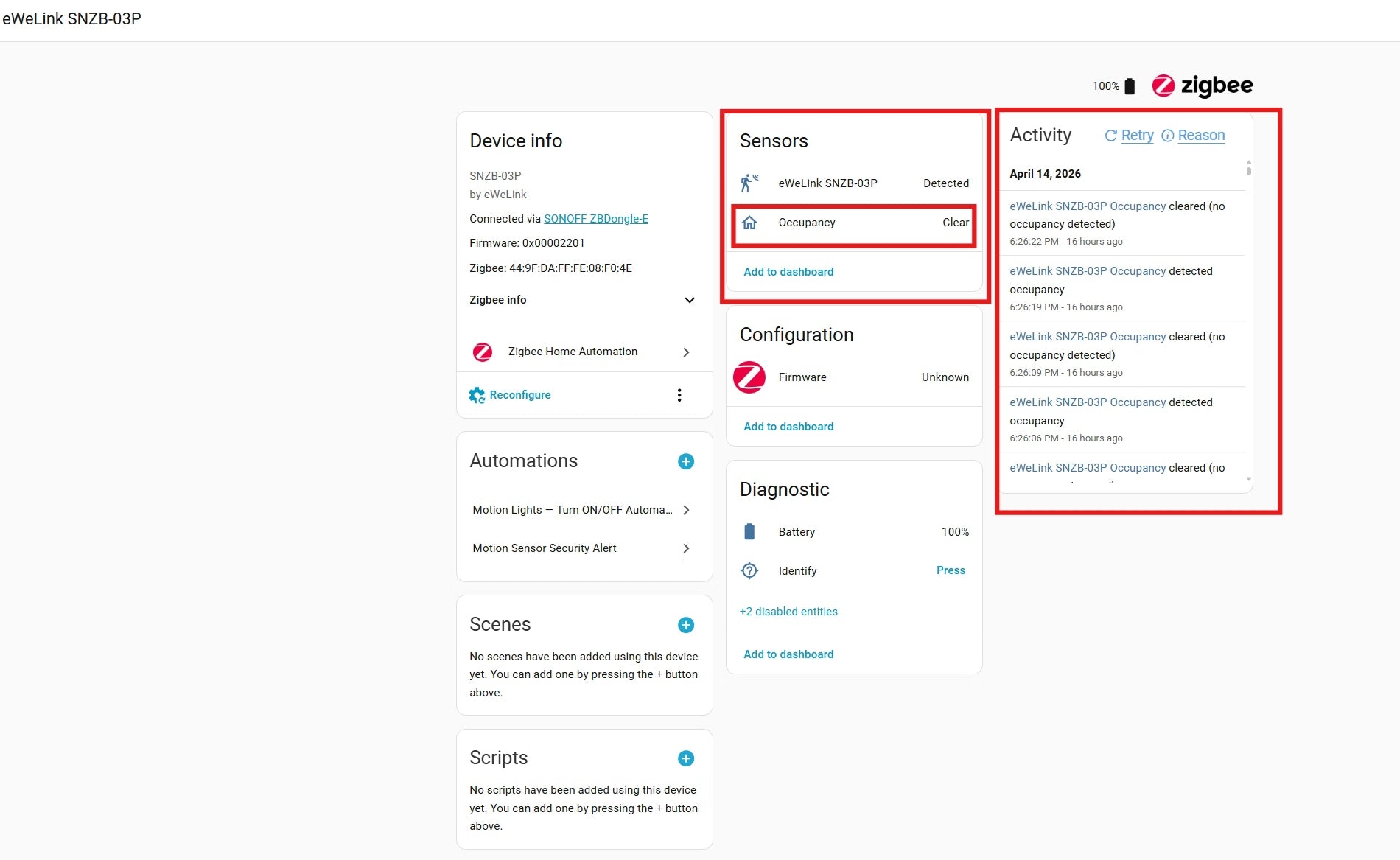
- Open eWeLink SNZB-03P to view its device information, detection state, activity, battery level and automations.
- Trigger the sensor and confirm that Home Assistant records the state change.
Understanding the sensor’s device page
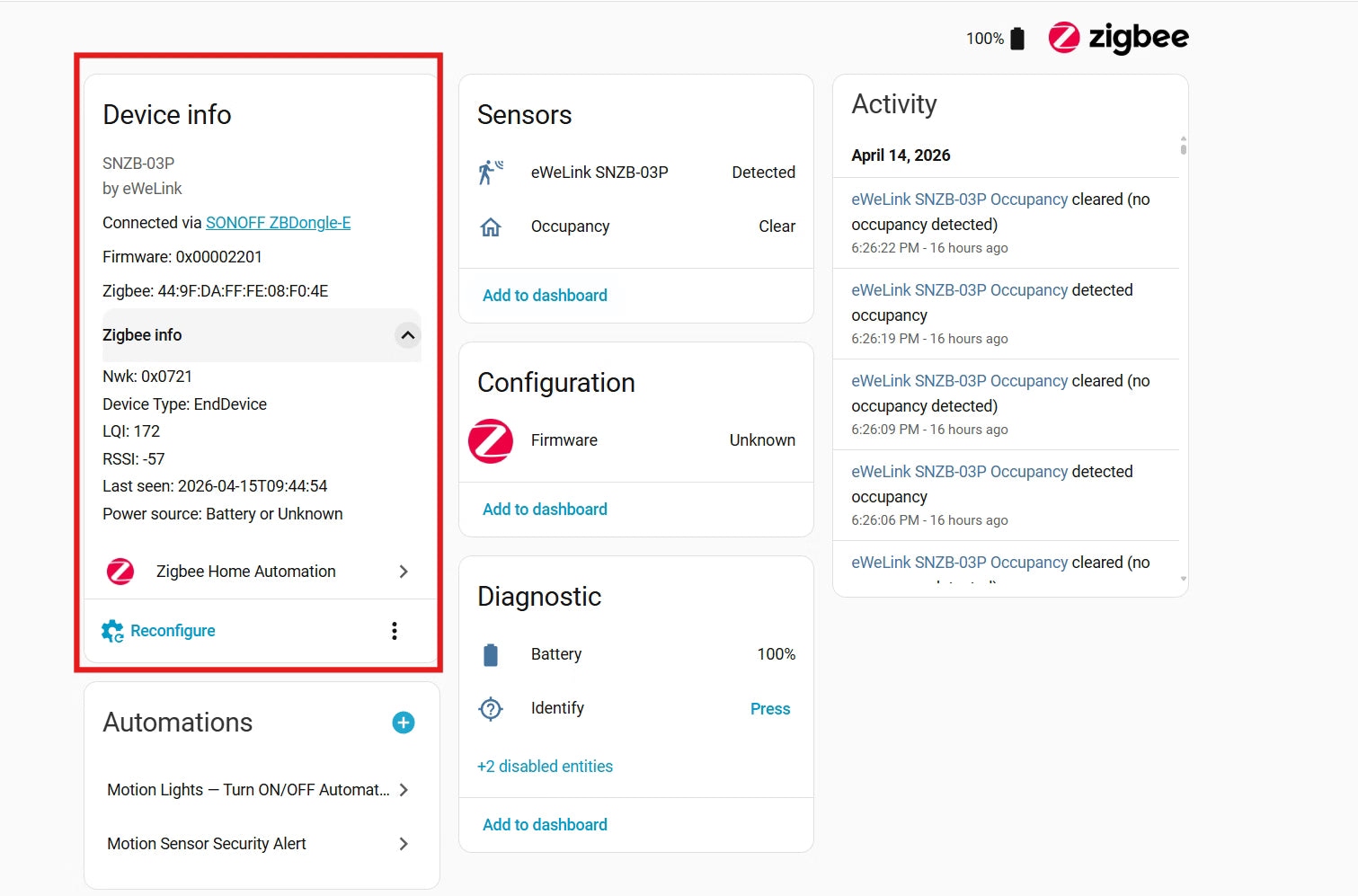
Device information and connection
The information panel identifies the model, connected coordinator, firmware and connection statistics.
- Connected via: Identifies the Zigbee coordinator handling communication.
- Firmware: Shows the installed sensor firmware version.
- Zigbee info: Includes LQI (Link Quality Indicator) and RSSI (Received Signal Strength Indicator). Higher LQI indicates a more stable connection; RSSI is stronger when closer to 0.
- Last seen: Records when Home Assistant last received communication from the sensor.
- Reconfigure: Asks Home Assistant to re-establish connection parameters if the device stops responding.
Live status and activity
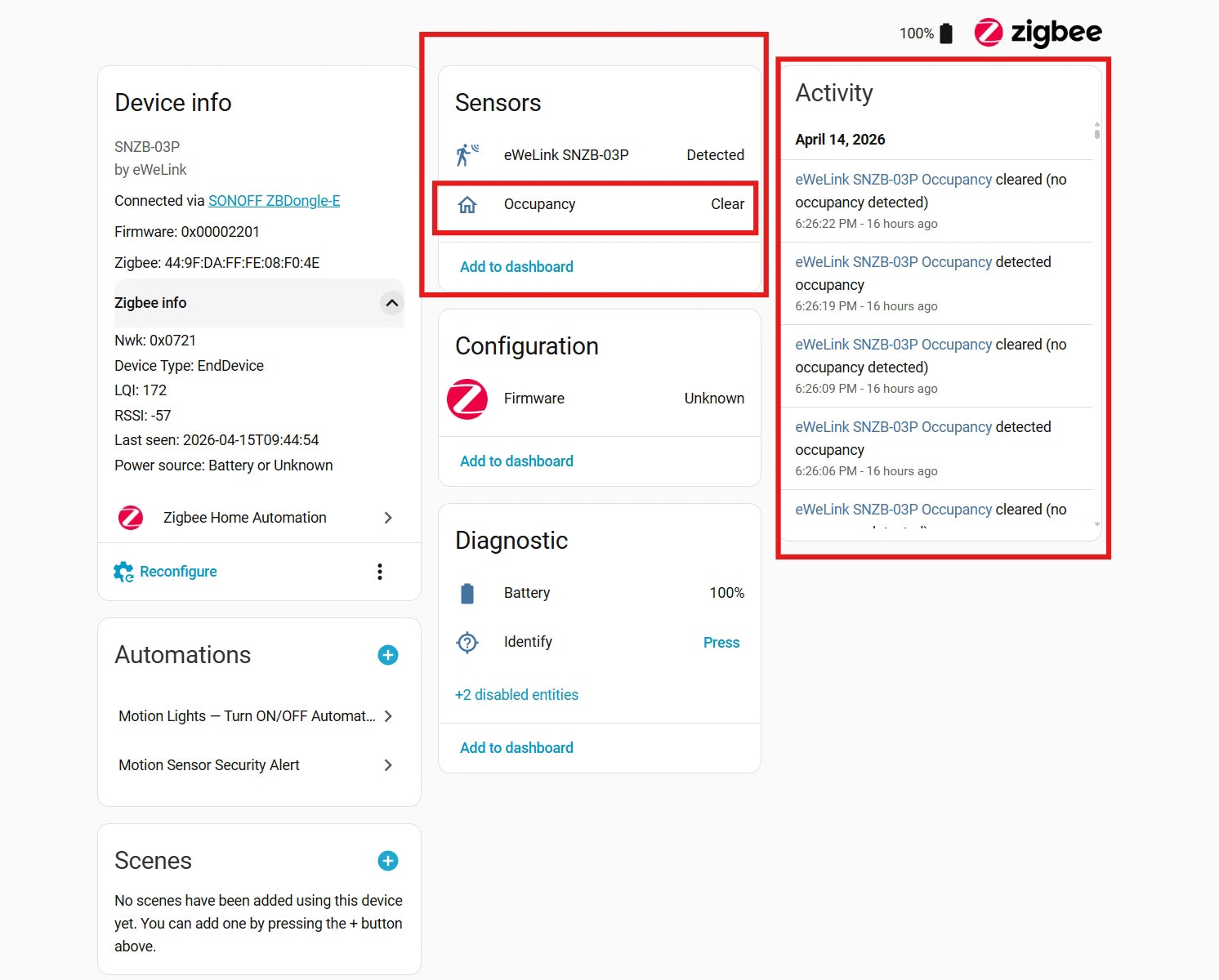
- Sensors: Shows current detection status. “Occupancy → Detected” means motion was detected and the sensor is sensing a person; “Occupancy → Clear” means no movement has been detected for a short period.
- Add to dashboard: Creates a status card so you can check the sensor without reopening its device page.
- Activity: Lists timestamped events, including when occupancy became “Detected” or “Cleared”. If an automation fails, check whether motion was recorded at the relevant time.
Automations, updates and diagnostics
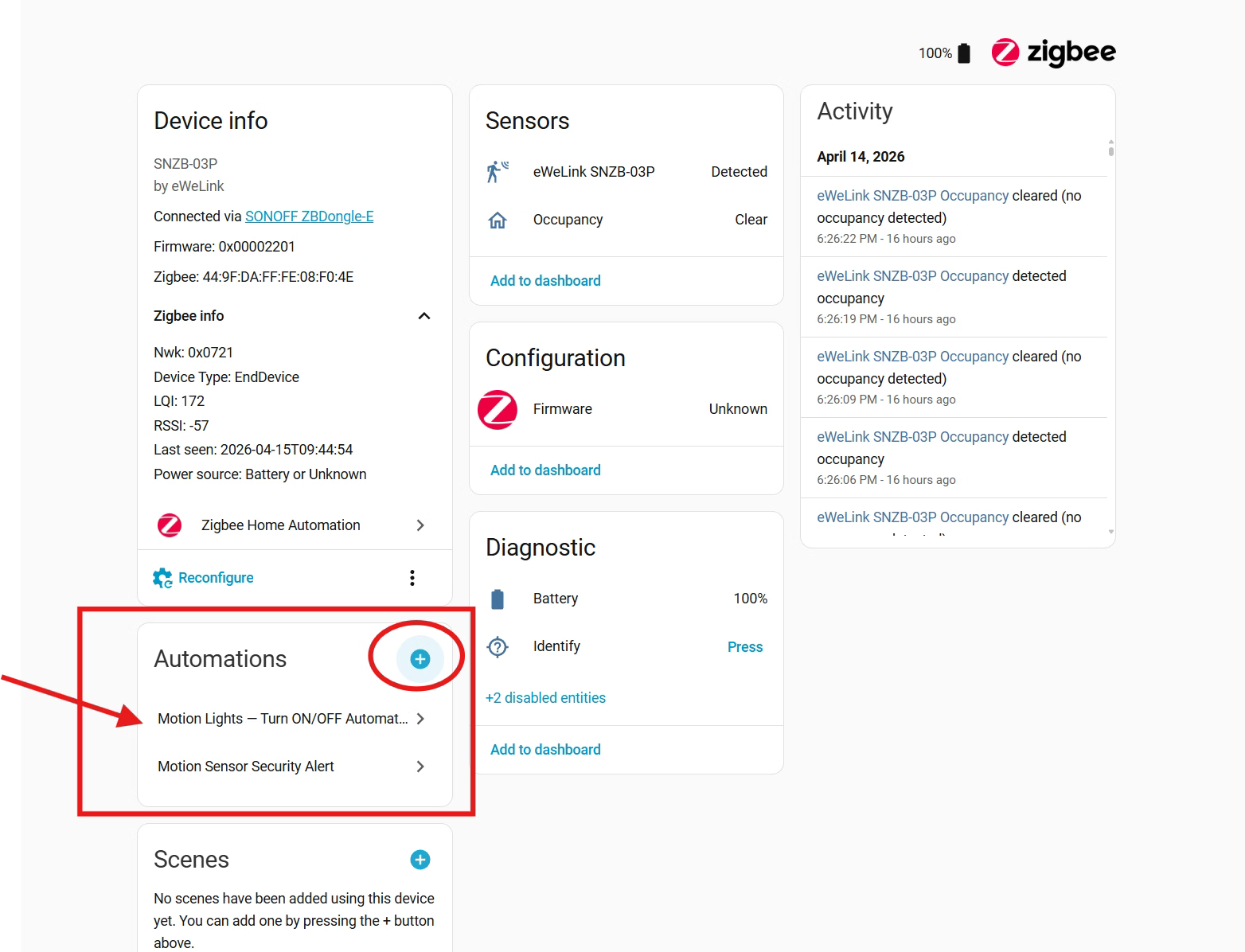
Use the “+” icon to create an automation. Existing automations involving this sensor appear here for review or editing.
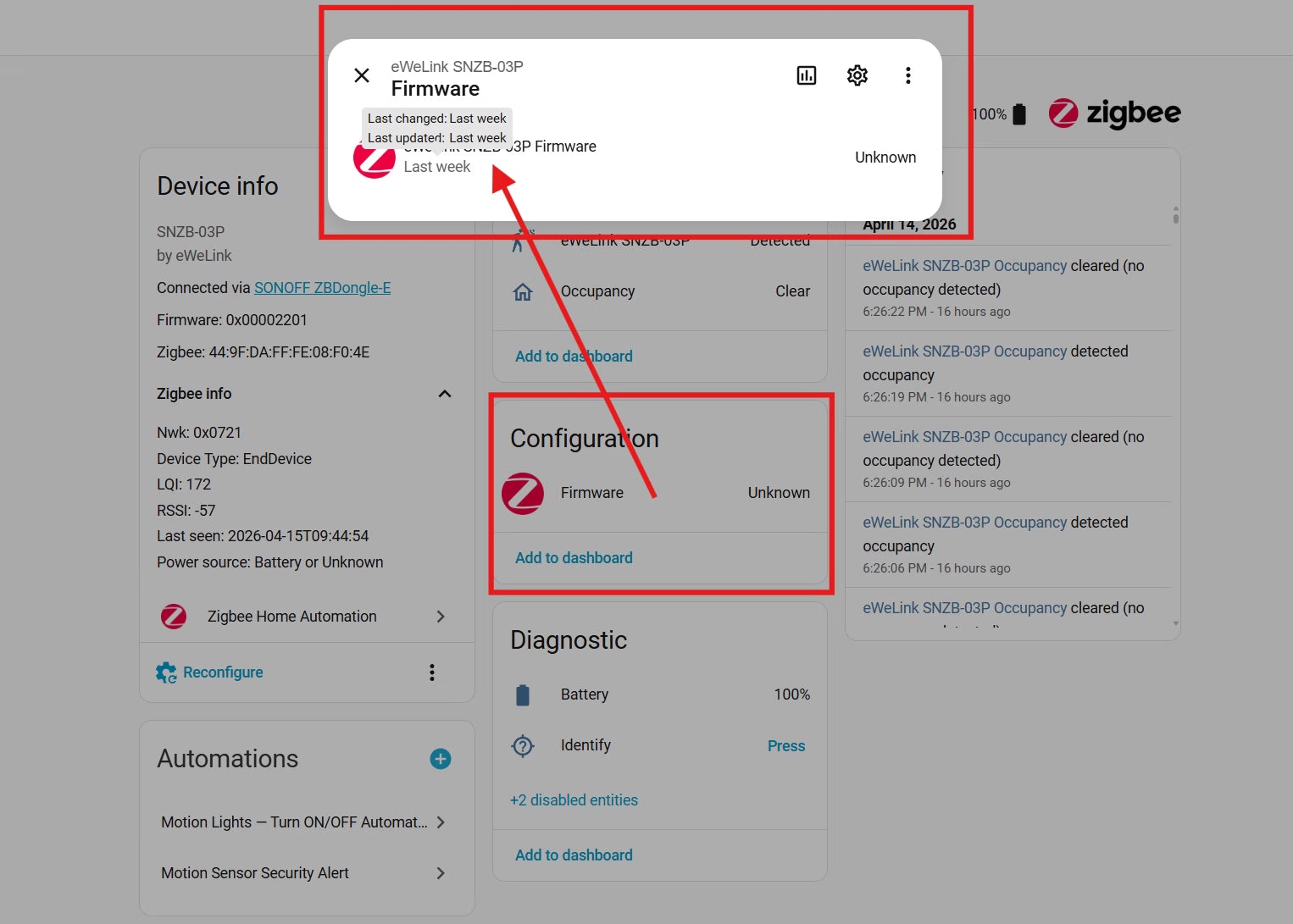
The firmware area provides update information; new official SONOFF updates are typically indicated or managed here.
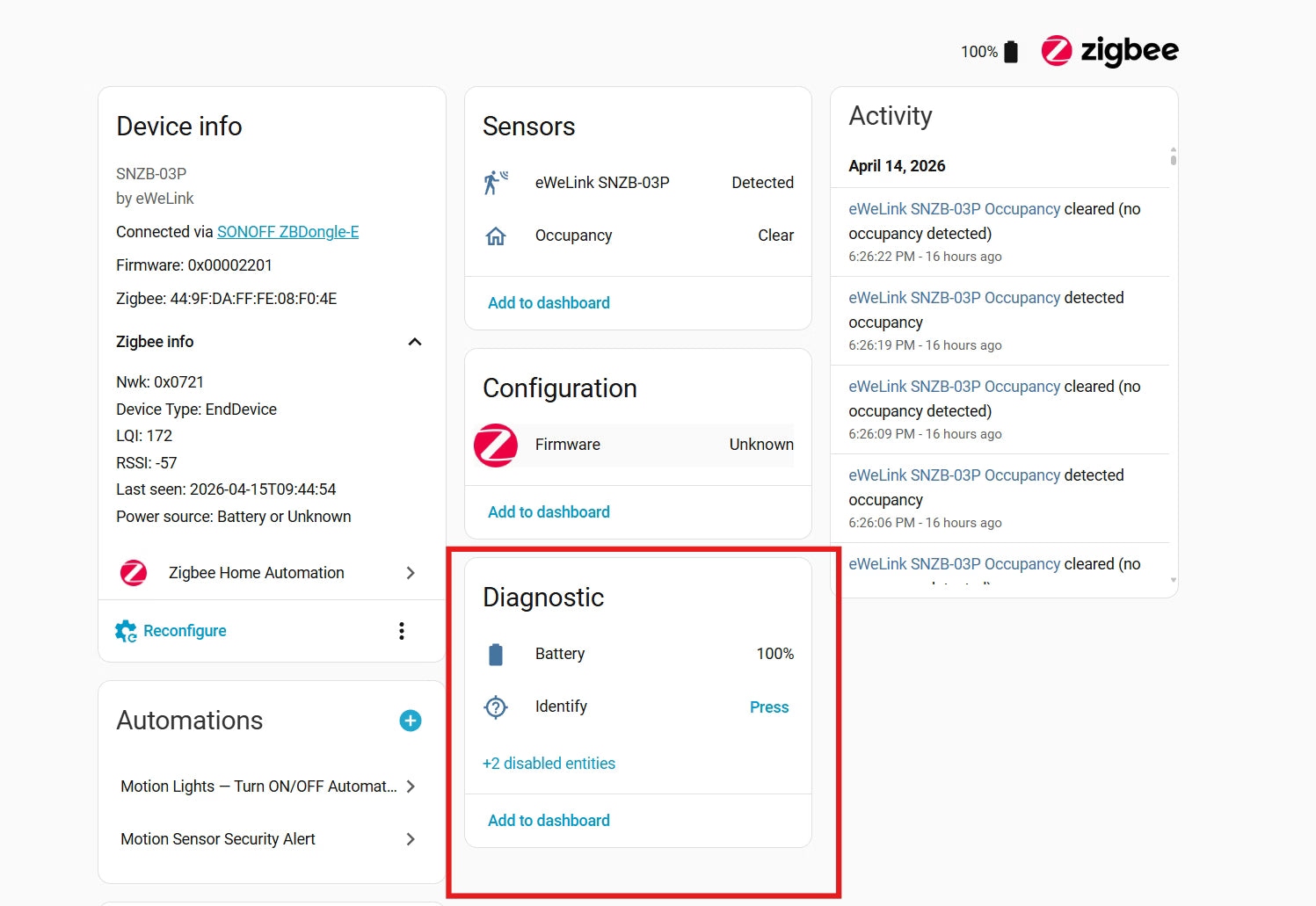
- Battery: Displays the current battery percentage.
- Identify → Press: Commands the physical sensor to blink its LED.
- Add to dashboard: Adds a card containing battery and diagnostic information.
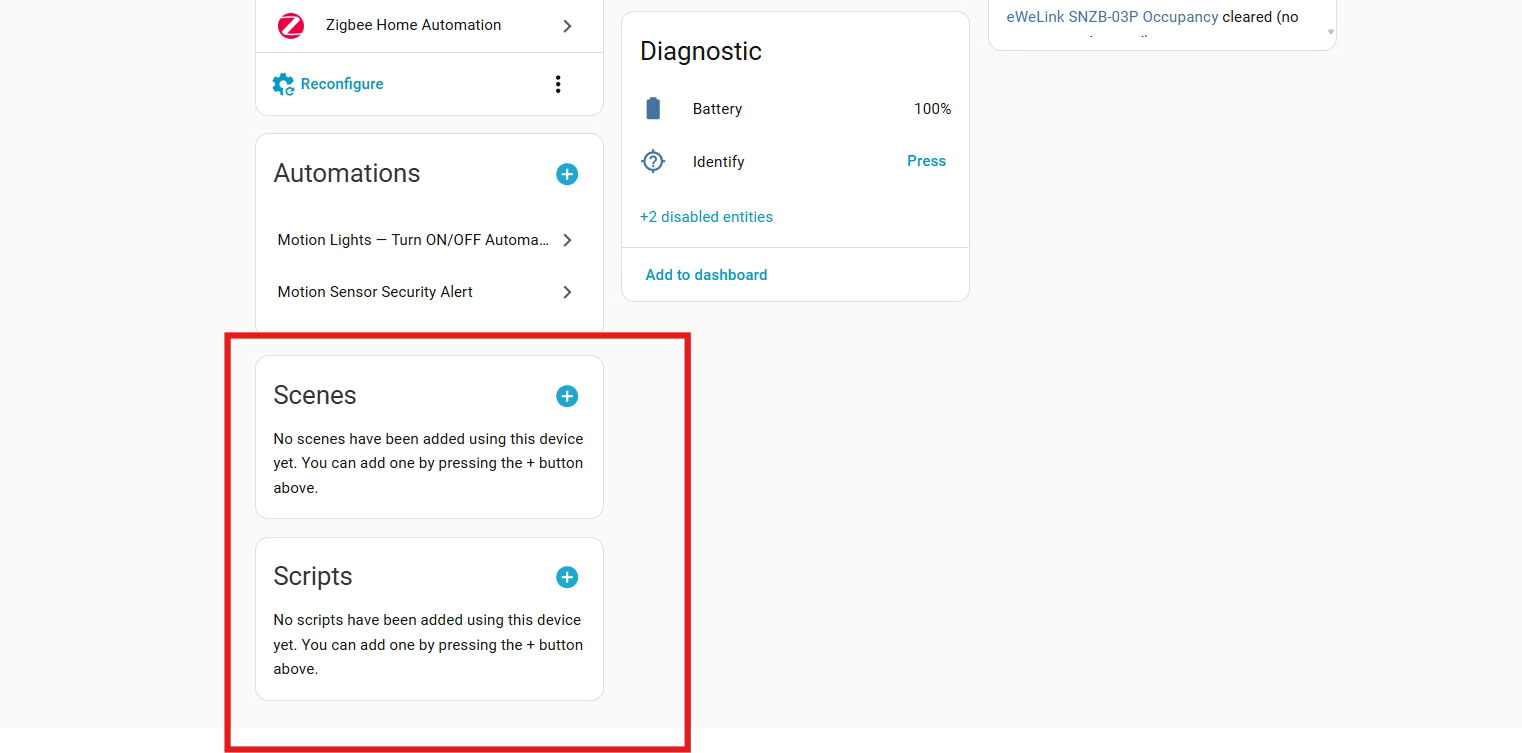
Scenes and scripts
A scene sets a group of devices to specified states. Use “+” to create a scene for activation when the sensor detects your presence.
Scripts provide reusable action sequences that can run manually or be called by automations. Add one with the “+” button.
| I want to... | Go to... |
|---|---|
| Check if someone is home | Sensors |
| Check the battery level | Diagnostic |
| See why the automation didn't fire | Activity |
| Edit my motion light rules | Automations |
| Find out if the sensor is online | Last seen (in Device Info) |
| Figure out which physical sensor this is | Identify → Press (in Diagnostic) |
Create motion-triggered automations
Turn lights on with movement and off after two minutes
Use two automations: one turns a light on when motion starts, and the other switches it off after no motion has been detected for 2 minutes.
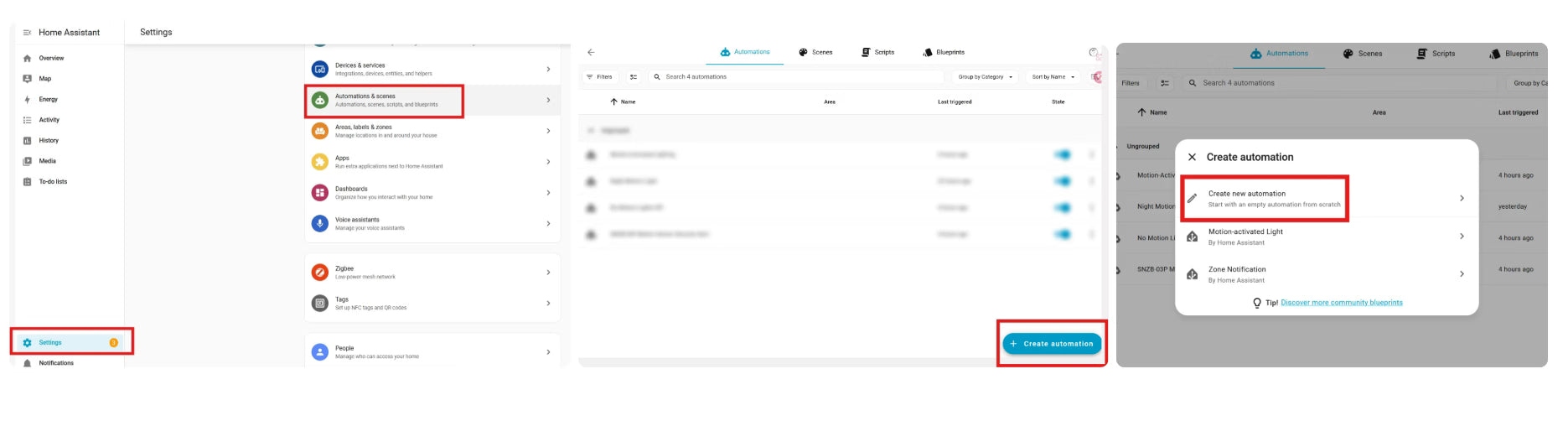
- Open Settings > Automations & Scenes > Create Automation > Create New Automation.
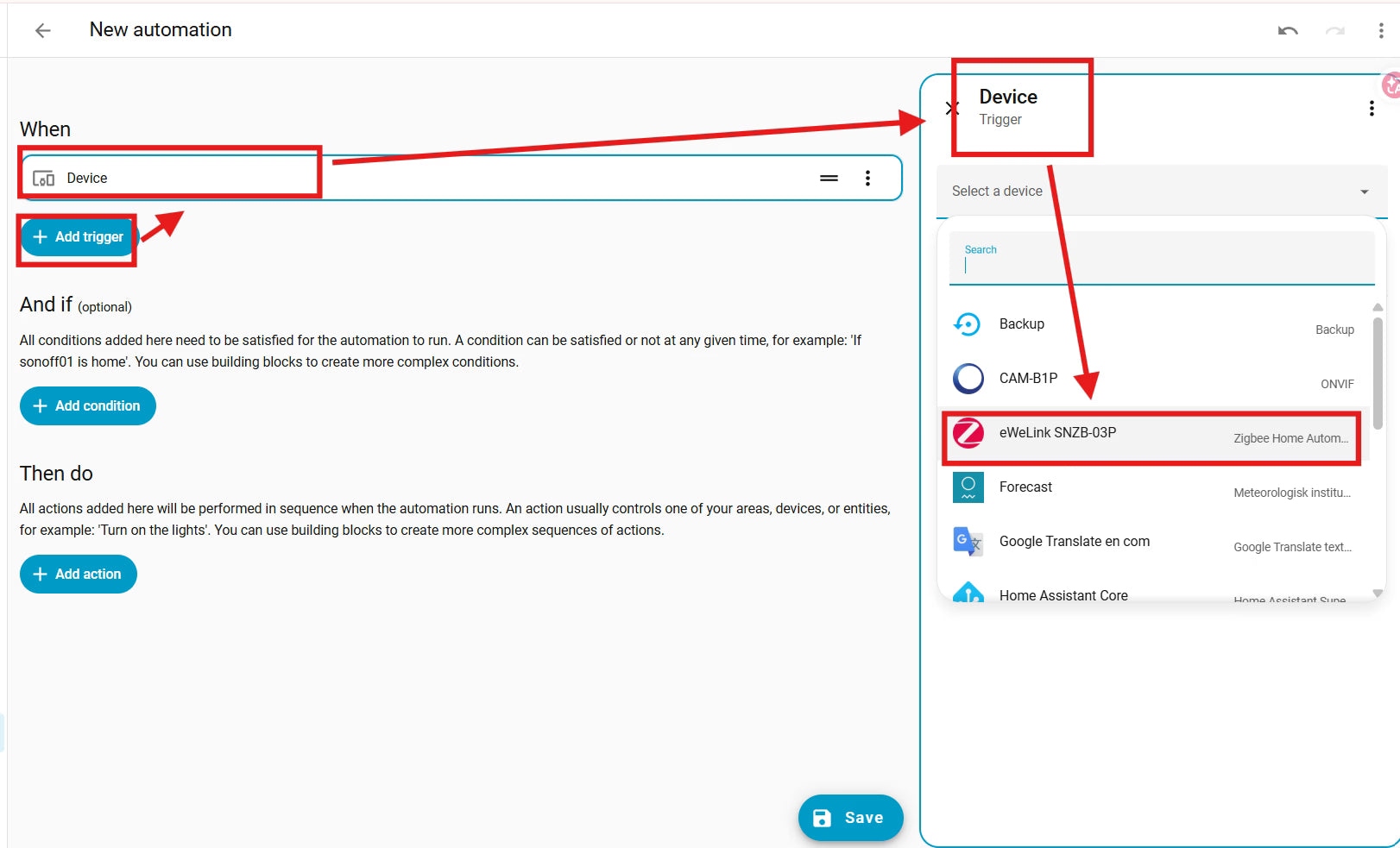
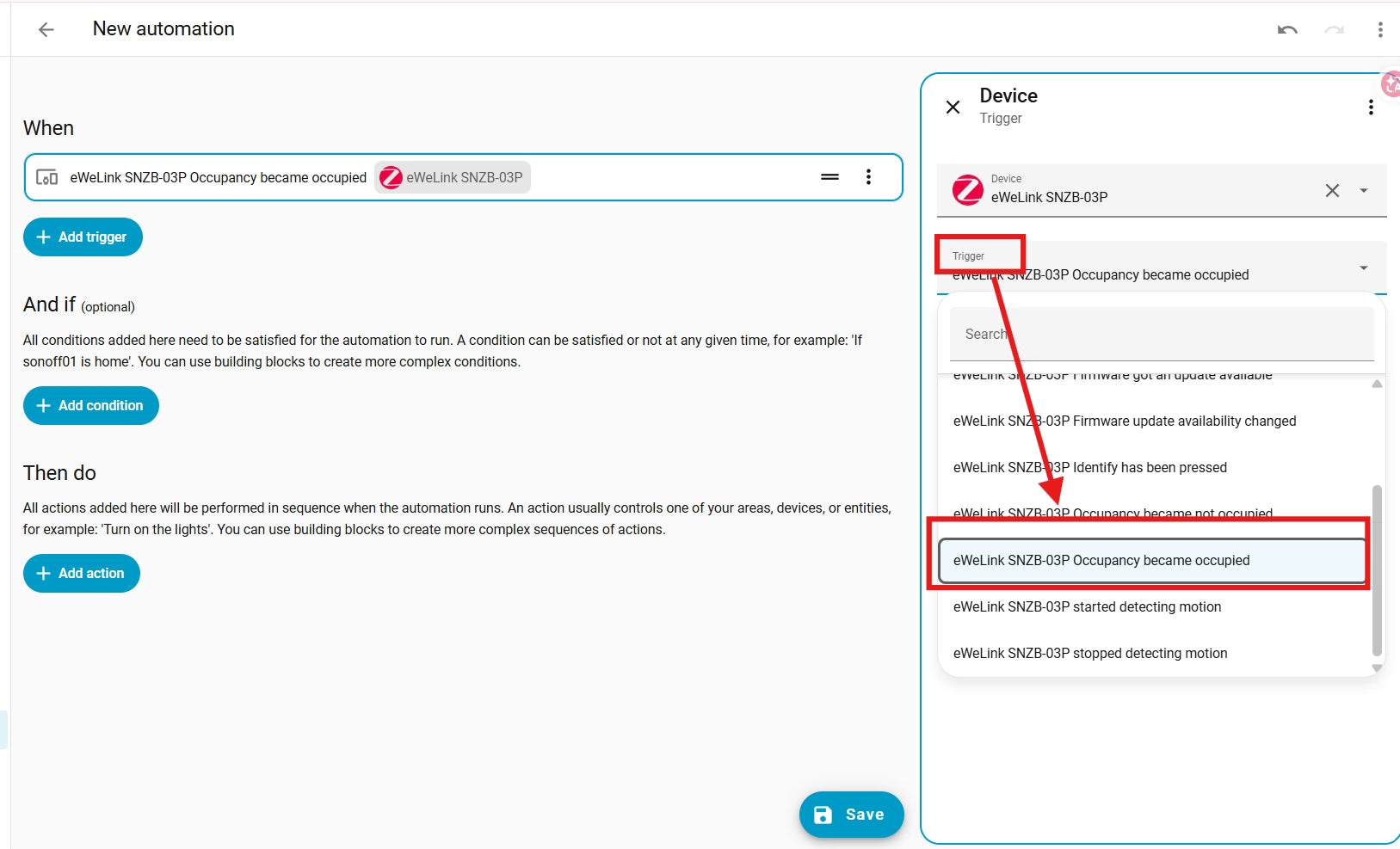
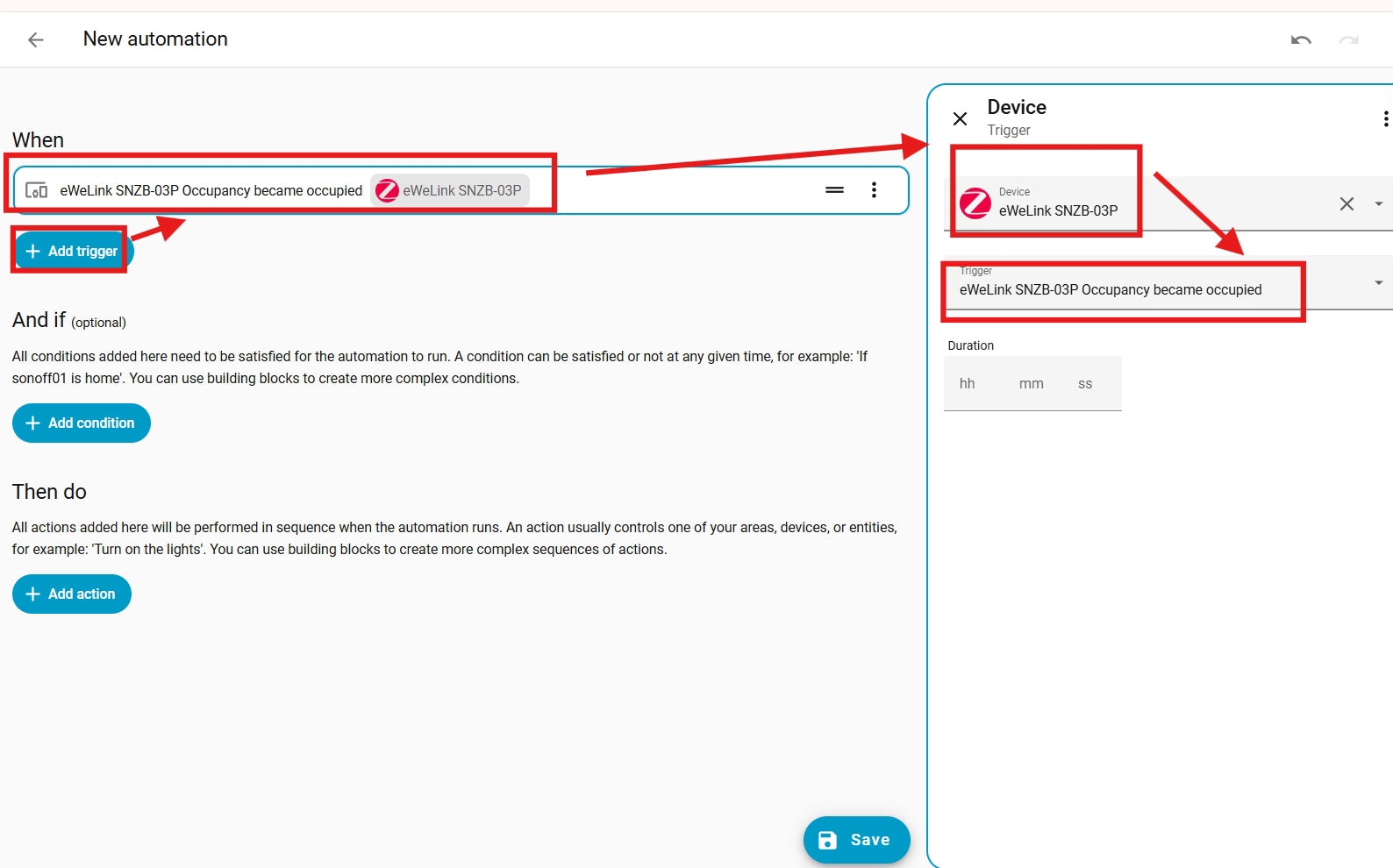
- Choose Add Trigger > Device, select your motion sensor, such as eWeLink SNZB-03P, and set the trigger to “became occupied” or “started detecting motion”, depending on the brand.
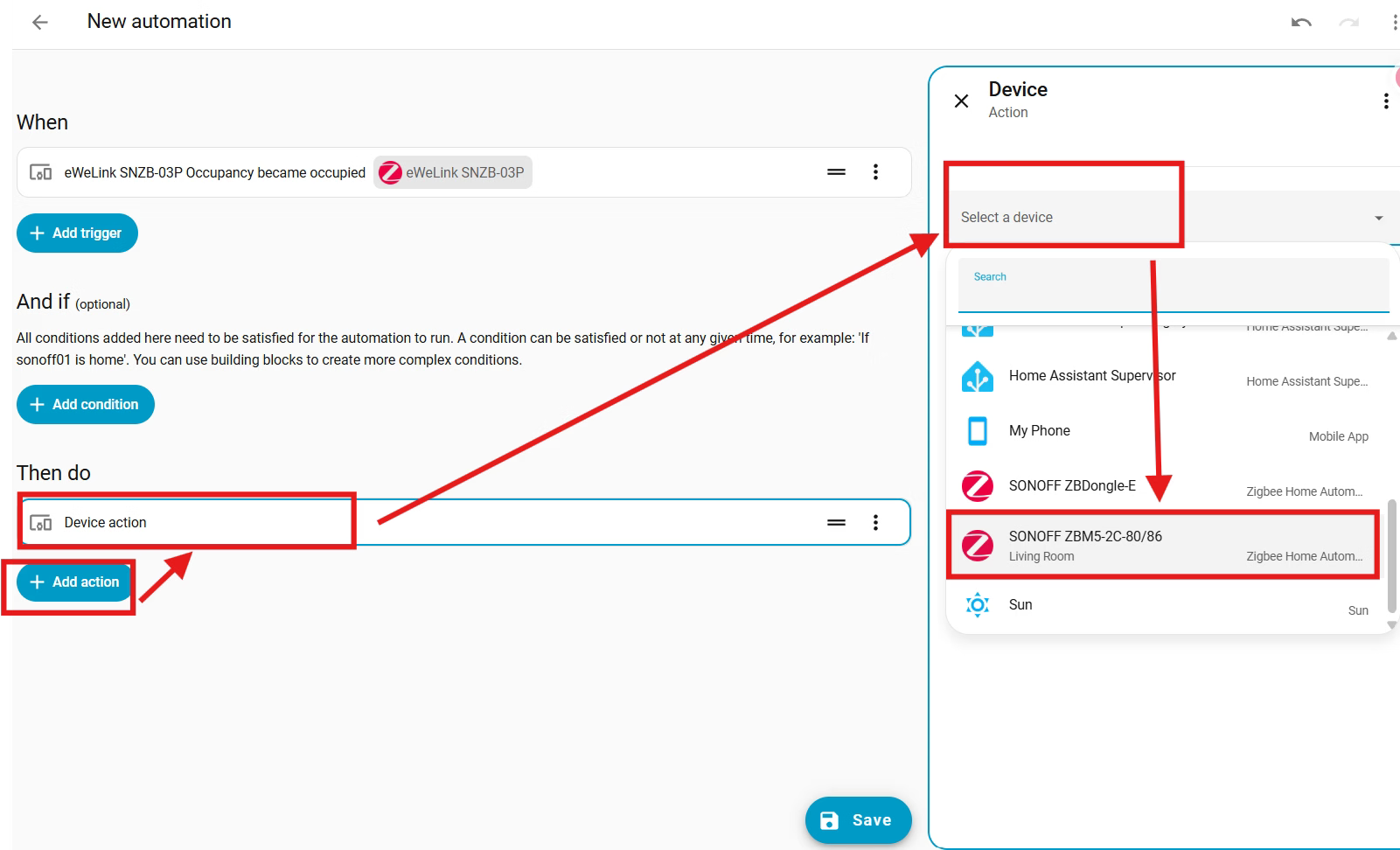
- Choose Add action > Device. Select the smart light or the switch controlling it, such as SONOFF ZBM5 smart wall switch, and set Action: Turn on.
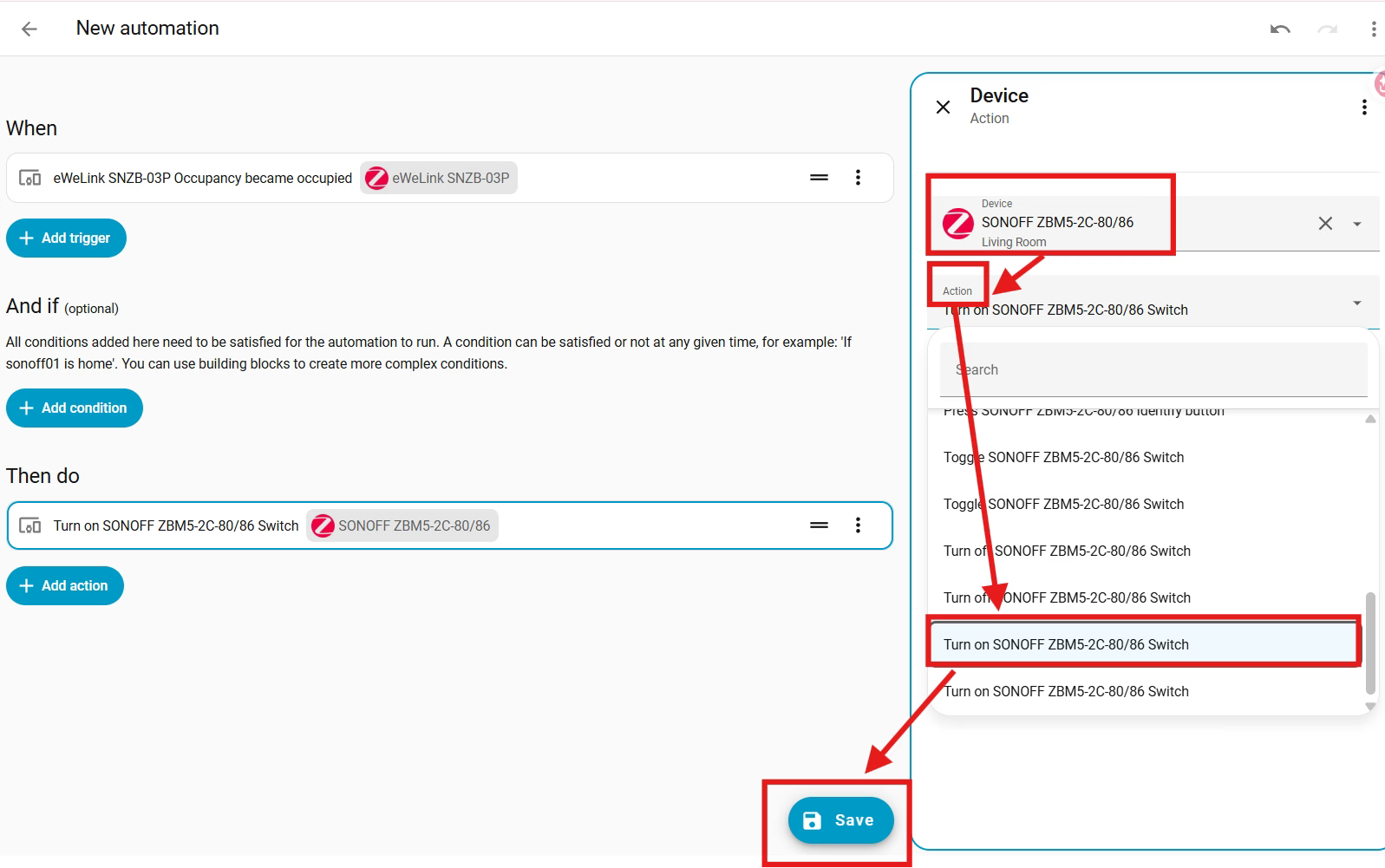
Next, create the off automation:
- Choose Add trigger > Device, select the motion sensor, and use “became not occupied” or “stopped detecting motion”.
- Set the duration to 00:02:00 (2 minutes), or adjust it to your preference.
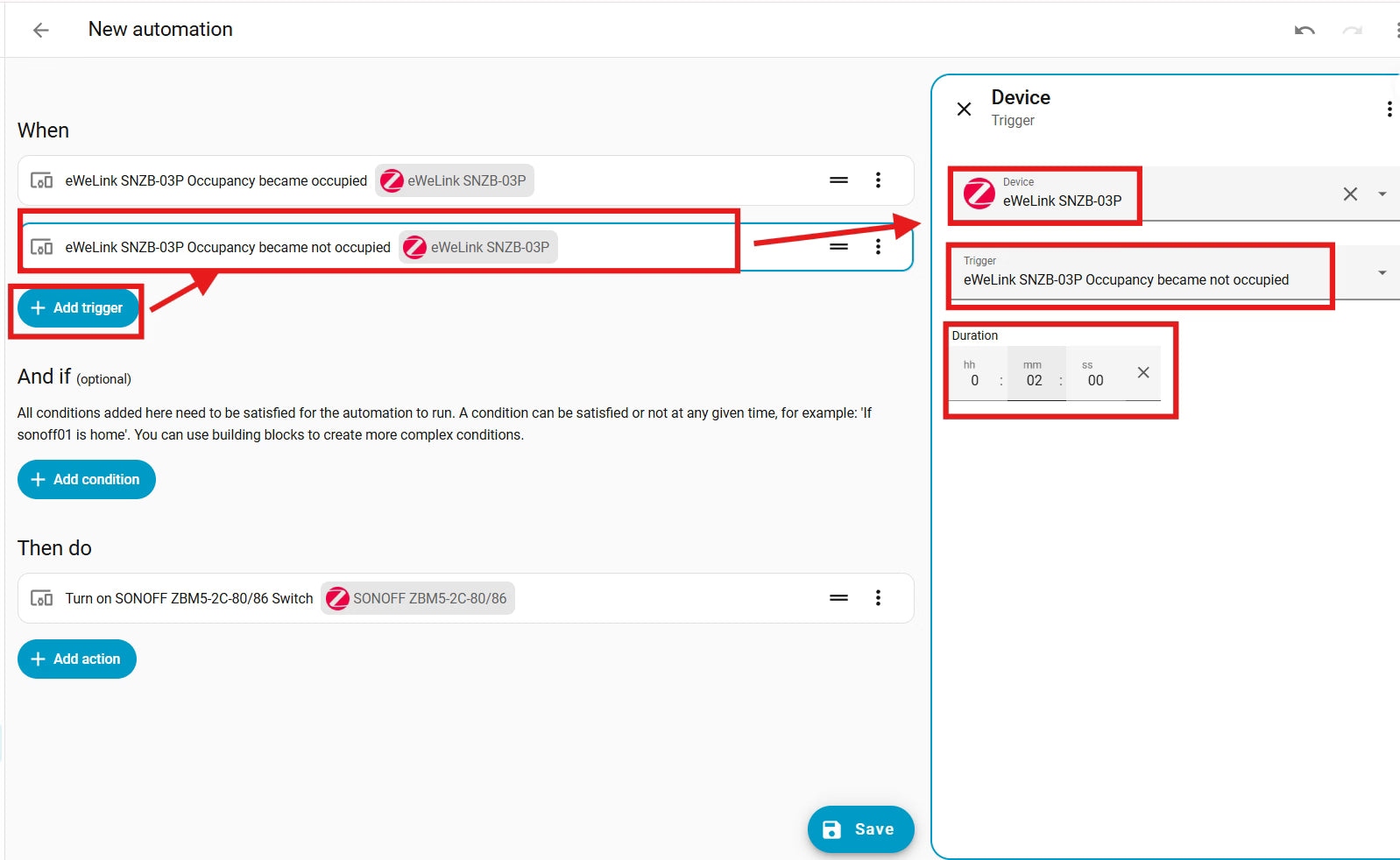
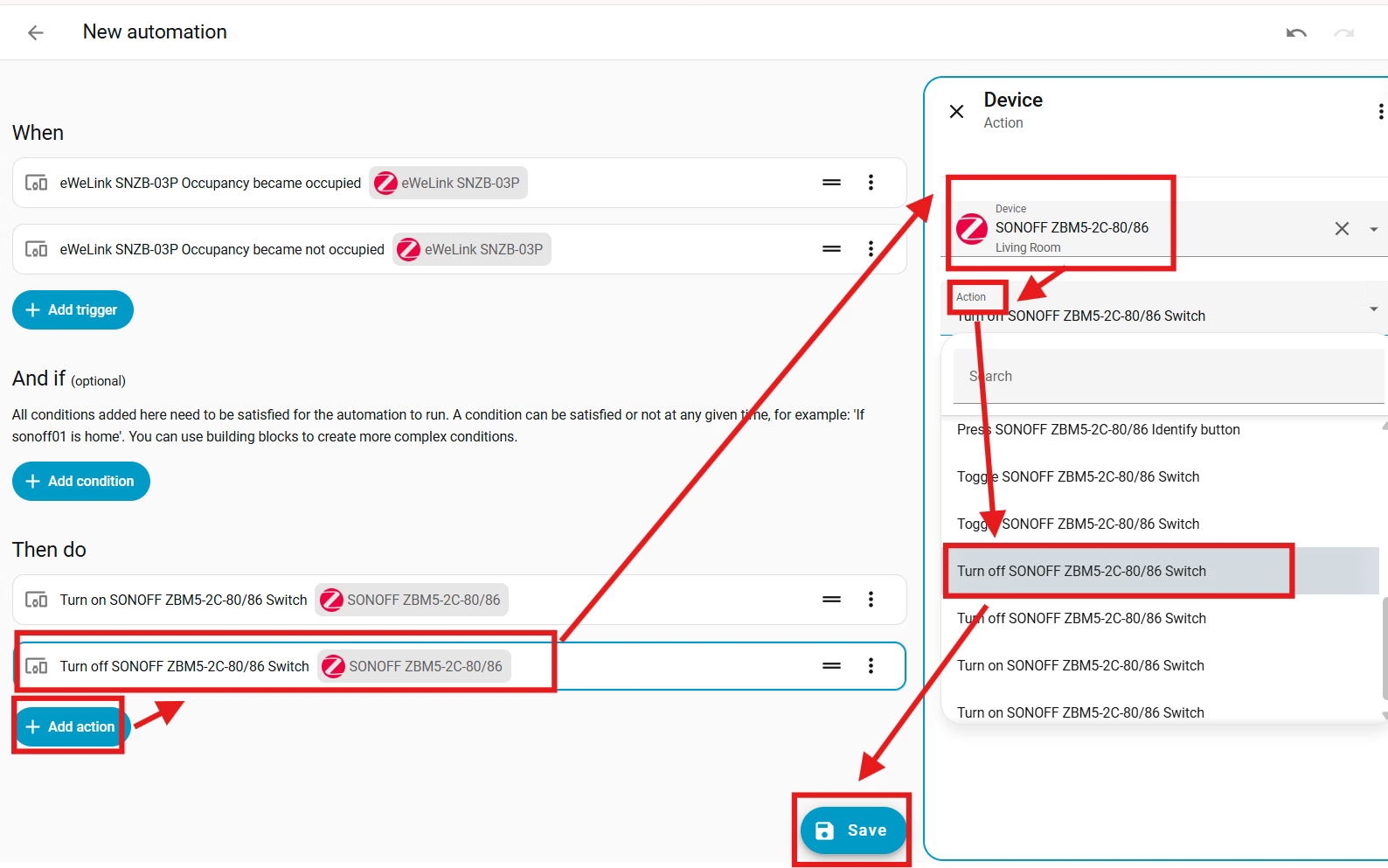
- Add an action through Device, select the light or its controlling switch, and choose Action: Turn off.
- Click Save and give the automations descriptive names, such as “Motion Lights —Turn ON/OFF Automatically”.
Capture a camera snapshot and send an alert
For a security scenario while you are away, motion can trigger a camera snapshot and a phone notification. The camera must already be integrated into Home Assistant.
- Open Settings > Automations & Scenes > Create Automation > Create New Automation.
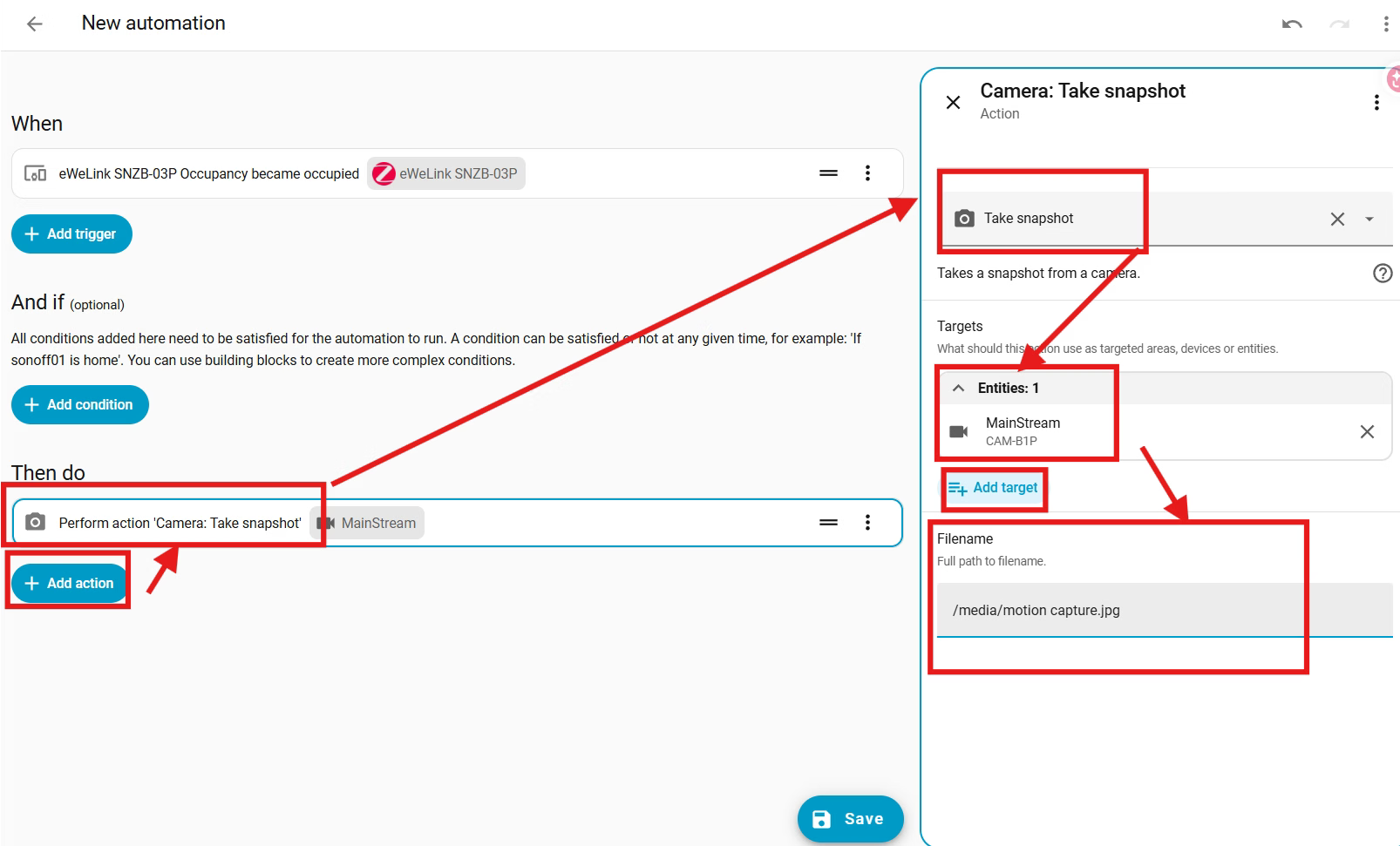
- Choose Add trigger > Device, select the sensor, and use “Motion became occupied”.
- Select Add action > Perform action > Camera: Take snapshot. Under Targets: choose entity, select your camera, then set Filename.
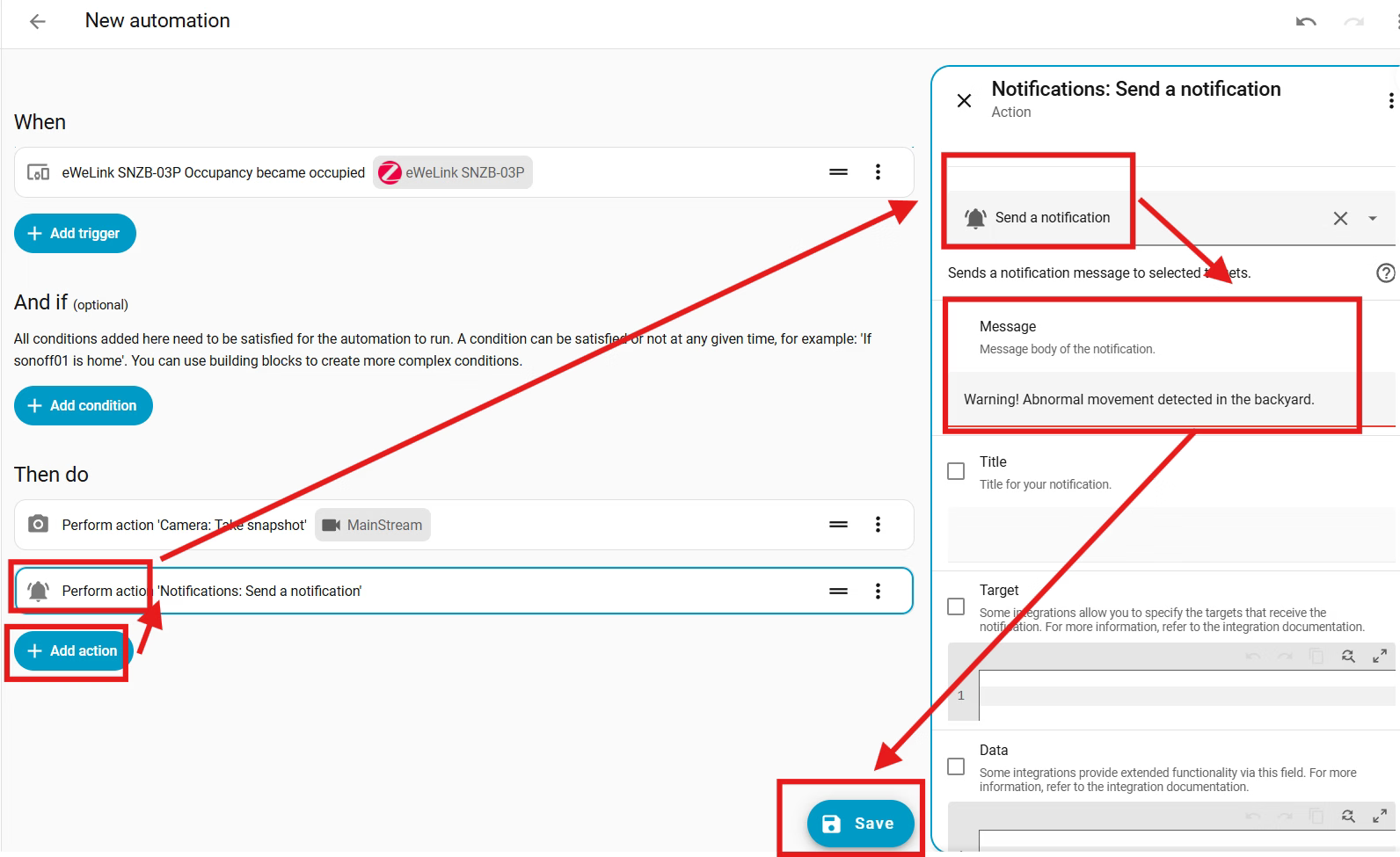
- Choose Add action again > Perform action > Notifications: Send a notification. Enter the Message, for example, “Warning! Abnormal movement detected in the backyard.”
- Save and name the automation, for example, “Motion Sensor Security Alert”.
- Test by approaching the sensor and waving a hand. Your phone should receive an immediate alert, and the snapshot should be available at the specified file path.
What makes motion automations responsive?
Slow or inconsistent operation often comes from the sensor rather than the automation logic. Detection speed, reset time and reliable local reporting all matter.
- Short cooldown: Many sensors lock out retriggering for 60–150 seconds, so a return trip through a hallway may not activate the lights. Around 5–10 seconds is better suited to responsive lighting.
- Stable communication: Disconnections and missed reports make automations unpredictable. A dependable connection keeps state updates consistent.
- Low maintenance and suitable coverage: Efficient sensors can provide 2–3 years of battery life. Broad coverage reduces blind spots, while magnetic mounts and adjustable angles help position the sensor effectively.
SONOFF SNZB-03P features
The SONOFF SNZB-03P is a low-power Zigbee 3.0 PIR motion sensor for real-time movement detection. Compared with traditional PIR sensors, it combines a short adjustable cooldown, local control, long battery life and flexible mounting.
- Adjustable reset: Supports 5–60 seconds rather than the 60s+ cooldown common on other sensors. The default is 60 seconds; reaching 5 seconds requires manual adjustment. Short resets suit hallways, corridors, stairs and entrances, allowing responsive lighting and energy savings.
- Local integration: Works with ZHA and Zigbee2MQTT, sending fast state updates directly to Home Assistant without cloud dependency or latency. It uses Zigbee, not Wi-Fi, and supports a local, low-latency network with Zigbee 3.0 interoperability.
- Battery life: Its high-capacity CR2477 battery provides over 3 years of operation under normal usage.
- Placement flexibility: The magnetic base rotates 360° and allows over 90° of angle adjustment for aiming away from pets or heat sources. Installation options include 3M adhesive, screws, desktop placement and direct attachment to metal.
- Coverage: A 110° field of view and approximately 6-meter (20ft) detection range let one sensor cover a medium-to-large room and detect entry into the monitored zone.
A locally integrated Zigbee sensor avoids the lag and privacy risks associated with cloud-based alternatives. The SNZB-03P is an option for beginners seeking quick detection, a stable Zigbee 3.0 mesh connection, long battery life and adaptable installation.
Troubleshooting and integration choices
Why is motion-triggered lighting slow?
Common causes are cloud dependency, a weak Zigbee connection and slow sensor reporting. Switching to a local coordinator, such as SONOFF Zigbee 3.0 USB Dongle Plus-P / -E, Dongle Plus MG2 or Dongle-LMG21, instead of a cloud route is the most common fix and brings response time below a second.
Next, ensure enough mains-powered Zigbee devices are nearby to strengthen network reliability, and choose a sensor with fast state reporting. The SNZB-03P combines local operation, Zigbee 3.0 connectivity and quick reports to keep detection-to-lighting delays low.
Why do lights turn off while someone is still there?
Most PIR sensors have a 60–90 second cooldown. With little or no movement during that interval, the sensor can return to “no motion” and trigger the lights to switch off. A short, configurable cooldown helps: the SNZB-03P can reset after 5 seconds and retrigger when movement resumes.
For stationary activities such as bathroom use, reading or office work, consider adding a presence sensor such as the SNZB-06P Zigbee human presence sensor.
Will it work without Wi-Fi?
Yes. Zigbee sensors such as the SNZB-03P communicate with a Zigbee coordinator rather than Wi-Fi. Their automations continue during a Wi-Fi outage as long as Home Assistant and the Zigbee network remain active.
How can false triggers be reduced?
Pets, heat vents and unsuitable placement are typical causes.
- Pets: Tilt an adjustable mount, such as the SNZB-03P’s 360° mount, slightly upward so detection begins above the pet’s height.
- Heat and placement: Avoid aiming at windows or HVAC outlets. PIR sensors detect changes in infrared heat, so sudden warm airflow can activate them.
Should you choose ZHA or Zigbee2MQTT?
- ZHA: The simpler beginner option, built into Home Assistant and reliable with most motion sensors.
- Zigbee2MQTT: Offers broader device support, deeper customization and more control, but requires a separate MQTT broker and a more involved setup.
Start with ZHA, then consider Zigbee2MQTT if advanced configuration or parameter customization becomes necessary. For more detail, see “ZHA vs. Zigbee2MQTT: The Best Zigbee Integration for Home Assistant?”
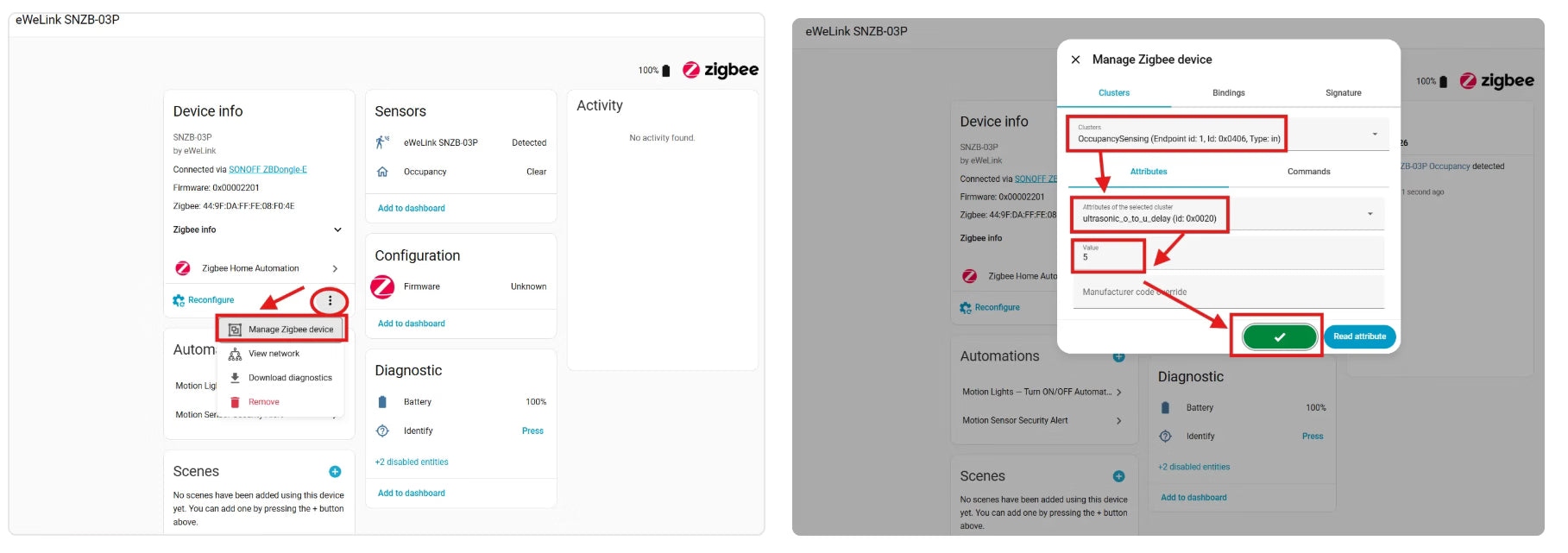
Adjust the SNZB-03P cooldown in ZHA
The default cooldown is 60 seconds. To reduce it to as little as 5 seconds:
- Open the SNZB-03P device page and click “Manage Zigbee device”.
- In Clusters, select “OccupancySensing (Endpoint 1, ID: 0x0406, Type: in)”.
- Select “ultrasonic_o_to_u_delay (id: 0x0020)”, which controls reset/cooldown time.
- Enter a value between 5–60 seconds. Use 60 for the default cooldown or 5–10 for fast response, recommended for lighting automations.
- Click “Write attribute” and wait for configuration to complete.
- Briefly press the SNZB-03P button to wake it.
- A ✅ indicates that the setting was applied successfully.