Presence detection versus motion detection
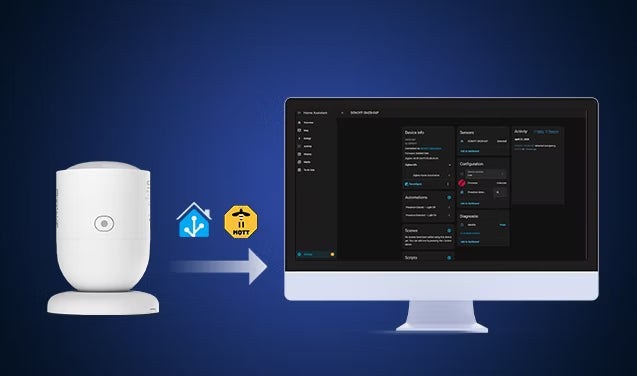
Microwave presence sensors detect small movements, including breathing and posture changes, allowing them to recognize someone who appears still. Home Assistant brings sensors and lights from different brands into one locally controlled system, enabling responsive, cross-brand automations.
PIR motion sensors detect changes in infrared radiation as someone moves. They work well for detecting entry, but may stop registering a person who sits still. Radar presence sensors detect both movement and static occupancy.
- Use motion detection to switch lights on promptly.
- Use presence detection to keep lights on while a room remains occupied.
|
Feature |
Presence Sensor |
Motion Sensor |
|
Detection Principle |
Using Microwave Radar to detect moving objects |
Using Passive Infrared (PIR) to detect changes in infrared radiation |
|
Detection Objects |
|
|
|
Motion Detection |
✅ Yes |
✅Yes |
|
Stationary Detection: |
✅ Yes |
❌ No |
|
Power Requirements |
Almost USB-C power supply |
Usually battery-powered (low power) |
|
Heat/Light Source Effect |
❌ Not affected |
✅ Easily affected by heat and light sources |
|
Ambient Temperature Effect |
❌ Not affected by temperature |
✅ Sensitivity decreases when the ambient temperature is close to human body temperature |
|
Penetration Ability |
Penetrates most non-metallic materials, such as drywall, wood, glass, fabric, and plastic. |
Only penetrates some transparent plastics or specific types of glass. |
|
Best For |
Stationary areas, such as offices, living rooms, bathrooms, bedrooms, and other scenarios, where you might stay for a long time without making large movements. |
Transitional areas, such as entrances, hallways, stairs, and other scenarios where you enter and leave quickly |
Neither sensor type is universally better. Combining them provides an immediate motion trigger and continued occupancy detection. The Home Assistant motion sensor setup guide covers adding motion sensors.
Choosing a presence sensor
Prioritize local integration, genuine static presence detection, configurable timeout, and sensitivity, range, and angle adjustments.
| Factor | Selection criteria |
|---|---|
| Protocol | Zigbee provides local control, fast responses, low power consumption, and stability. Z-Wave is reliable but costs more. Wi-Fi needs no hub, but many implementations depend on cloud services, potentially increasing latency and power use. |
| Home Assistant support | Check for ZHA and/or Zigbee2MQTT compatibility. Unsupported devices may pair without exposing all entities, or may not work. |
| Static presence | Choose a sensor that detects someone sitting still; otherwise, it effectively behaves like a motion sensor. |
| Sensitivity | Multiple levels, such as Low / Medium / High, help limit false triggers from pets, reflections, and adjoining rooms. |
| Range and angle | Look for adjustable range, ideally 2–4m, suited to the room. Longer range is not always preferable. A wider adjustable field of view covers more space but may increase false positives. |
| Timeout | A configurable 15–60s reset/cooldown/occupancy timeout balances responsiveness and accuracy. Longer settings help prevent false clears from brief environmental movements. Avoid fixed timeouts. |
| Power | Microwave sensing needs continuous power because of its energy demands. Prefer stable USB‑C/DC power. Battery power applies only to hybrid PIR+Microwave radar sensors and is not recommended for always-on rooms where it may be insufficient. |
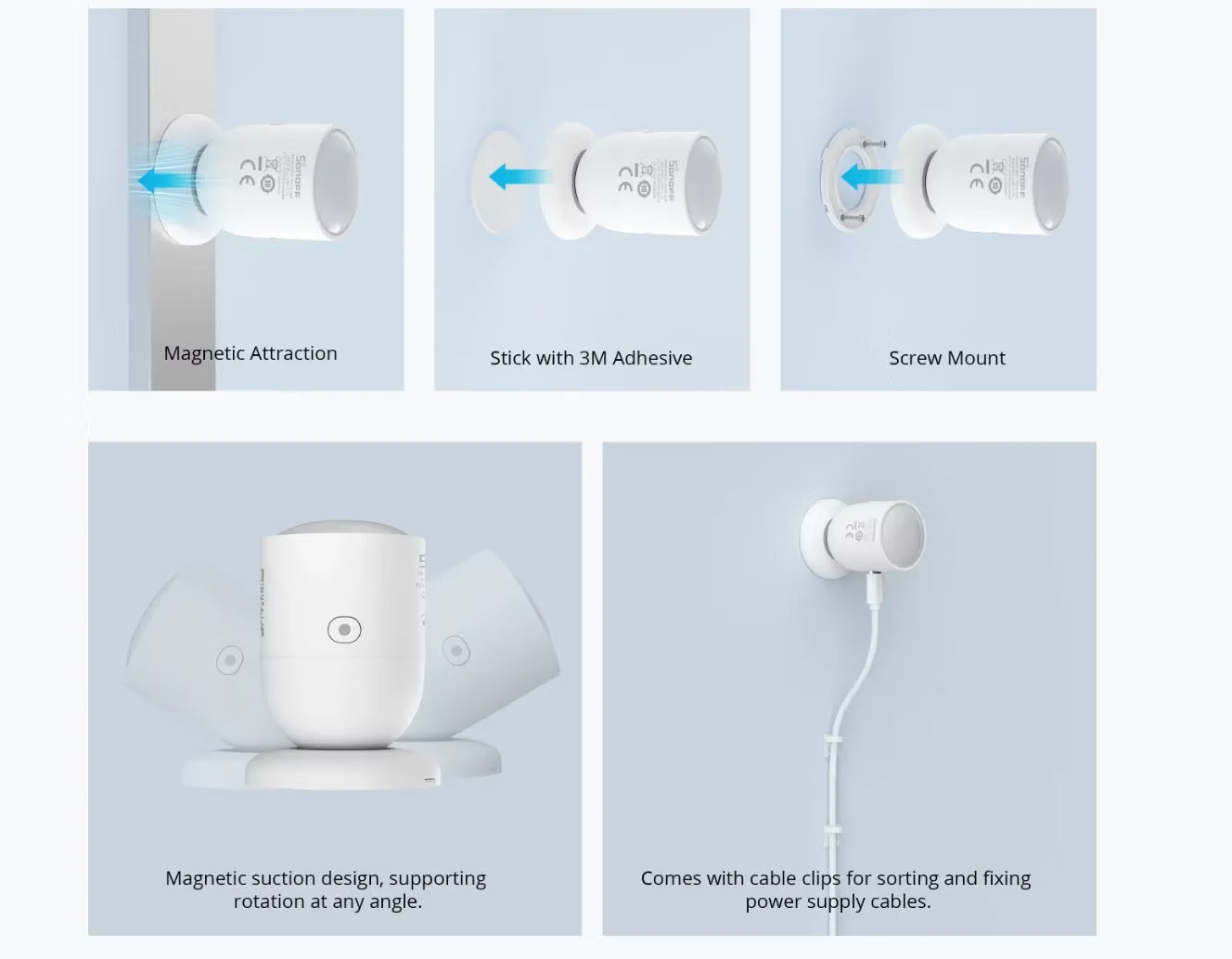
| Mounting | Rotating magnetic mounts help adjust coverage and avoid blind spots; 3M adhesive offers rental-friendly, no-drill installation; screws provide a secure permanent mount. |
Prepare Home Assistant and ZHA
The two main Zigbee integration options are ZHA (Zigbee Home Automation) and Zigbee2MQTT (Z2M). The procedure here uses ZHA because it is built into Home Assistant and requires no additional software, making it approachable for beginners.
The example device is the SONOFF SNZB-06P Zigbee Human Presence Sensor. Before starting, have:
- A running Home Assistant installation.
- A computer or Raspberry Pi.
- A Zigbee presence sensor, such as SONOFF Zigbee Human Presence Sensor | SNZB-06P.
- A Zigbee coordinator, such as SONOFF Zigbee 3.0 USB Dongle | ZBDongle-P/ZBDongle-E, PoE Dongle | Dongle-M, Dongle Plus MG24, or Dongle-LMG21.
- A USB power adapter (5V/1A) for the SNZB-06P.
- Connect the coordinator to the computer or Raspberry Pi. A short USB extension cable is recommended to reduce interference from nearby electronics.
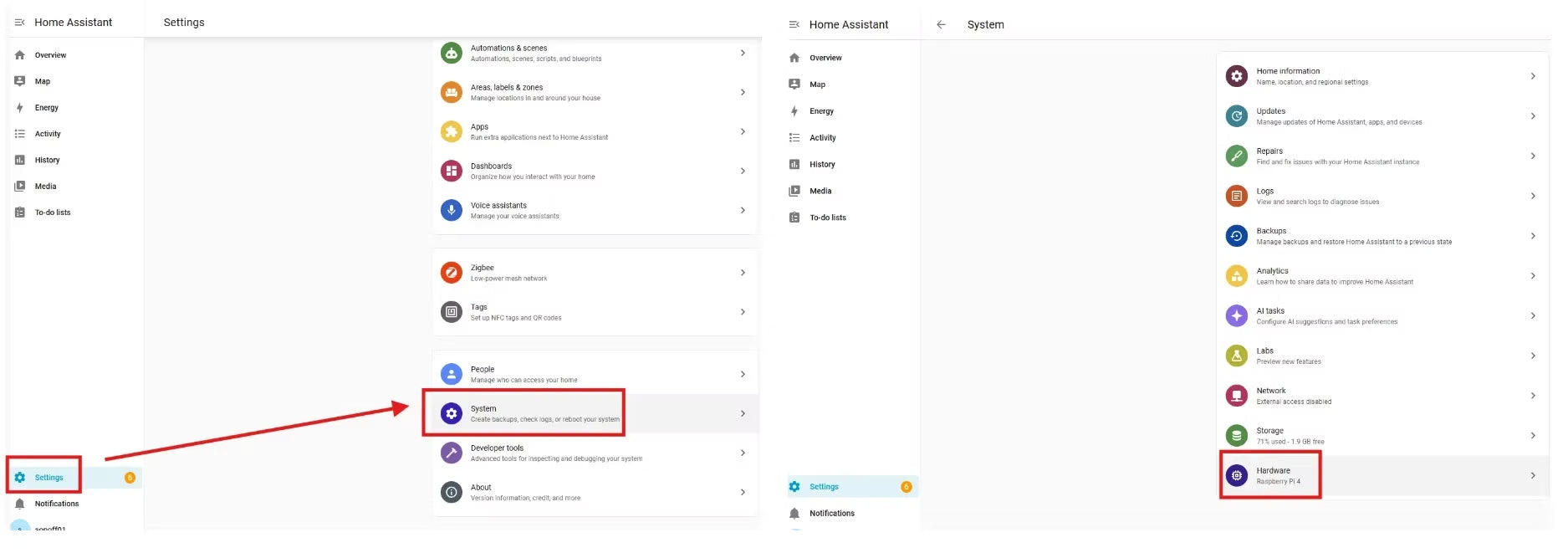
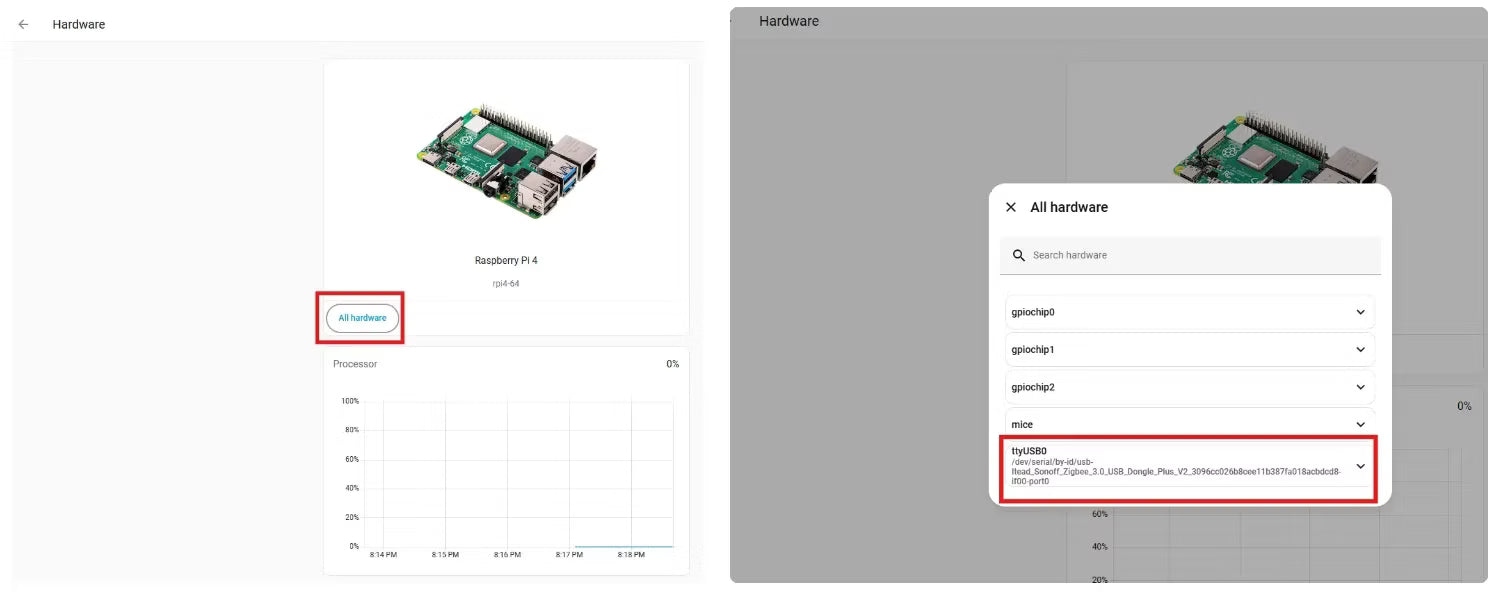
- Open Settings > System > Hardware > All Hardware and confirm that the coordinator is detected.
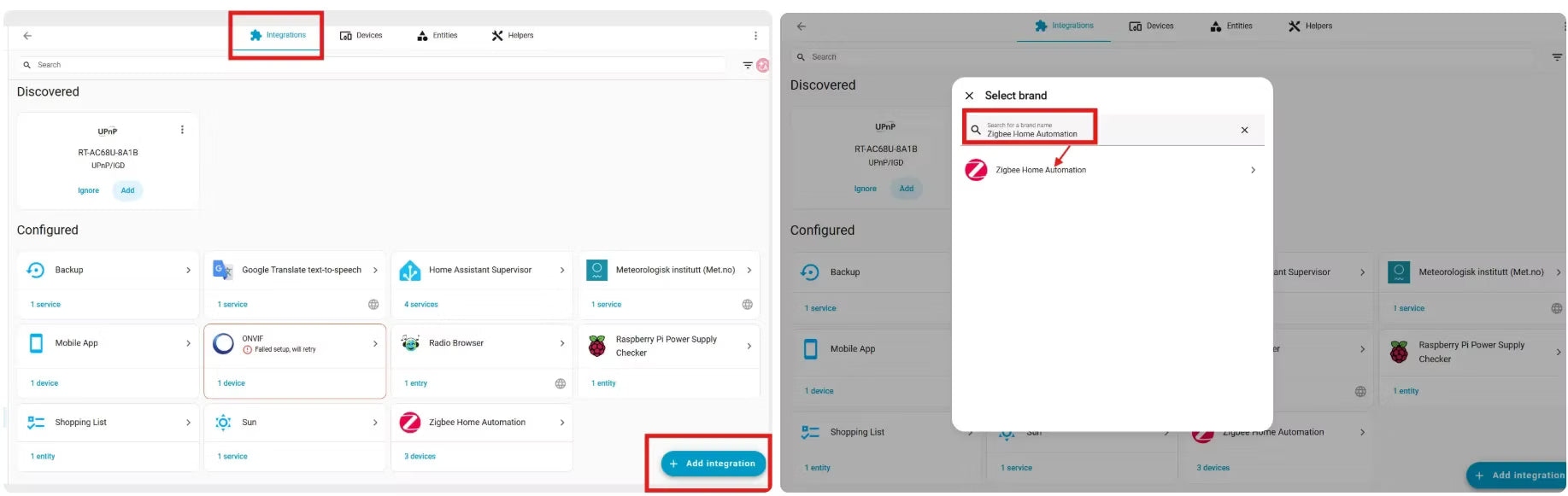
- Go to Settings > Devices & Services, click "Add Integration", and search for Zigbee Home Automation (ZHA). Follow the serial-port configuration prompts.
For further hardware and initial ZHA configuration details, consult Home Assistant Motion Sensor: Zigbee Integration & Automation Setup Guide 2026.
Pair the SNZB-06P
- Connect the sensor to USB power using its included Type-C cable.
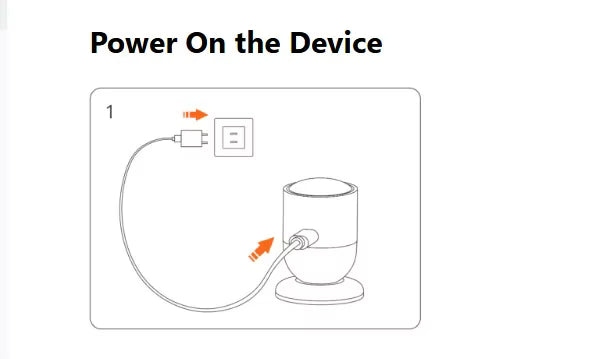
- Hold the side button for 5 seconds, then release it when the red LED starts flashing slowly and continuously. Complete ZHA pairing within 180 seconds. A new SNZB-06P enters pairing mode automatically at power-up; use the manual button press if its LED is not flashing. If pairing fails, bring it within 1–2 meters of the coordinator and retry. Move it to its intended location after pairing succeeds.
- Open Settings > Devices & Services > ZHA > Add devices. Wait for discovery, then rename the sensor and assign an area, such as the living room, kitchen, or bedroom.
Check detection and device settings
- Go to Settings > Devices & Services > ZHA > Devices and select the SONOFF SNZB-06P.
- Open its device page to inspect status, activity, automations, device information, sensitivity, and presence detection timeout.
- Test detection. While you are in front of the sensor, the Sensors card should show "Detected". Check the Activity panel for the presence event recorded during pairing. Leave the room, wait for the Presence detection timeout (default: 60s), and verify that the dashboard changes to "Clear".
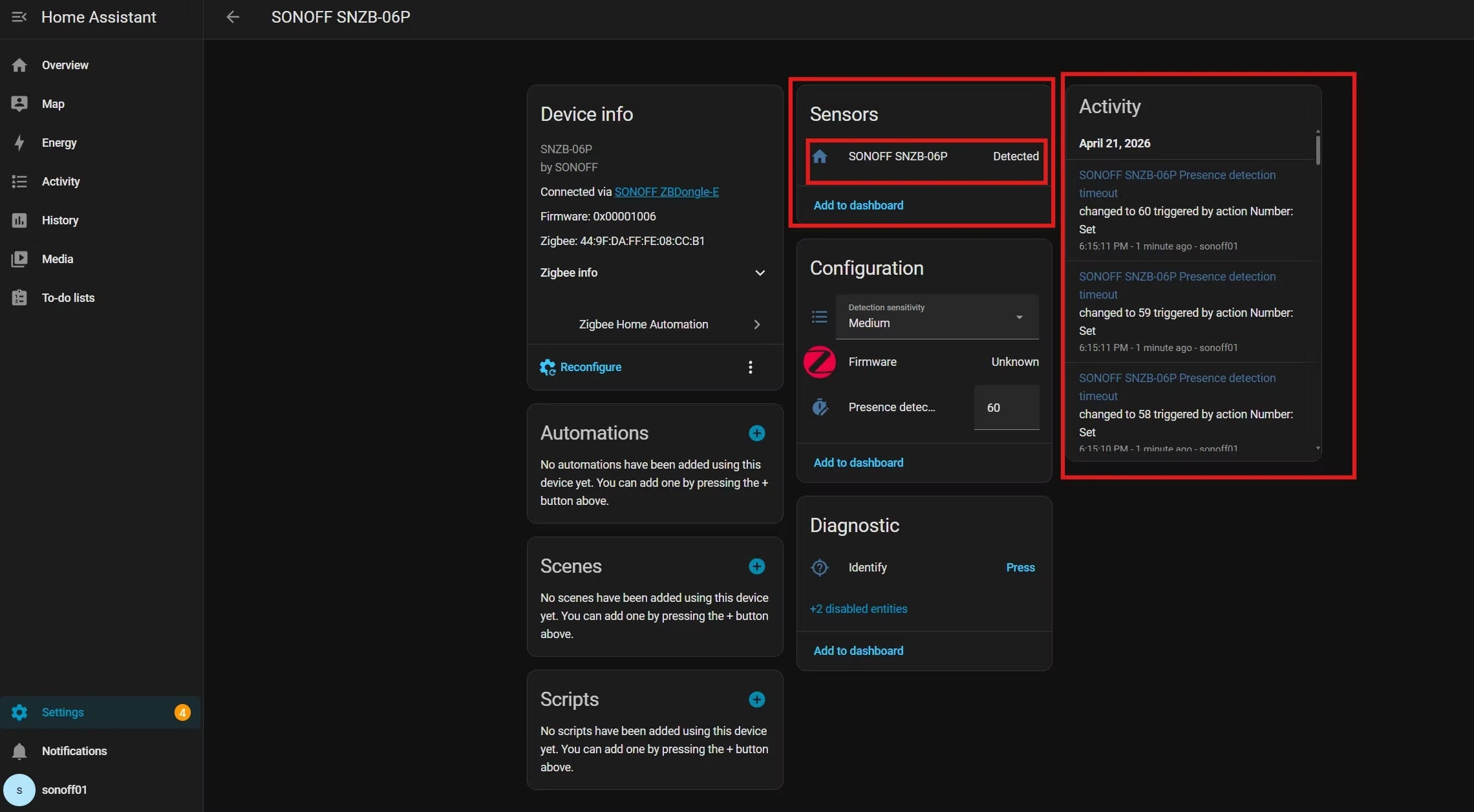
The mains-powered SNZB-06P has Device Type: Router. It relays Zigbee traffic for nearby battery-powered devices, helping strengthen the mesh.
- Sensors: "Detected" indicates occupancy; "Clear" indicates an empty room. This is the main entity for automations.
- Activity: Presence events and setting changes appear here. Check this history first when troubleshooting unexpected behavior.
- Detection Sensitivity: Low, Medium, and High are available; Medium is the default.
- Presence Detection Timeout: Adjustable from 15-60s, with a 60s default. Also called reset time, cooldown time, or detection duration, it controls how long the sensor waits after no movement is detected before reporting "Clear".
- Automations: The "+" icon creates a rule, such as switching a light on when presence is detected. Existing sensor automations are listed for review and editing.
Create automatic lighting rules
Presence-based lighting suits living rooms, bedrooms, offices, kitchens, toilets, restrooms, and other rooms with smart lights. Use one automation to turn lights on when occupancy is detected and another to turn them off after the room remains clear.
Turn the light on
This rule switches the light on when a person is detected, including someone sitting still, so it can remain on throughout occupancy.
- Open Settings > Automations & Scenes > Create Automation > Create New Automation.
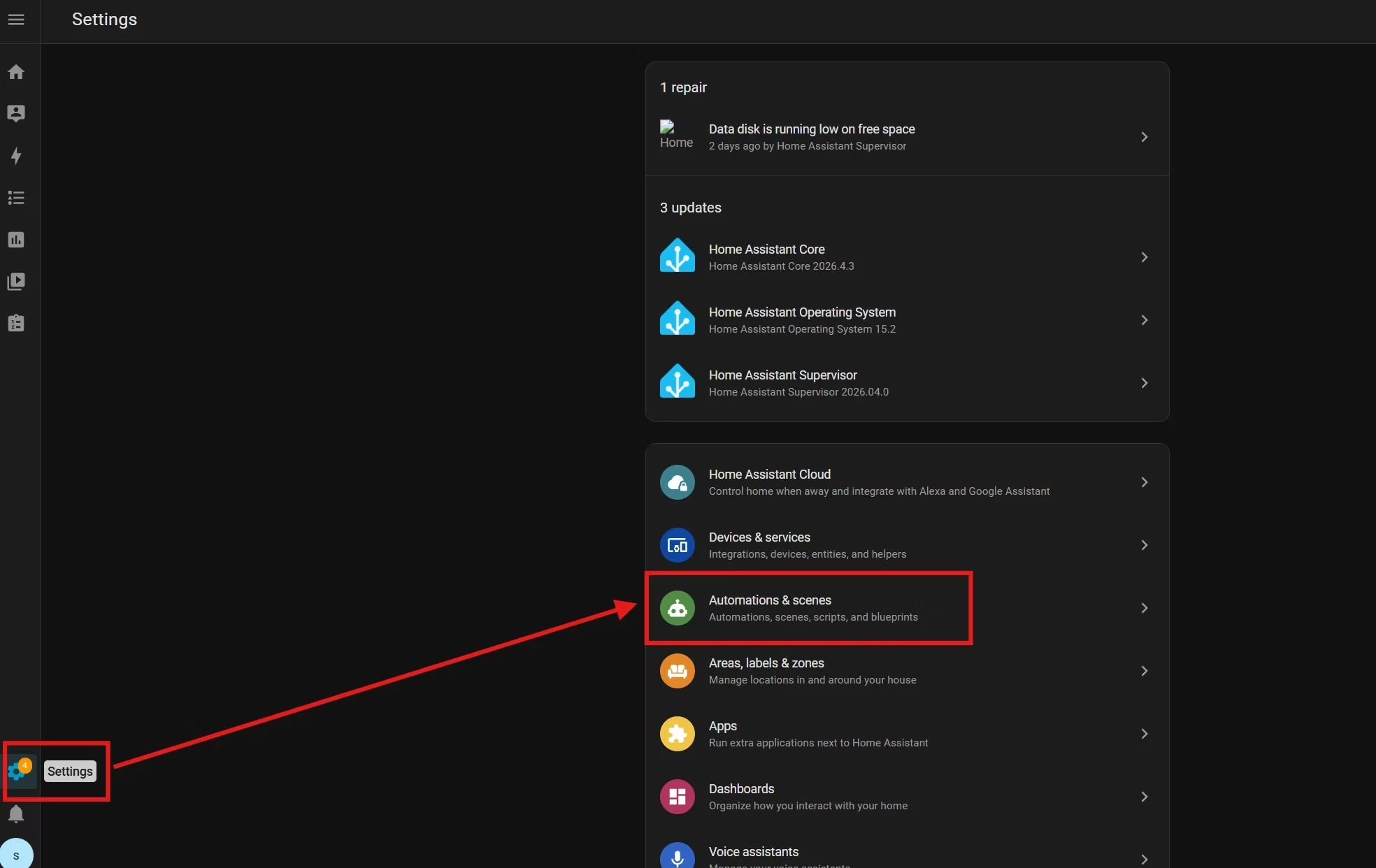
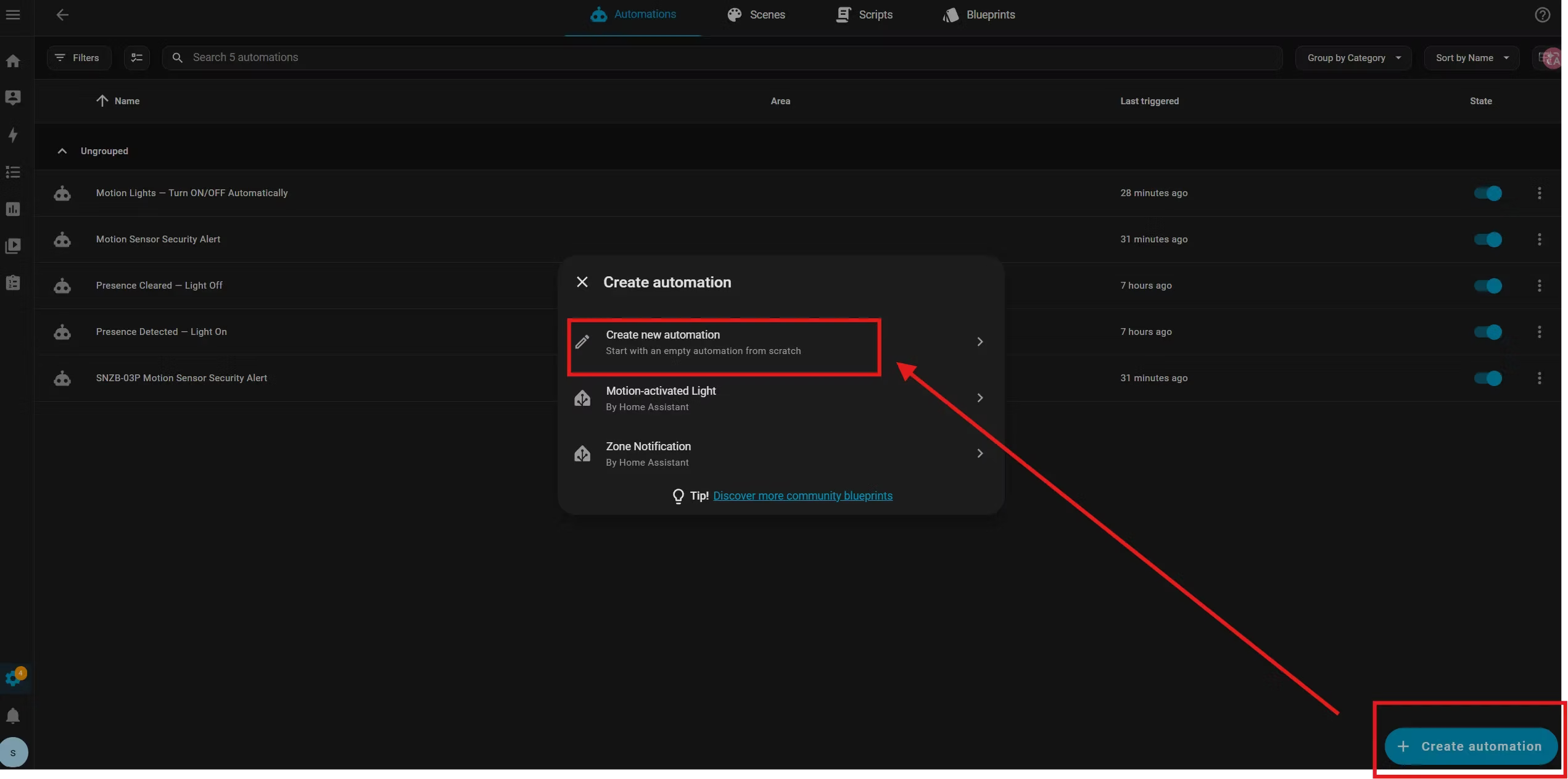 Alternatively, open SONOFF SNZB-06P Device Page, click the "+" icon in the Automations card, and select Create New Automation.
 - Click Add Trigger > Entity > State. For Entity, choose the presence sensor, such as SONOFF SNZB-06P. Set To (optional) to "Detected". Open the trigger's three-dot menu (⋮), choose Edit ID, and enter presence_on.
- Choose Add Condition > Triggered by, then select the Trigger ID presence_on.
- Choose Add action > Device. Find the light, usually the smart switch controlling it, and select Turn on the light.
- Click Save and name the automation, for example, "Presence Detected — Light On".
Turn the light off
The second rule waits until "Clear" persists for a chosen interval—such as 15s, 30s, or 1min—before switching the light off to save energy.
- Create another automation using the same navigation as above.
- Choose Add Trigger > Entity > State and select the presence sensor. Set To to "Clear". In For, enter 00:00:30, or another duration such as 00:01:00 for 1 minute. From the three-dot menu (⋮), choose Edit ID and enter presence_off.
- Choose Add Condition > Triggered by and select presence_off.
- Choose Add action > Device, select the light or its smart switch, and choose Turn off the light.
- Click Save and use a name such as "Presence Cleared — Light Off".
Features that support reliable automation
Four capabilities matter particularly for dependable occupancy-based lighting:
- Static detection: Radar should continue detecting someone sitting still, even during a 45-minute document review. Without this, the rule is motion-based rather than presence-aware.
- Configurable timeout: Adjust it in ZHA's Configuration tab or through the occupancy_timeout entity in Zigbee2MQTT. Too short a fixed timeout can switch lights off prematurely; too long wastes energy.
- Adjustable sensitivity: Match the environment to reduce ghost triggers and interference that leaves the sensor stuck on "Detected". Install it in an open area without moving obstructions.
- Continuous power: USB-C or DC power supports detection of moving and stationary occupants without battery-saving sleep modes or missed events.
SONOFF SNZB-06P capabilities
Listed at $17.90, the SONOFF SNZB-06P is a Zigbee 3.0 sensor combining static presence detection, configurable timeout, adjustable sensitivity and range, continuous USB-C power, and flexible mounting.
Its 5.8GHz microwave radar detects moving and stationary occupants, helping keep lights on while someone reads, watches TV, or rests, including while sitting or lying still.
Timeout and sensitivity
The Home Assistant timeout setting spans 15 to 60 seconds, defaulting to 60 seconds. A shorter interval can suit toilets or washrooms; a longer interval provides a buffer in living rooms, offices, or kitchens. Detection during the countdown resets the timer.
Sensitivity controls range as well as detection strength:
- Low: Up to 2.5m (8.2 feet).
- Medium, the default: Up to 3.5m (11.5 feet).
- High: Up to 4m (13 feet).
Try Low when false triggers occur, or High when subtle breathing is missed. Adjust to suit the room and limit unwanted detections.
Power, routing, and mounting
Continuous USB-C power supports 24/7 operation, while Zigbee router functionality helps improve mesh stability for nearby battery-powered sensors.
- Magnetic attachment: The base attaches to metal and offers nearly 180° of tilt for adjusting the detection angle.
- 3M adhesive: Attach the base to walls or other non-metallic surfaces without drilling, useful in rentals.
- Screws: Detach the base plate and secure it to a wall or ceiling for permanent installation.
- Desktop placement: Set it on a flat shelf or desk.
Troubleshooting and common questions
Why does the sensor remain on "Detected"?
Environmental interference with microwave signals is usually responsible, rather than hardware failure. Check these common causes:
- Reflective surfaces: Mirrors, glass, and glossy tiles reflect radar. The source describes resolving the issue immediately by turning the sensor away from a mirror.
- Moving objects: Ceiling fans, curtains, and HVAC airflow can mimic occupancy. Set sensitivity to Low or reposition the sensor away from them.
- Older firmware with a short timeout: Firmware below version 1.0.5 combined with a timeout below 30 seconds may leave the SNZB‑06P permanently on "Detected". Update to firmware 1.0.5 or later to resolve this and enable the effective 15-second minimum.
What causes ghost triggers?
The SNZB-06P's sensitivity and radar detection method can produce false triggers from:
- Running air conditioners, washing machines, or fans.
- Wind-blown curtains or plants.
- Air ducts, fire sprinkler pipes, or drainage pipes.
- Pets or robot vacuum cleaners.
- People or objects in adjoining rooms or outdoors, detected through walls.
- Reflections behind the sensor.
- Interference involving multiple people detected by different sensors.
Apply these adjustments in order:
- Identify and remove interference sources, or move the sensor away from them.
- Lower sensitivity.
- Increase the presence detection timeout.
- Keep multiple presence sensors at least 1.5 meters apart and avoid pointing them directly at one another.
- If interference remains, combine presence detection with a motion sensor, such as the SNOFF SNZB-03P Zigbee motion sensor. For example, switch on a lamp only when both motion and presence are detected.
How do you change the timeout?
- Open Settings → Devices & Services → ZHA → SNZB-06P device page → Configuration card.
- Adjust Presence detection timeout from 15 to 60 seconds; the default is 60 seconds.
Firmware caution: The effective 15-second minimum requires firmware 1.0.5 or later. A new presence detection during the countdown, such as shifting in a seat, resets the timer.
Does it use batteries?
No. The SNZB‑06P requires USB‑C power (5V, 1A). It operates continuously without battery-saving sleep modes or battery replacements.
Can it detect through walls?
To a degree. Its 5.8GHz radar can penetrate some non-metallic materials, including drywall, wood, glass, fabric, and plastic. Penetration varies with thickness, density, and environmental conditions.
Weak signals from neighboring spaces may therefore be detected through thin walls, particularly near shared walls or corners. This is a characteristic of microwave detection, not a fault. If it causes false occupancy readings:
- Reduce sensitivity.
- Point the sensor away from shared walls.
- Move it farther from reflective surfaces or thin barriers.
- Refine placement rather than relying solely on sensitivity.
Is the radar mmWave?
No. The SNZB-06P's 5.8GHz radar is cmWave (Centimeter Wave), not millimeter-wave. mmWave generally refers to frequencies above 30GHz and offers greater precision at higher cost and complexity. Both belong to the microwave category, with higher frequency providing higher detection precision.
For room-occupancy detection, including stationary occupants, the source considers 5.8GHz sufficient and more cost-effective than higher-frequency mmWave options.
Can it reliably detect someone under a heavy blanket?
Not reliably. Facing away from the sensor, wearing thick clothing, or using a heavy blanket can make chest movements too weak for dependable detection.

