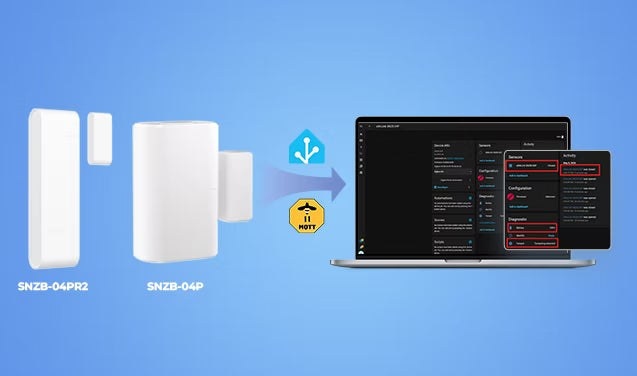
Combining a contact sensor with lights or switches from other brands can leave you juggling separate apps. Home Assistant brings those devices together in a free, open-source platform, allowing local automations to continue operating without an internet connection.
This 2026 guide covers choosing a Zigbee door/window sensor, connecting it through ZHA or Zigbee2MQTT, and creating practical automations.
Why choose Zigbee contact sensors?
Home Assistant supports several sensor protocols, including Wi-Fi, Z-Wave, Bluetooth, and Zigbee. Zigbee is a popular option when local operation, quick responses, low power use, and dependable connections matter.
- Local operation: ZHA and Zigbee2MQTT connect sensors directly to Home Assistant. Automations need no internet connection, and data stays private.
- Quick reporting: State changes usually arrive in under a second, typically providing lower latency than many cloud-dependent devices.
- Low battery consumption: Most Zigbee sensors last 1–2 years, with some models offering considerably longer life.
- Resilient networking: A self-healing Zigbee mesh operates independently of internet outages. Long-term stability depends on good channel planning and enough mains-powered Zigbee devices acting as routers.
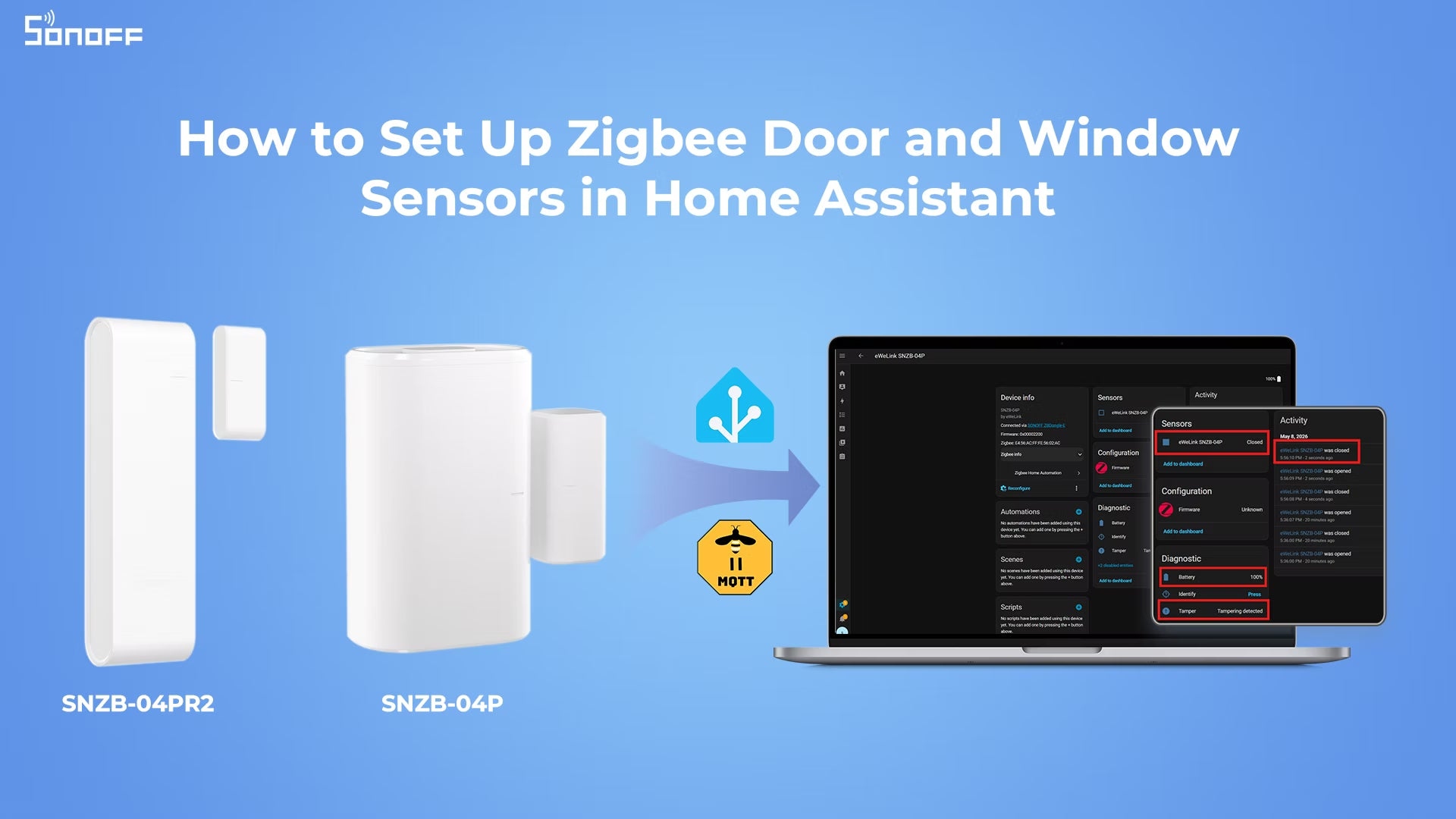
SNZB-04P or SNZB-04PR2?
Both models integrate with ZHA and Zigbee2MQTT for fast, local open/close monitoring. They suit doors, windows, cabinets, drawers, closets, and other access points. Both are Zigbee 3.0 sensors with built-in tamper detection, OTA firmware updates, and open/close responses in under a second.
SNZB-04P: longer battery life
Priced at $15.90, the SNZB-04P emphasizes low-maintenance installation. Door and window events can be used to switch lights, trigger audible or visual alarms for unauthorized entry, and send immediate app notifications.
- Compatible with both ZHA and Zigbee2MQTT
- Immediate open/close reporting in Home Assistant
- 5+ year battery life from a CR2477 coin cell
- Tamper detection for security alerts
- Quick mounting with 3M adhesive
Installation caution: With the door or window closed, keep the sensor body and magnet within 20 mm (0.79 inches) of each other.
SNZB-04PR2: slimmer construction and flexible mounting
The $13.90 SNZB-04PR2 weighs 45.1g and measures 90×26×13.5 mm. Its compact body is designed to fit narrow frames and tight spaces without interfering with door or window operation or appearance.
- Compatible with ZHA and Zigbee2MQTT, with fast open/close reporting
- AAA batteries that are affordable, widely available, and easy to replace, offering up to 3 years of battery life
- Tamper status exposed in Home Assistant
- Horizontal, vertical, or detached magnet installation
- Horizontal magnet mounting with a 30 mm gap, plus vertical mounting options for narrow frames or uneven gaps
|
Feature |
ZHA |
Zigbee2MQTT |
|
Opened/Closed Status |
✅ |
✅ |
|
History Record |
✅ |
✅ |
|
Tamper Alert |
✅ |
✅ |
|
Opened/Closed for a Duration |
✅ |
✅ |
|
Local Automation |
✅ |
✅ |
|
OTA Updates |
✅ |
✅ |
|
Battery Level |
✅ |
✅ |
Choose the SNZB-04P for maximum battery life and minimal maintenance. Choose the SNZB-04PR2 for a slimmer fit, readily replaceable AAA batteries, or more mounting flexibility. Neither is universally better: installation space and battery preference determine the better fit, and their affordability makes using both in different locations an option.
Prepare Home Assistant for Zigbee
The two main integration paths are ZHA (Zigbee Home Automation) and Zigbee2MQTT (Z2M). Both support fully local sensor automations that continue working without internet access.
Have these prerequisites ready:
- A Zigbee door/window contact sensor, such as the SNZB-04P or SNZB-04PR2
- A working Home Assistant installation
- A Zigbee dongle, such as SONOFF ZBDongle-P/ZBDongle-E, PoE Dongle | Dongle-M, Dongle Plus MG24, or Dongle-LMG21
ZHA is built into Home Assistant and needs no additional software, making it the simpler starting point for beginners. Zigbee2MQTT requires a separate MQTT broker and more configuration, but offers broader device support, deeper customization, and more advanced control. Both work well with SONOFF Zigbee contact sensors.
Pair a sensor using ZHA
Enable the integration
- Open Settings → Devices & Services.
- Select Add Integration → Zigbee Home Automation (ZHA).
- Complete the setup wizard to initialize the Zigbee network.
Home Assistant creates the network when setup finishes.
Add the contact sensor
- Open Settings → Devices & Services → ZHA → Add Device to start pairing.
- Put the sensor into pairing mode, usually by holding its button until the LED flashes. For the pairing procedure described here, press and hold for 5 seconds.
- Wait a few seconds for Home Assistant to discover it.
- Give it a useful name, such as Front Door Sensor or Bedroom Window Sensor, and assign it to a room.
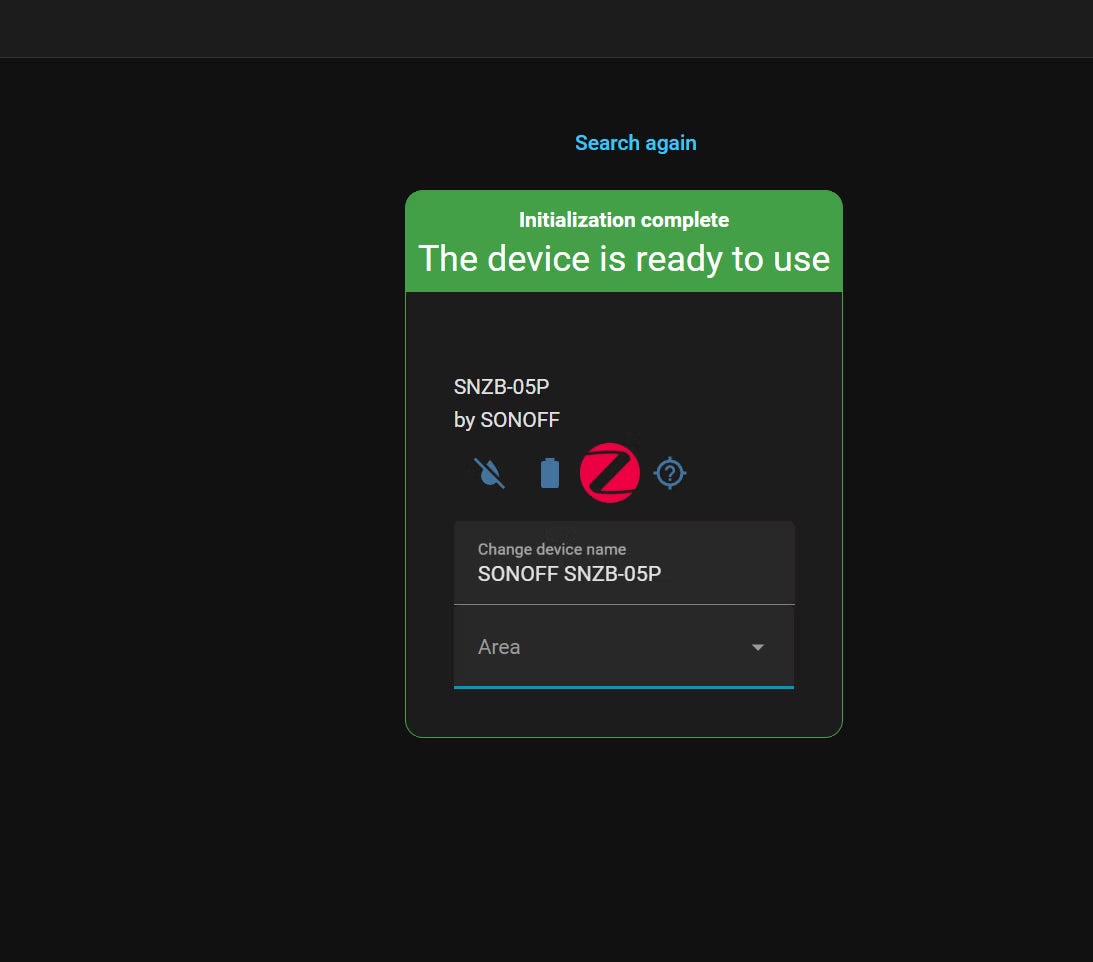
Check the available entities
The paired sensor appears under Devices & Services → ZHA. Typical information includes:
- Open / Closed status
- Battery level
- Device availability
- Tamper status, where supported
- Signal strength (LQI / RSSI)
- Activity logs
Pair a sensor using Zigbee2MQTT
Before starting, verify compatibility in the official Zigbee2MQTT supported devices list.
- Install and configure an MQTT broker, such as Mosquitto.
- Install Zigbee2MQTT in Home Assistant.
- Enable "Permit Join" in the Zigbee2MQTT web interface.
- Put the contact sensor into pairing mode as described above.
- Wait for the sensor to appear in Zigbee2MQTT. It then appears automatically in Home Assistant with its entities.
For more detailed instructions, the companion guides “How to Add Zigbee Devices to Home Assistant via MQTT” and “SONOFF Zigbee Devices Work with Home Assistant via Zigbee2MQTT” cover broker setup, device synchronization, and Zigbee2MQTT installation and configuration.
Useful local automations
Contact sensors can do more than report whether an entry is open:
- Hands-free lighting: Turn on the hallway light when the front door opens after dark, then turn it off when the door closes.
- Away alerts: Send a phone notification when a door or window opens while you are away.
- Heating and cooling control: Switch off heating or air conditioning when a window opens to avoid wasting energy.
- Left-open reminders: Notify you after a door or window remains open for 10–15 minutes. This can help with garage, back, refrigerator, or balcony doors and storage rooms.
- Mailbox notifications: Place a sensor inside the mailbox so opening the lid triggers a “Mail has arrived” notification.
Create automatic door-controlled lighting
The example below uses two automations: opening the door after dark turns the light on, and closing it turns the light off. The intended behavior includes a short delay before switching off; the action steps shown below specify Turn off without a delay-setting step. Each automation takes under 2 minutes to configure.
This arrangement suits entryways, pantries, storage rooms, garages, bedrooms, and other spaces that need hands-free nighttime lighting without unnecessary daytime activation.
Choose either a sun-based condition or a fixed time window to control when the light can turn on:
|
How it works |
Best for |
|
|
Sun-Based |
Only triggers after sunset, stops after sunrise — adjusts automatically with seasons |
Set-and-forget, no maintenance |
|
Fixed Time Window |
Triggers between set hours (e.g., 5 PM–7 AM ) — same every day regardless of weather |
Predictable, weather-proof control |
The setup is identical for both methods except for the condition.
Turn the light on when the door opens
Open the automation editor using either route:
- Settings > Automations & Scenes > Create Automation > Create New Automation.
- On the sensor Device Page, click the "+" icon in the Automations card, then select Create New Automation.
Configure the opening trigger:
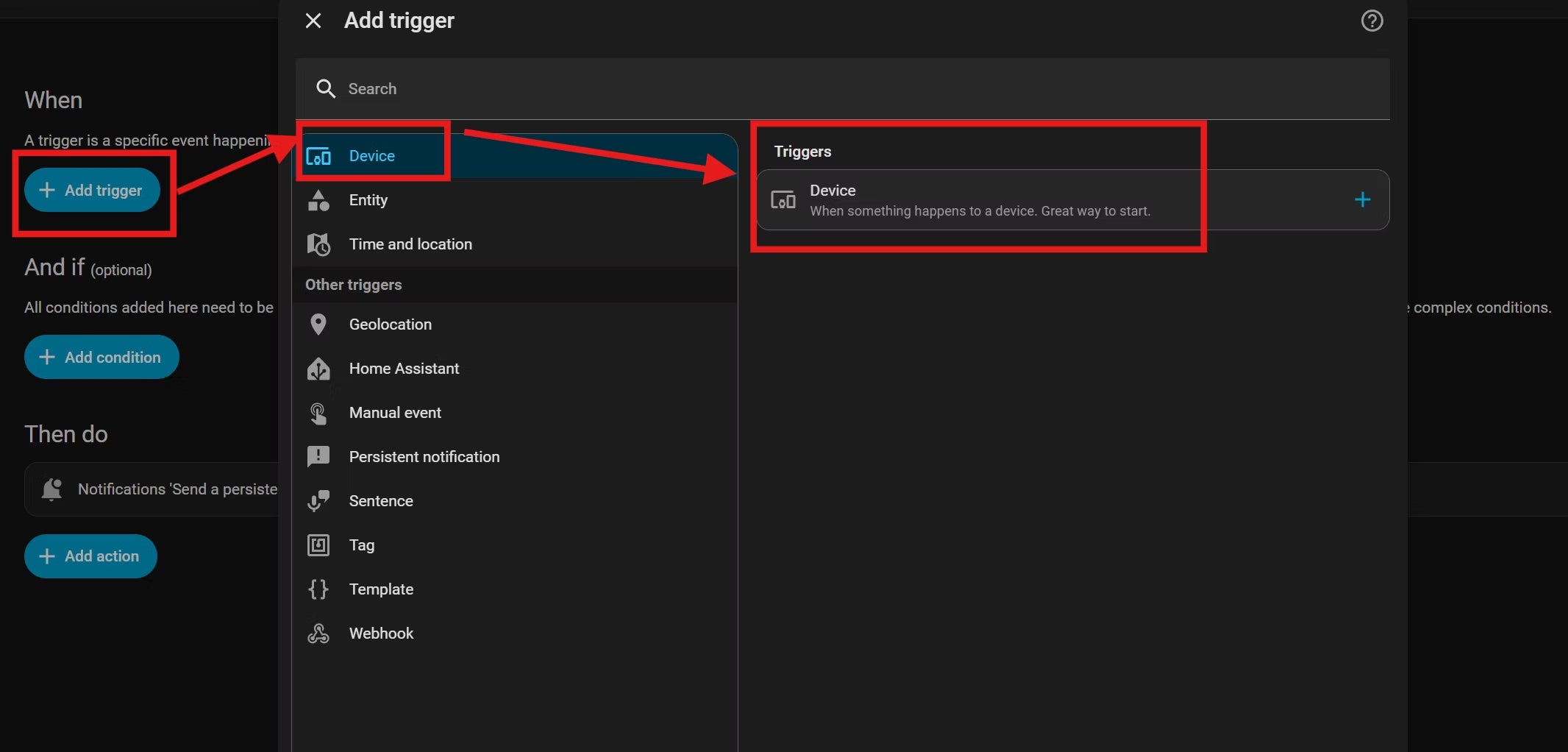
- Click Add Trigger > Device > Device.
- Under Device, choose the door/window sensor.
- Set Trigger to Opened.
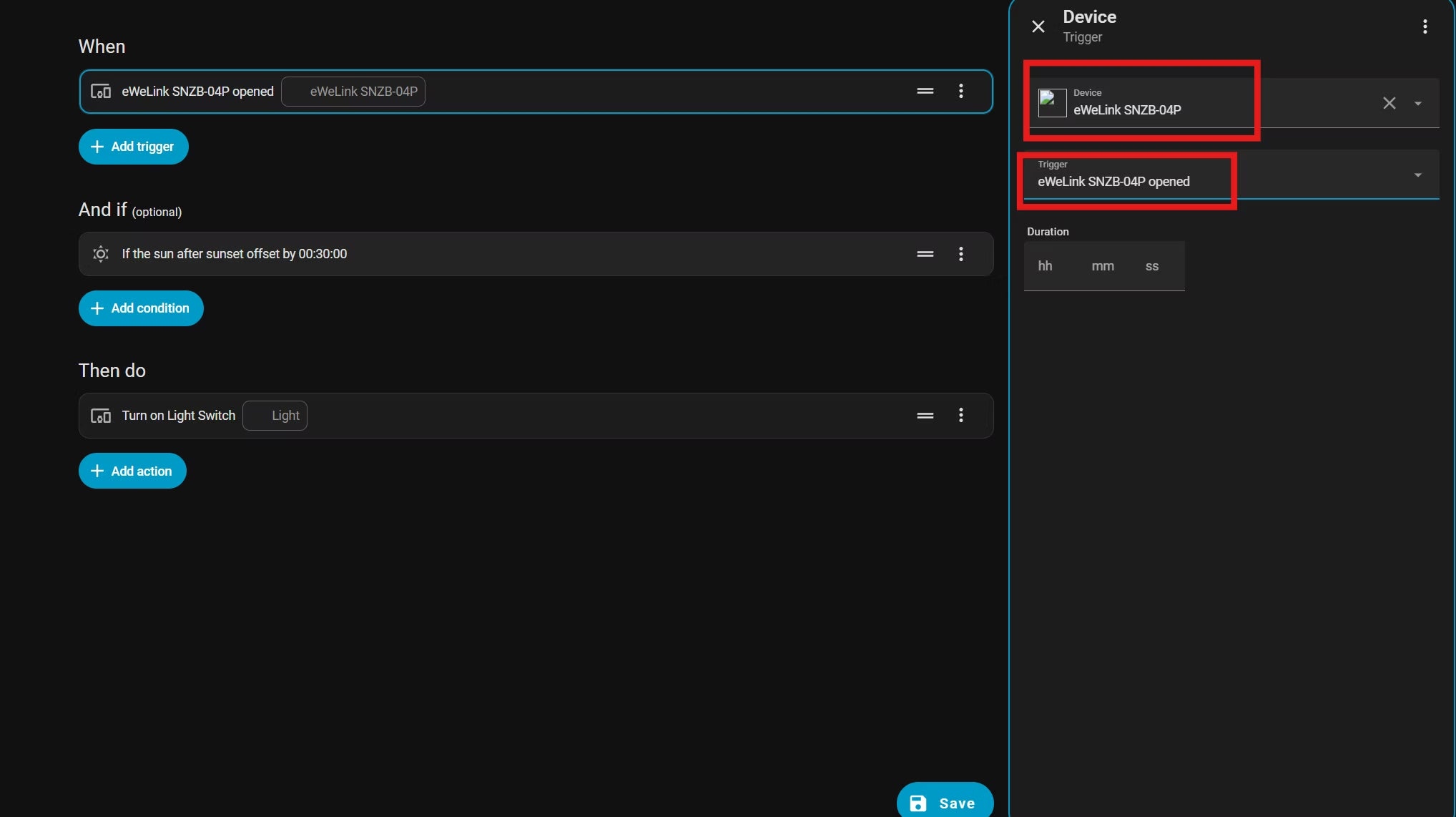
Next, add one of these conditions.
Sun-based condition:
- Click Add Condition > Time and Location > Sun.
- Under After, select After Sunset.
To begin 30 minutes after sunset, when it starts getting dim, set Offset to 00:30:00.
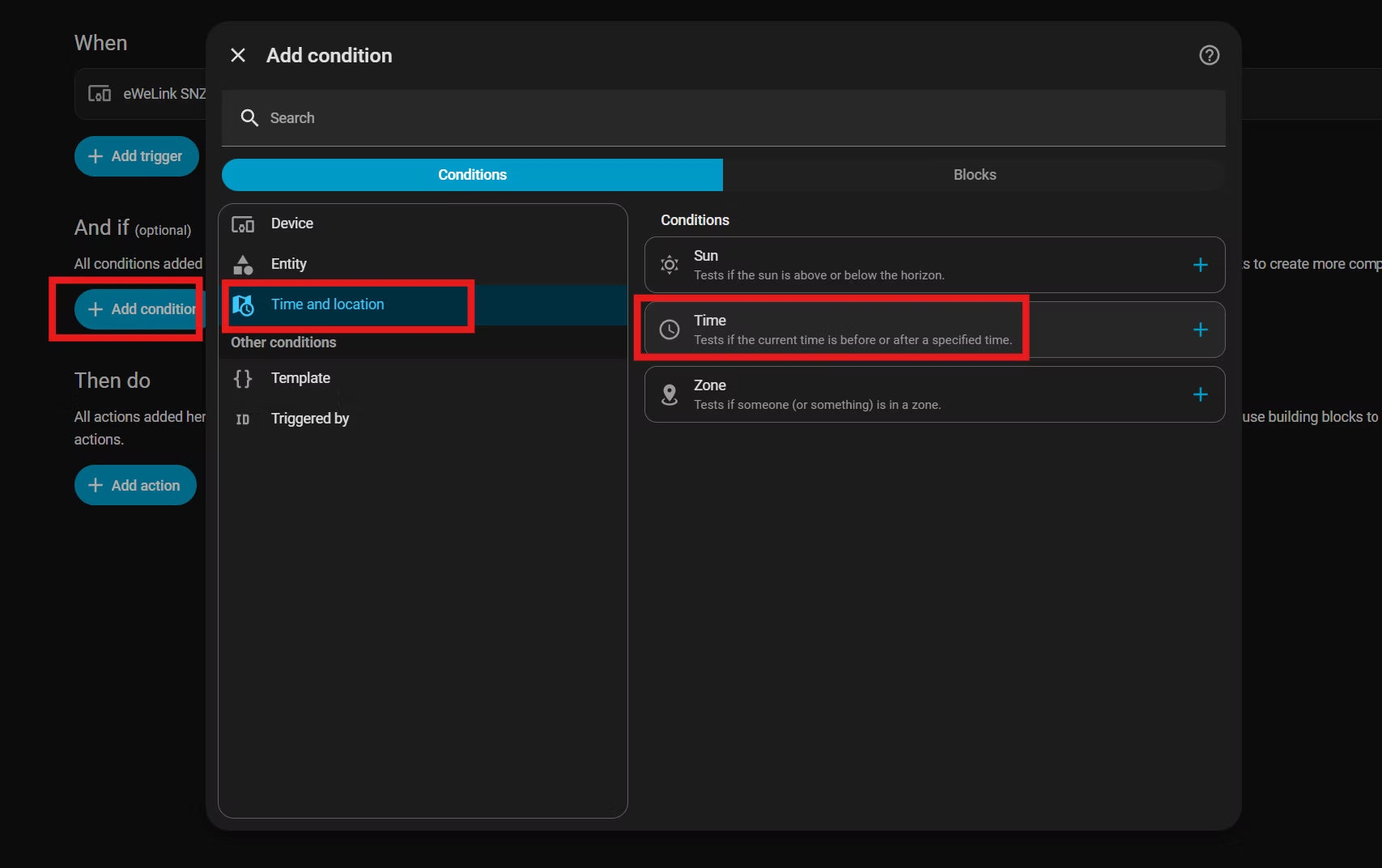
Fixed time window:
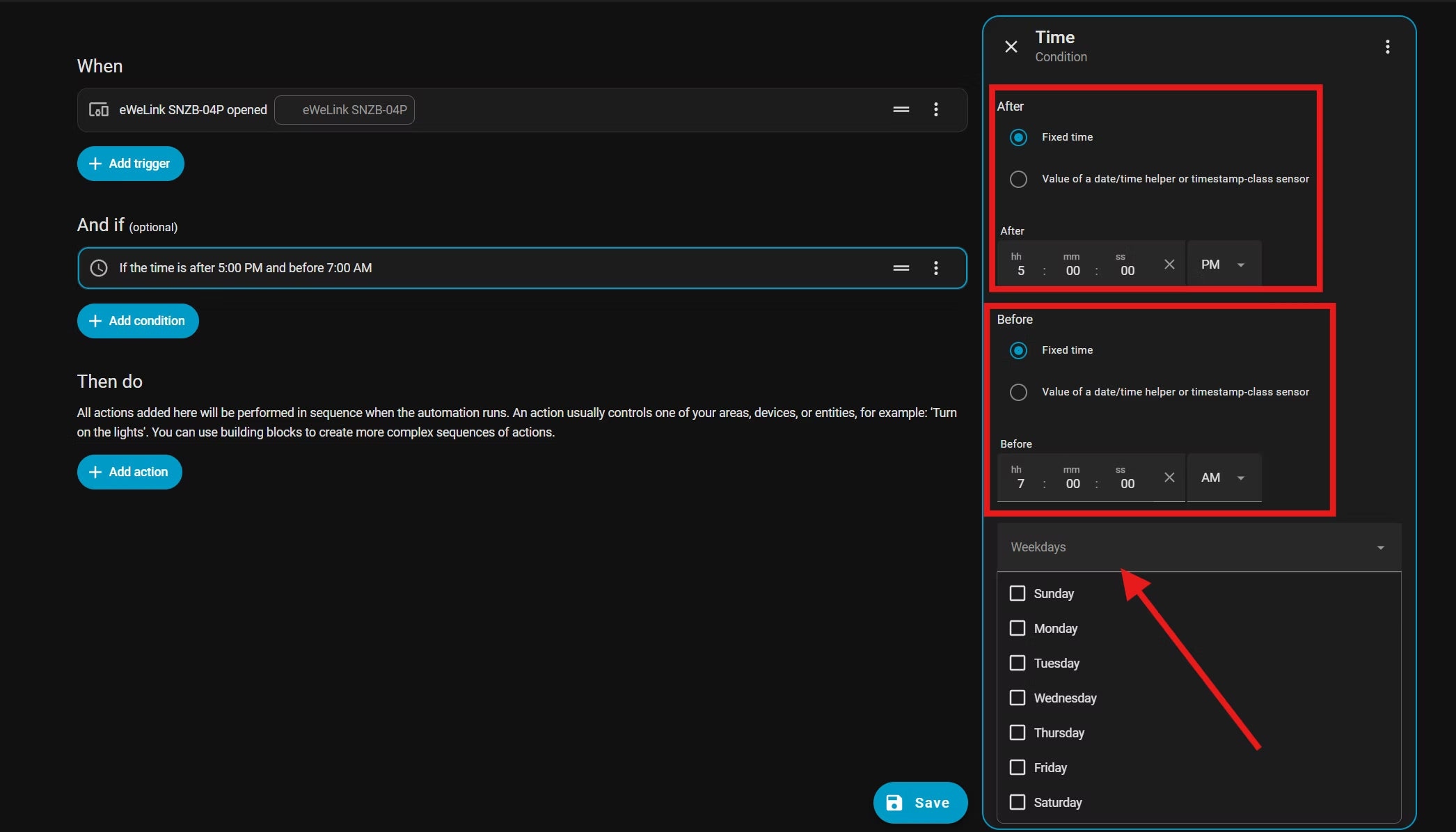
- Click Add Condition > Time and Location > Time.
- Set After to the start time, for example 17:00:00 or 5 PM.
- Set Before to the end time, for example 07:00:00 or 7 AM.
- Optionally select particular weekdays.
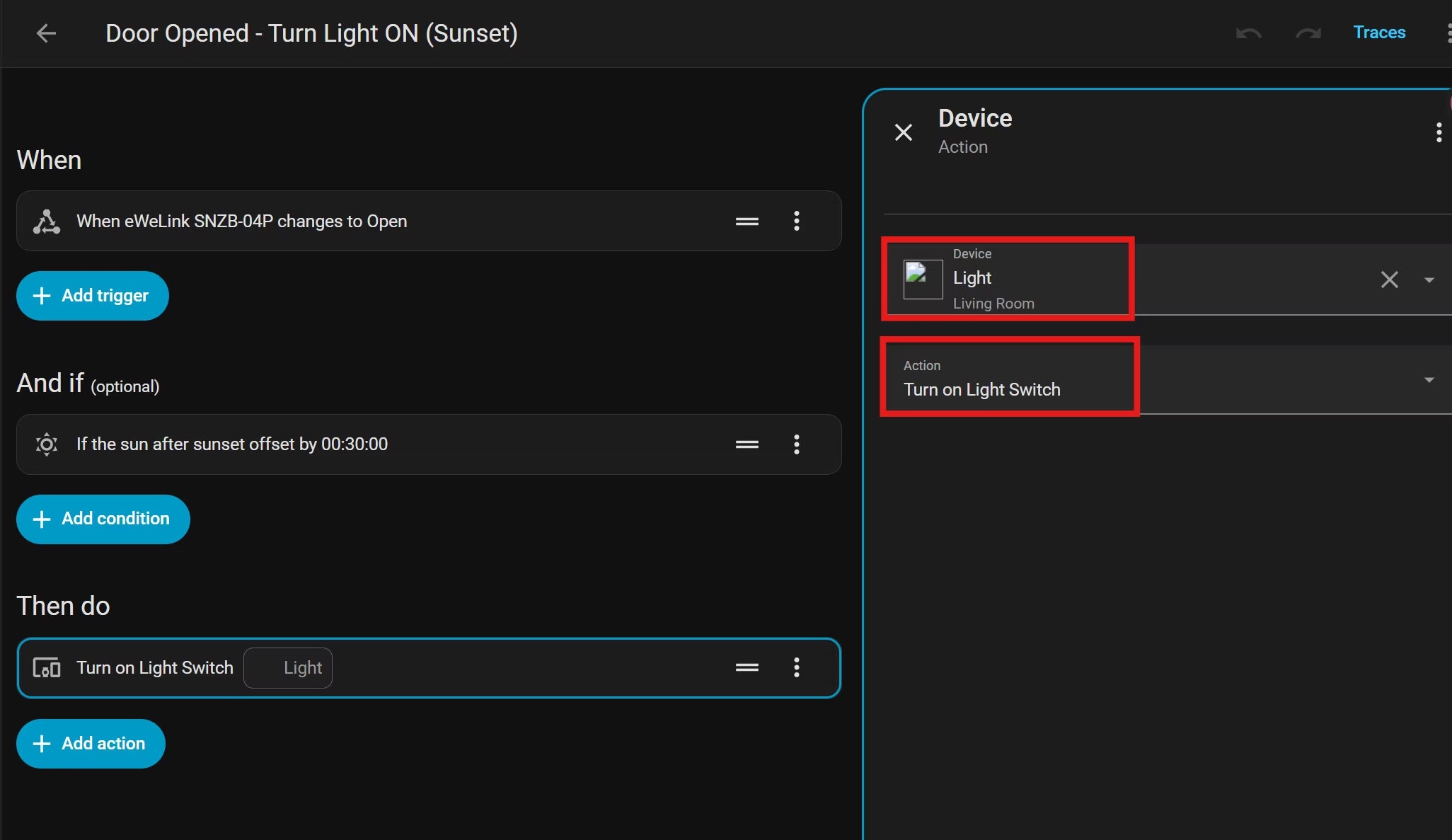
Finally, configure the lighting action:
- Click Add Action > Device > Device.
- Under Device, choose your Light, usually the switch controlling the lights.
- Set Action to Turn on.
- Click Save and use a name such as "Door Opened - Turn Light ON".
Turn the light off when the door closes
- Create another automation using the same editor route.
- Click Add Trigger > Device > Device, select the sensor under Device, and choose Closed for Trigger.
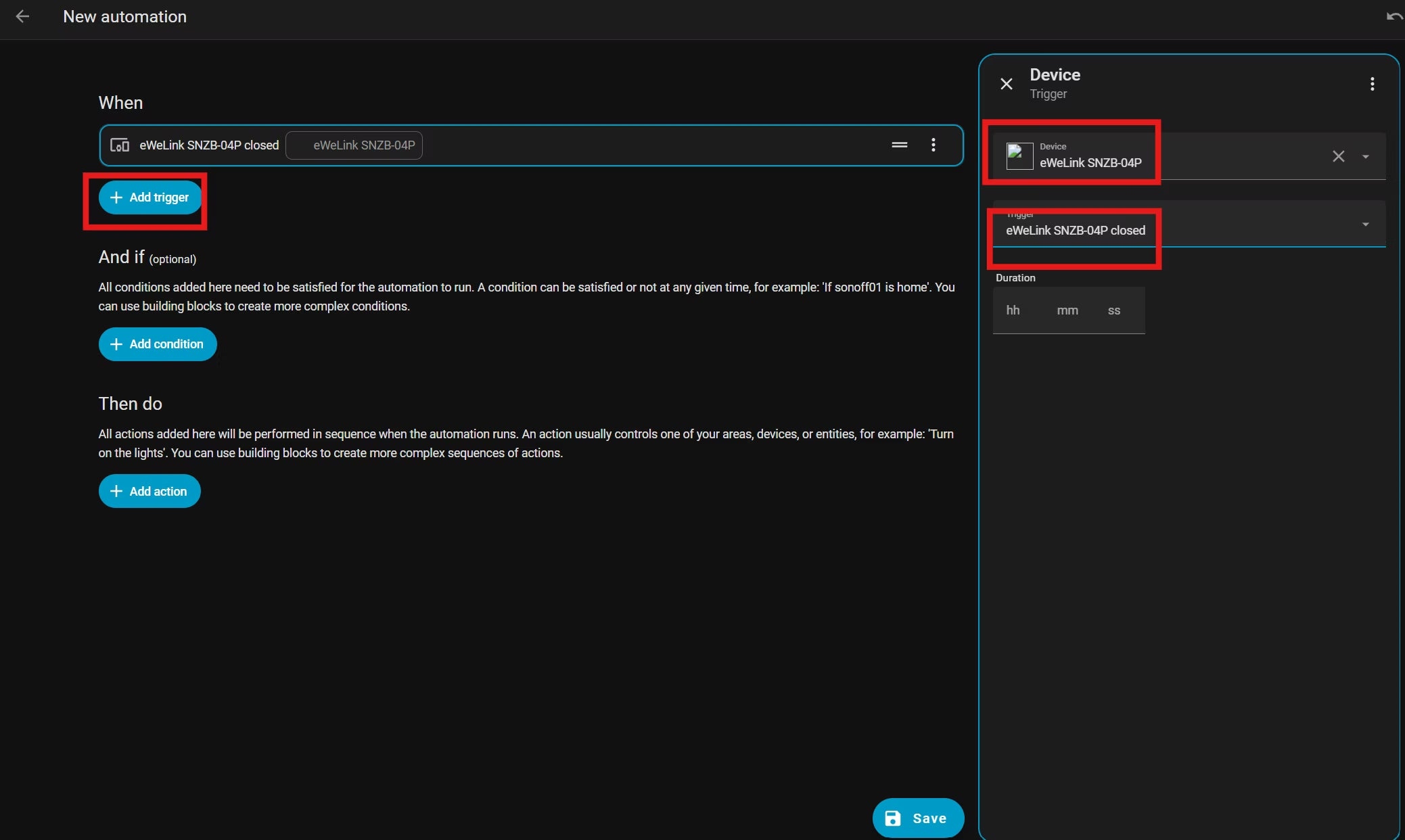
- Leave the condition empty so closing the door switches the light off regardless of the time.
- Click Add Action > Device.
- Select your Light under Device and choose Turn off for Action.
- Click Save and give it a name such as "Door Closed - Turn Light OFF".
Common questions
Do these automations require code?
No. Home Assistant’s visual editor lets you build lighting, notification, and security automations by selecting a trigger, condition, and action, then saving. YAML is optional and mainly serves advanced users seeking further customization.
Is a separate Zigbee hub necessary?
No separate third-party hub is required. A Zigbee coordinator, such as the SONOFF ZBDongle-E or ZBDongle-P, can connect directly to the Home Assistant device. ZHA handles Zigbee communication locally without a cloud service.
What happens when the internet goes down?
Sensors integrated through ZHA or Zigbee2MQTT operate on the local network. Their automations run on the Home Assistant instance rather than a cloud server, so internet outages do not stop local operation.
How many sensors can a network support?
ZHA and Zigbee2MQTT support large networks. Most home deployments can handle 30–100+ sensors without problems when the mesh is properly designed. Distribute enough mains-powered Zigbee routers, such as smart plugs or bulbs, throughout the home to maintain reliable connections for battery-powered contact sensors.
Can contact sensors support home security?
Yes. Local security automations can send immediate push notifications when an entry opens while you are away, activate a siren, start camera recording, or log entry events without a subscription fee or cloud dependency. Beyond doors and windows, sensors can monitor cabinets, drawers, mailboxes, refrigerators, pet doors, and other openings.

