NFC offers another way to control smart home devices alongside app commands and Alexa or Google Home voice control. Bringing a compatible phone close to a tag can exchange data and trigger a scene without opening individual device controls.
Understanding NFC
Near Field Communication, or NFC, is short-range wireless communication derived from radio frequency identification (RFID). It typically operates at 13.56MHz over about 4cm or less and requires a transmitting device and a receiver. Familiar uses include hotel or office access cards and mobile wallets such as Apple Pay, Samsung Pay and Android Pay.
An NFC tag contains a chip embedded in a physical object. It transfers stored data wirelessly when a reader, commonly a smartphone, comes close; no wires or physical contact are needed. Passive tags such as stickers and cards do not require their own power supply.
NFC devices use three main operating modes:
- Reader/Writer: Reads or writes data on tags and stickers in items such as access cards and key fobs.
- Card emulation: Acts as a smart card for building access or payments.
- Peer-to-peer: Exchanges data with another NFC device.
Prepare an NFC-triggered SONOFF scene
The example below uses an NFC-enabled smartphone to switch on a light connected to BASICR3 while switching off a light connected to S26R2 ZigBee Plug.
Prepare the following:
- 1 NFC card
- 1 NFC Tool
- 2 smartphones
- 1 BASICR3 DIY smart switch
- S26R2 ZigBee plug
- 2 ordinary LED bulbs
Before starting, check these requirements:
- The eWeLink App must be V4.19.0 or above on Android and iOS.
- Home Sharing (Scene Sharing) requires 2 smartphones with the same system.
- An NFC card with over 200 Bytes is recommended.
Write the tag and configure the scene
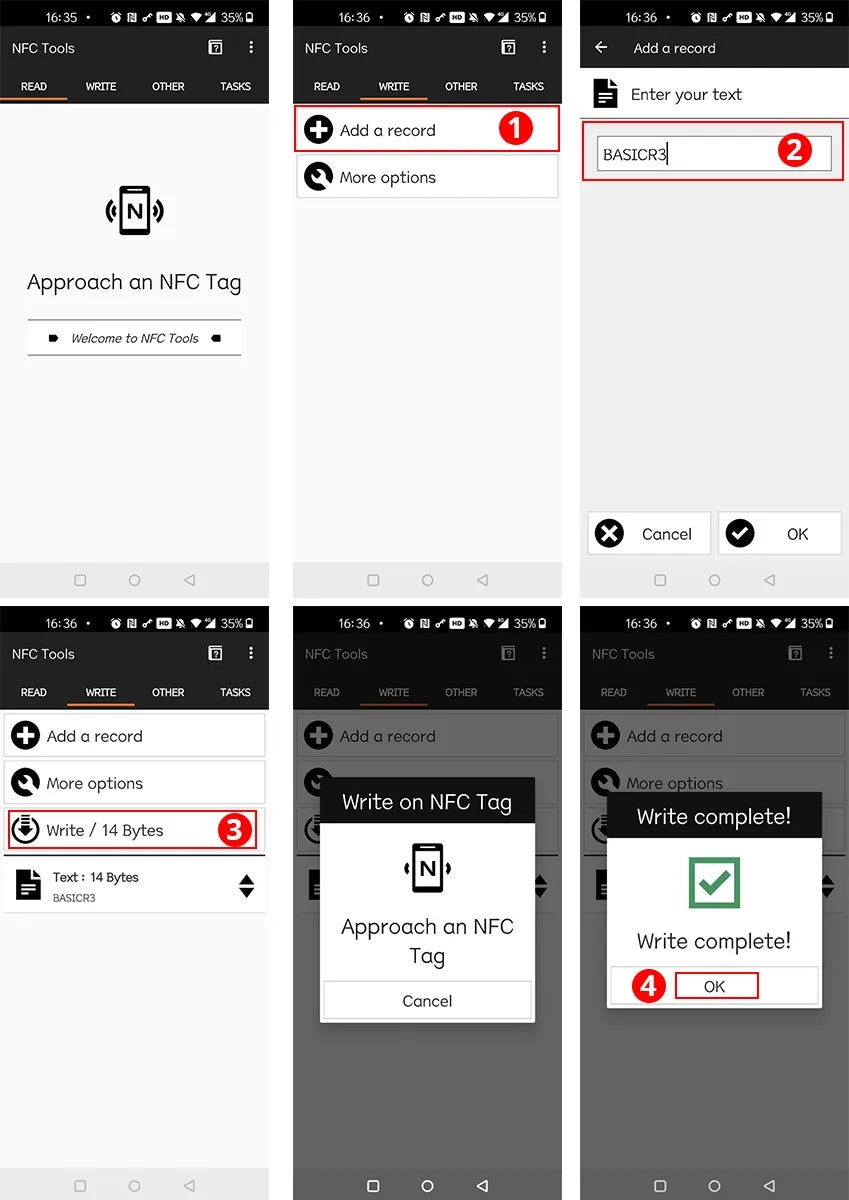
- Download an NFC tool, open it and add a tag.
- Name the tag BASICR3 for the scene you will create.
- In WRITE, select “Write / 14 Bytes”.
- Hold your smartphone near the NFC card. A successful write displays “Write complete!”.
- Open eWeLink App. Under “Profile”, go to “Pilot Features” and enable “NFC”.
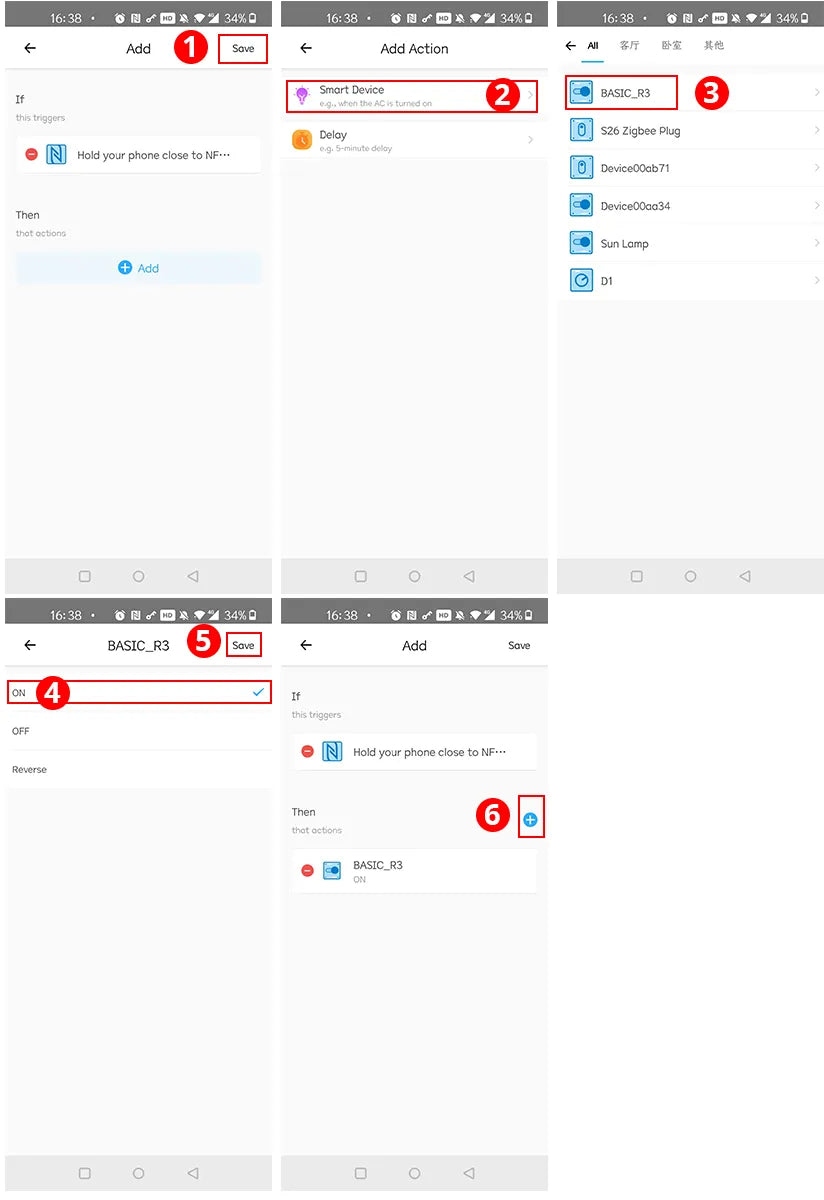
- Open “Scene”, tap “Add” and choose “NFC” as the trigger.
- Bring your smartphone close to the NFC tag. Once “Written successfully” appears, tap “Done”.
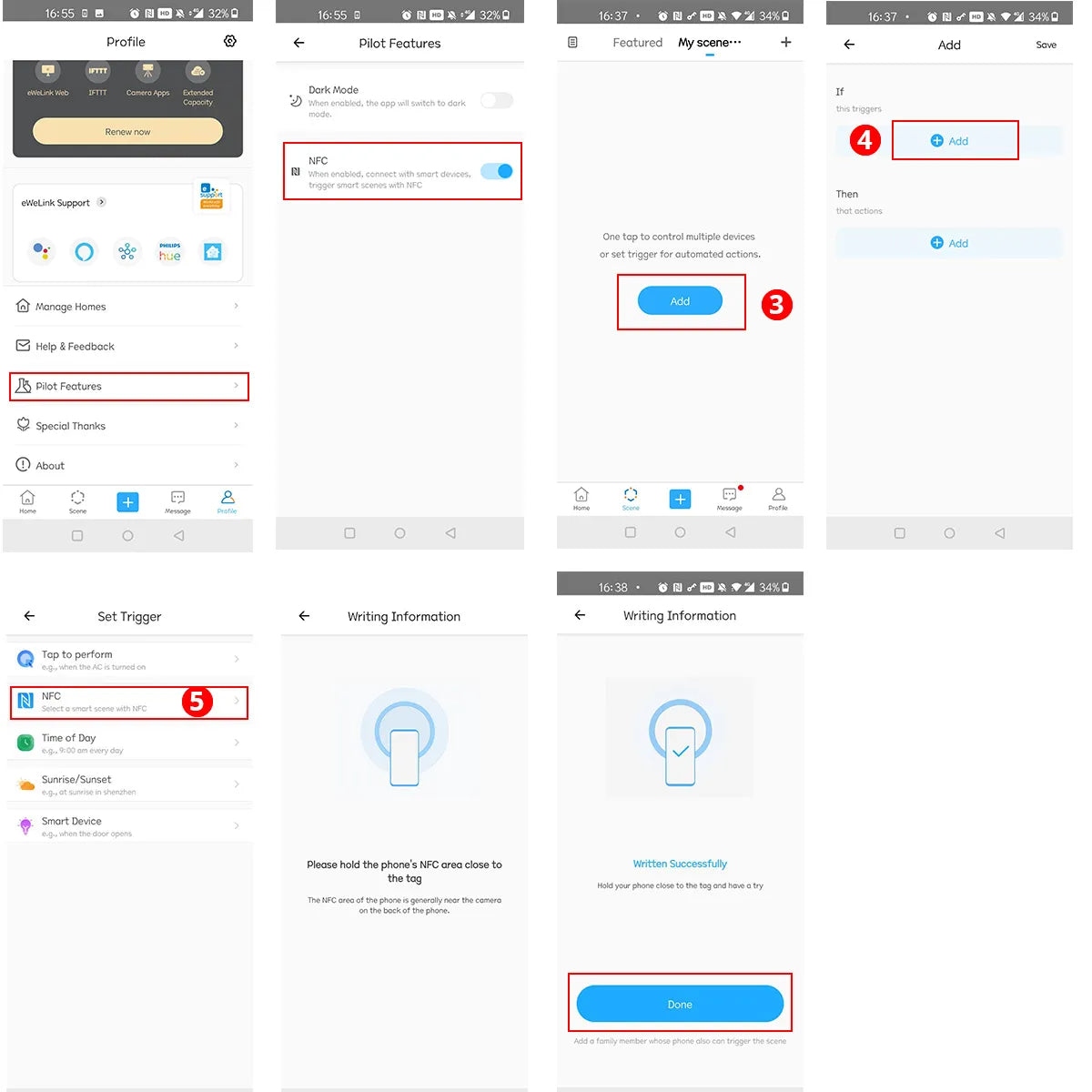
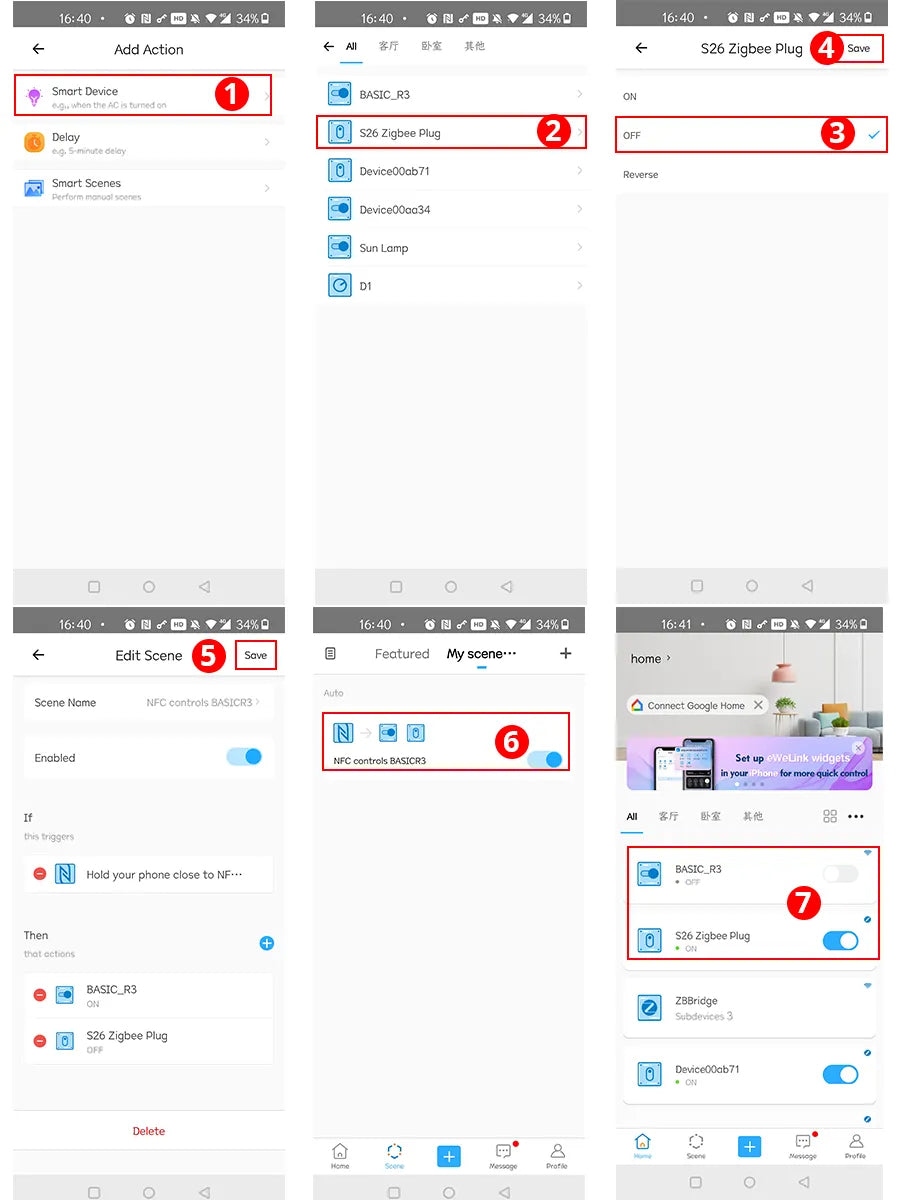
- Tap “Add” in Smart Device and set the actions so that “BASICR3 is turned on” and “S26R2 ZigBee Plug is turned off”. Tap “Save”.
- Use the NFC tag to switch on the BASICR3-connected light and switch off the S26R2 ZigBee Plug-connected light simultaneously.
Share scene access with other users
Home Sharing in eWeLink allows family members to trigger the scene you created.
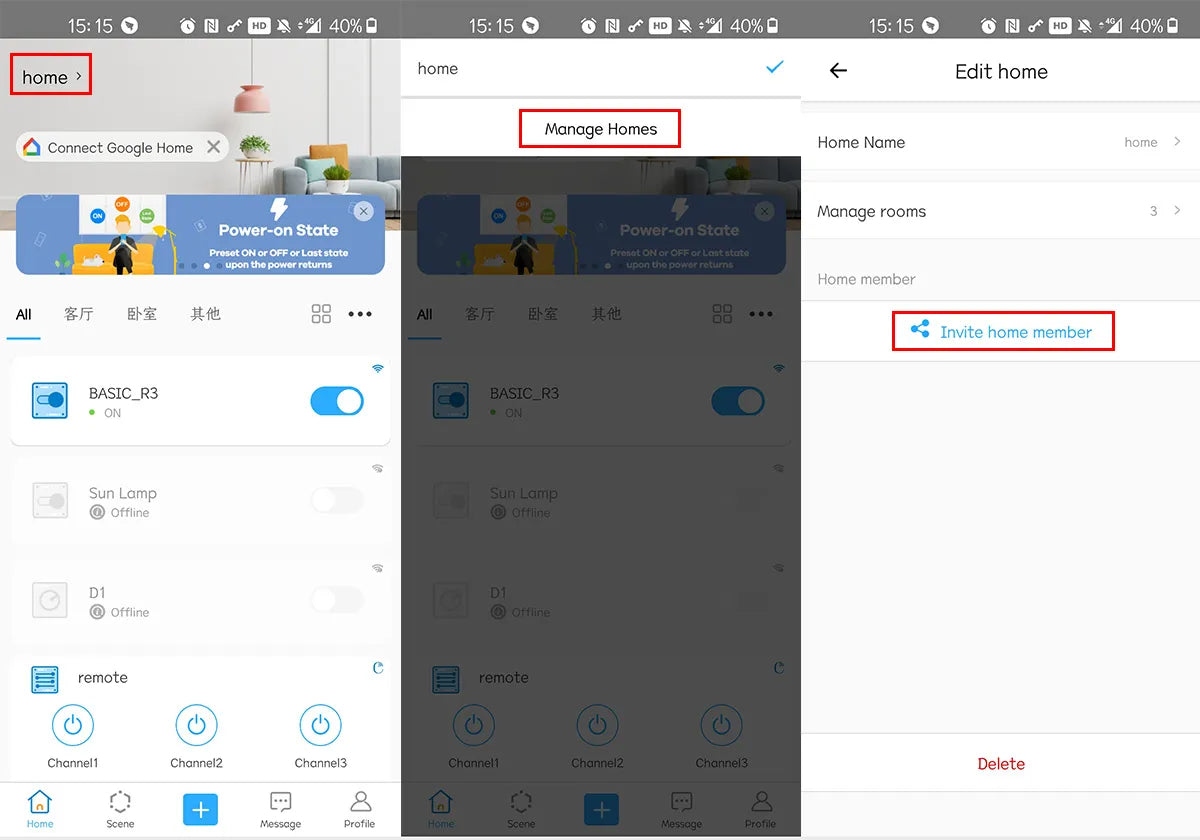
- Find “home” on the eWeLink App homepage.
- Open “Manage Homes”.
- Tap “Invite home member”.
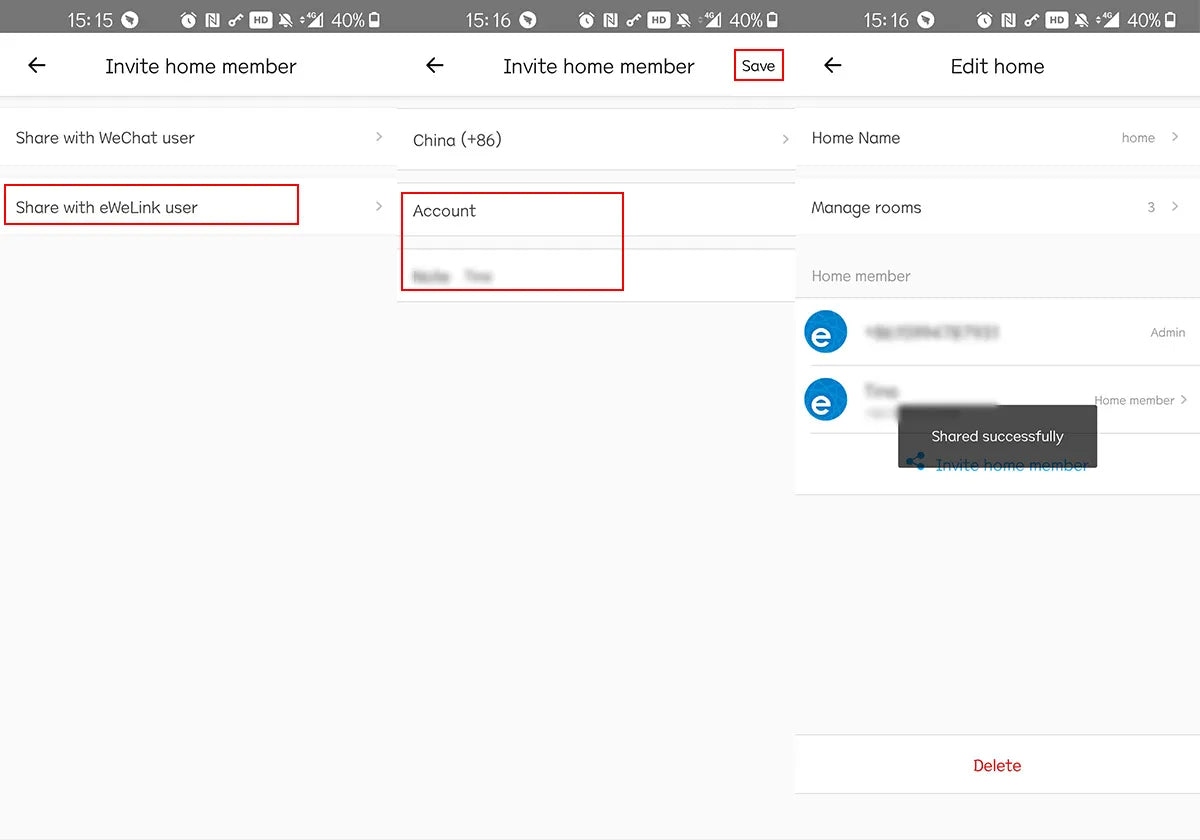
- Select “Share with eWeLink user”.
- Enter the user’s eWeLink account and the name you want to share.
- Tap “Save”. The shared user can now trigger the scene too.
Device references
- BASICR3 DIY smart switch: https://bit.ly/3HTpWae
- S26R2 ZigBee Plug: https://bit.ly/3Bn6K27
- More SONOFF smart devices: https://bit.ly/3HRzrXD

