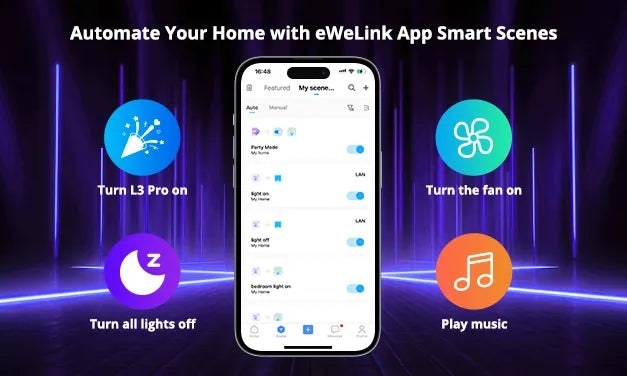
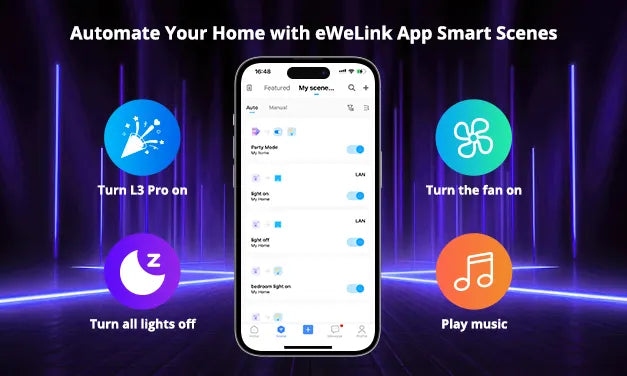
The eWeLink App controls SONOFF smart home devices and lets you combine them into personalized Smart Scenes. Each scene connects a trigger with one or more actions, allowing devices to respond together rather than requiring separate commands.
For example, a scene can switch on lights when you enter a room, adjust a thermostat at a scheduled time or activate a home security system. Depending on the connected devices, actions can include switching power, changing brightness or temperature, and playing specific music.
Choose how a scene starts
- Manual control: Select “Tap to perform” as the trigger to create a manual scene that runs when you tap it.
- Schedules: Choose a time of day and set the timer to repeat or run once.
- Sunrise and sunset: Use sunrise or sunset in your city, with an optional offset of up to 30 minutes before or after either event.
- Device conditions: Use the status of compatible devices or sensor input to trigger coordinated actions.
- NFC: On a phone that supports NFC, enable it under “Profile” > “Pilot Features”, then add NFC as a trigger. Write an NFC tag and bring your phone close to it to run the scene.
For setup details, see Using an NFC Tag.
When a scene has several triggers, select “all conditions are met” to require every condition before actions run, or “any condition is met” to run them as soon as one condition is satisfied.
Define the actions
A scene can control an individual device or a group. Group execution actions have been available since Version 4.30.
Select ‘Delay’ to pause before a particular action. Actions can run immediately or after a delay of XX minutes, allowing timed sequences or a waiting period before a device responds.
Scenes can also act on other scenes: use “Perform manual scene” to run one, or enable or disable an “Auto scene”. This lets you build interconnected automations. Phone notifications can report when a scene triggers, a device changes status or an automation executes.
Run scenes with Siri
Tap ‘Add to Siri’ and select the scene to include in a Siri Shortcut. You can then run it with a voice command.
Related guidance: Controlling SONOFF Smart Devices with Apple Watch and Siri.
Manage and share scenes
Duplicate an existing scene to reuse similar conditions or actions. Open a scene and tap the ‘…’ icon in the upper right corner to display its options card.
To find a scene by name, tap the Search icon in the upper right corner of the ‘Scene’ page and enter keywords.
Sharing your home with family members or colleagues lets them synchronize and control its shared scenes.
Example: pause a coffee schedule while away
Suppose a scene turns on your coffee machine at 7:30 am on weekdays, but you want it to stop during a week-long trip. Create a second scene that disables the first:
- Scene 1: Making Coffee
- Trigger: Timer (7:30 AM), scheduled for weekdays.
- Action: Turn on the coffee machine.
- Scene 2: Stop Making Coffee
- Trigger: “Tap to perform”.
- Action: Add Scene 1 to the actions, then disable Scene 1 using “Turn off automation”.
Running the second scene manually stops the scheduled coffee automation while you are away.

