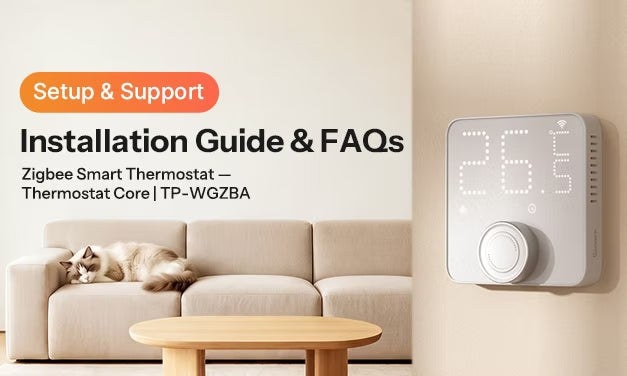
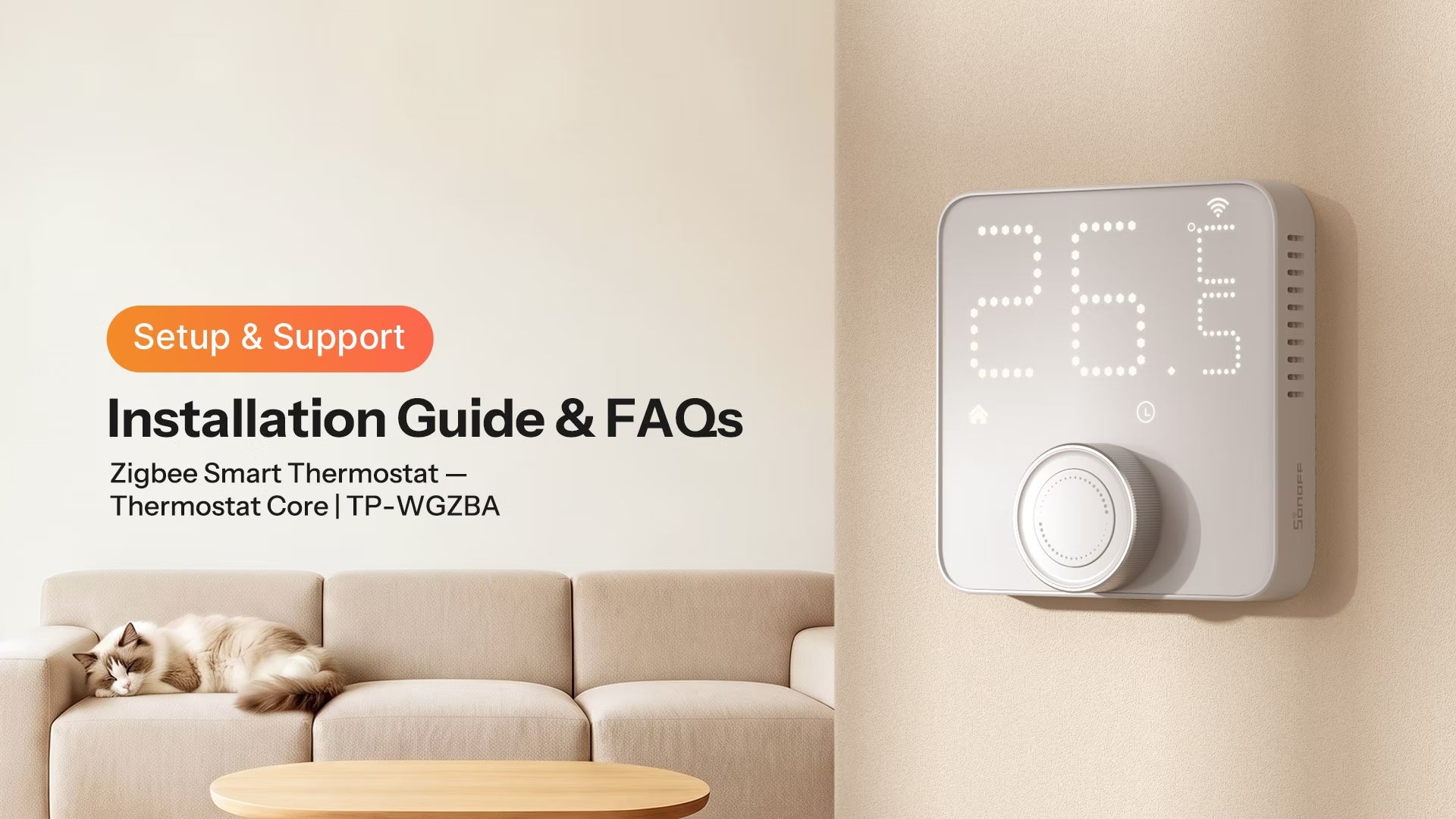
The SONOFF Thermostat Core (TP-WGZBA) is a Zigbee thermostat panel for hydronic underfloor heating and compatible boilers. Its powered and dry-contact outputs accommodate different heating control systems.
Firmware and platform requirements
Update the thermostat to the latest firmware (V1.0.3) and the eWeLink App to V5.27.0 or higher. Your Sonoff Zigbee Gateway also needs the appropriate firmware:
- ZBBridge-P: V3.4.1 or higher. TRV-linked features, available through "Thermostat Panel Control" in App settings, require V3.5.0, with release expected in late September.
- ZBBridge-U: V2.6.0 (Beta users: V3.9.0) or higher, with release expected in early September.
- NSPanel Pro / NSPanel Pro Gen2: V4.8.0 or higher. TRV-linked features under "Thermostat Panel Control" in App settings require V4.9.0, with release expected in late September.
- iHost: V2.15.0 or higher, with release expected in October.
- Bridge-M: V1.2.0 or higher, with release expected in late September.
Zigbee2MQTT version 2.14.0 or higher is required. Earlier versions may prevent connection or leave some functions unavailable.
Pull request #5201 adds native ZHA support for SONOFF TP-WGZBA (Thermostat Core), but has not yet been merged. Some functions therefore do not work out of the box. For full functionality now, configure the device manually using TP-WGZBA_ZHA_Script.zip.
A driver is required for a direct connection to SmartThings. Installation instructions: https://sonoff.tech/blogs/news/sonoff-products-integration-guide-for-smartthings-driver-installation
Driver download: https://bestow-regional.api.smartthings.com/invite/OzMgP34LbA29
Heating compatibility and wiring
Switch off power before installation. A qualified electrician should carry out mains wiring work.
The panel can operate compatible hydronic underfloor heating actuators or supply a dry-contact boiler control signal. Its relay supports a maximum load of 3 A. Most electric underfloor heating systems exceed that limit, so the panel is not suitable for direct connection to electric underfloor heating.
Supported hydronic actuator output: 100–240 V AC, max. 3 A.
Actuator and boiler control settings
The default relay logic is Normally Open (NO): a heating demand closes the relay and activates the output; when demand ends, the relay opens. This default suits a Normally Closed (NC) hydronic actuator or a Normally Open (NO) boiler control contact.
- For a Normally Open (NO) hydronic actuator, open Heating System Settings in the eWeLink app and select NO actuator.
- For a boiler requiring a Normally Closed (NC) control contact, open Heating System Settings and select NC boiler.
For boilers with a normally open (NO), potential-free thermostat input, the panel provides ON/OFF control. COM and NO close to start heating and open when heating is no longer needed.
COM and NO are potential-free contacts for boiler control only. Never connect them to mains power.
If the actuator or boiler control type is unclear, check the product label or boiler manual, or ask your heating installer.
Can it replace an existing thermostat?
Compatibility depends on the existing installation. Before proceeding, check:
- The existing thermostat wiring
- The heating actuator specifications
- The boiler control method
- The wall box dimensions against the thermostat’s installation requirements
The panel needs a live wire (L), a neutral wire (N), and the correct control wiring for the heating equipment. A two-wire thermostat cannot be replaced directly using those wires alone if no additional wiring is available in the wall box. A qualified electrician may need to install the required wiring; consult one whenever the wiring is uncertain.
Installing on an Italian 503 wall box
The SONOFF 86-type thermostat panel needs an adapter for the 503-type wall boxes commonly used in Italy. You can use a compatible commercial adapter or print the supplied design.
Download: Thermostat_Core_(TP-WGZBA)_3D‑printed_adapter_base.zip
The printing files provide one 503 wall box adapter base and two screw covers. Installation also uses two M3 brass heat-set inserts and two M3 × 10 mm screws to fasten the thermostat mounting base to the adapter.
- Fit the two M3 brass heat-set inserts into the designated holes.
- Fasten the adapter base to the wall box with suitable screws.
- Fit the left and right screw covers to conceal the wall-box fixing screws.
- Center the thermostat mounting base on the adapter, align it with the brass inserts, and secure it with two M3 × 10 mm screws.
- Complete the wiring according to the thermostat instructions, then attach the panel to its mounting base. Check that everything is secure before restoring power.
Sensor and schedule questions
Is an external temperature sensor necessary?
No. The built-in temperature sensor works by default. If the heating system requires floor-temperature monitoring, an optional compatible NTC 10 kΩ, β = 3950 sensor can be connected.
Will schedules work without Zigbee?
Yes. A built-in real-time clock (RTC) and locally stored heating schedules allow scheduled operation during a temporary Zigbee outage, as long as the thermostat remains powered.
Troubleshooting heating behavior
Heating does not start
Possible causes include a target temperature below the heating start threshold, hysteresis delaying activation, mismatched system behavior settings, incorrect wiring, an unsupported actuator, or no detected heating demand.
Check the following in order:
- Review the target temperature and determine whether heating should be active.
- Check the temperature hysteresis setting in the app and verify the heating start threshold.
- Make sure Underfloor Heating Valve Behavior and Boiler Control Contact Behavior match the installed equipment.
- Inspect the actuator and boiler wiring.
- Verify the actuator specification: 100-240V AC, up to 3A.
- Confirm that the actuator and boiler operate correctly.
Heating does not stop
An inaccurate temperature reading, incorrect system behavior settings, an actuator or boiler that does not close properly, or a continuing detected heating demand may be responsible.
- Check the accuracy of the displayed temperature.
- Verify that Underfloor Heating Valve Behavior and Boiler Control Contact Behavior match the heating system.
- Check that the actuator and boiler open and close correctly.
Incorrect behavior can also appear reversed: heating may switch off when it should start, or remain on when it should stop.

