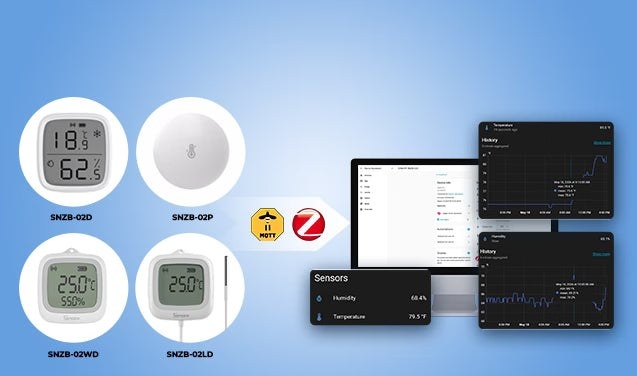
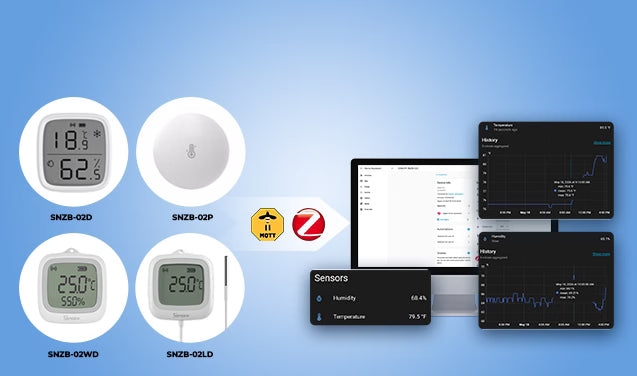
Temperature and humidity sensors let Home Assistant respond to room conditions rather than requiring manual checks. They can control bedroom fans, bathroom ventilation, humidifiers, and other equipment, or monitor living rooms, greenhouses, wine cellars, server cabinets, and similar spaces. This guide covers sensor selection, local pairing through ZHA or Zigbee2MQTT, and practical automations.
Choosing a sensor
Consider connectivity, measurement accuracy, placement, and maintenance before selecting hardware.
- Protocol: Zigbee combines low power consumption, local control, fast responses, and stable connectivity. Wi-Fi connects directly to a router without a hub, but most models depend on cloud control, potentially increasing latency and power consumption. Bluetooth is inexpensive and power-efficient, but has limited range and weaker Home Assistant integration than Zigbee. Z‑Wave offers similar benefits to Zigbee, usually at a higher price, and needs its own coordinator.
- Accuracy: Around ±0.2°C for temperature and ±2% RH for humidity is desirable for stable automations.
- Battery life: Depending on the model and battery, expect a range of 2 to 4 years.
- Moisture protection: IP65 protection matters in bathrooms, kitchens, greenhouses, and other humid locations.
- Display: An LCD allows quick checks without opening Home Assistant.
- Reporting speed: Shorter update intervals allow quicker responses to changing conditions.
- External probe: Liquid measurements and enclosed spaces such as refrigerators and fish tanks require a probe.
- Mounting: Magnets, adhesive backing, hanging loops, and desktop stands offer different placement options.
Zigbee's balance of battery life, responsiveness, local operation, and Home Assistant integration makes it the most popular choice in the HA community for this purpose.
Four sensor options
The following options cover indoor monitoring, wet or humid locations, multi-room installations, and probe-based temperature measurement. All four integrate locally through ZHA and Zigbee2MQTT without a cloud account.
|
SNZB-02D |
SNZB-02WD |
SNZB-02P |
SNZB-02LD |
|
|
Price |
$15.90 |
$19.90 |
$16.90 |
$19.90 |
|
Display |
✅2.5" LCD |
✅ 2.2" LCD |
❌ |
✅ 2.2" LCD |
|
Temperature |
✅ |
✅ |
✅ |
✅ |
|
Humidity |
✅ |
✅ |
✅ |
❌ |
|
Temp Range |
-10~60℃ |
-20~60℃ |
-10~60°C |
-10~60℃ |
|
Humidity Range |
5~95%RH |
0~100%RH |
5~95%RH |
❌ |
|
Accuracy |
±0.2°C / ±2% RH |
±0.2°C / ±2% RH |
±0.2°C / ±2% RH |
±0.2°C / ±2% RH |
|
Configurable Refresh Rate |
5s |
5s |
5s |
5s |
|
Waterproof |
❌ |
✅ IP65 |
❌ |
✅ IP65 (body) |
|
External probe |
❌ |
❌ |
❌ |
✅ 1.5 m |
|
Battery Life |
Up to 2 years CR2450 |
Up to 2 years CR2477 |
Up to 4 Years CR2477 |
Up to 2 years CR2477 |
|
Mounting |
Stand Magnetic |
Hanging Magnetic |
Screw Adhesive Magnetic |
Hanging Magnetic |
|
Best For |
General indoor use |
Humid & wet environments |
Multi-room deployment |
Refrigerators & liquids |
Indoor sensor with LCD
The all-round indoor option has a 2.5" LCD, ±0.2°C accuracy, a desktop stand, and magnetic mounting. Its screen displays current temperature and humidity, with icons for room conditions and battery status. Priced at $15.90, it suits bedrooms, living rooms, offices, nurseries, incubators, humidors, wine cellars, instruments, and reptile terrariums.
Moisture-resistant sensor
At $19.90, the IP65-rated model combines a waterproof breathable membrane with magnetic or hanging mounting, useful where adhesive will not hold. It is intended for bathrooms, greenhouses, laundry rooms, locations under the eaves, ecological tanks, and other places regularly exposed to humidity, condensation, or mist.
Compact, screen-free sensor
This $16.90 option retains ±0.2°C accuracy without a display and is suitable for discreet multi-room installations where appearance and battery replacement matter. Its CR2477 coin cell can last up to 4 years under typical conditions, according to SONOFF lab data; actual results may differ.
External-probe sensor
The lineup's only probe model uses a 1.5 m waterproof probe to measure liquids or enclosed spaces the sensor body cannot reach. Applications include refrigerators, fish tanks, pools, aquariums, and water pipes. It measures temperature only, not humidity.
Home Assistant support and prerequisites
Through ZHA or Zigbee2MQTT, all four provide local temperature data, battery status, history, and entities for automation without cloud services.
|
Feature in Home Assistant |
SNZB-02D |
SNZB-02WD |
SNZB-02P |
SNZB-02LD |
|
Integration |
ZHA / Z2M |
ZHA / Z2M |
ZHA / Z2M |
ZHA / Z2M |
|
Temperature |
✅ |
✅ |
✅ |
✅ |
|
Humidity |
✅ |
✅ |
✅ |
— |
|
Temperature Offset |
✅ |
✅ |
✅ |
✅ |
|
Humidity Offset |
✅ |
✅ |
✅ |
— |
|
Battery Level |
✅ |
✅ |
✅ |
✅ |
|
Historical Records |
✅ |
✅ |
✅ |
✅ |
|
Automations |
✅ |
✅ |
✅ |
✅ |
|
OTA Firmware Updates |
✅ |
✅ |
✅ |
✅ |
Before pairing, have the following ready:
- A Zigbee sensor, such as SNZB-02D, SNZB-02WD, SNZB-02P, or SNZB-02LD.
- An installed, running Home Assistant system.
- A Zigbee coordinator, such as ZBDongle-P, ZBDongle-E, PoE Dongle | Dongle-M, Dongle Plus MG24, or Dongle-LMG21.
Connect through ZHA
ZHA is included in Home Assistant and requires no additional software.
- Configure the integration. Open Settings → Devices & Services, click "Add Integration", and search for Zigbee Home Automation (ZHA). Complete the wizard to initialize the Zigbee network.
- Start discovery. Go to Settings → Devices & Services, then select ZHA (Zigbee Home Automation) → Add devices. ZHA will search for nearby devices.
- Pair the sensor. Enable its pairing mode, usually by holding its button until the LED flashes. It should appear in the pairing dialog within a few seconds. Rename it—for example, "Living Room Sensor"—and assign an Area once discovered.
- Verify the device. Open Settings > Devices & Services > ZHA > Devices and locate the sensor.
During pairing, keep the sensor within 2–3 meters of the coordinator. If it has not appeared after 30 seconds, briefly press its button to wake it, then try again.
The source's quick-pair instructions also describe Settings → Devices & Services → Zigbee Home Automation → Add Device, holding the sensor button for 5 seconds, and discovery within 10–30 seconds. After confirmation, ZHA creates the relevant entities automatically.
Available entities depend on the model. Typical device-page entries include:
- Temperature and, where supported, Humidity.
- Configuration for comfort humidity max/min, comfort temperature max/min, humidity/temperature offset, and display unit (°C/°F).
- Activity showing state changes and configuration updates.
- Diagnostic information including battery level, signal strength (LQI/RSSI), and an Identify button.
- Shortcuts for automations, scenes, and scripts.
For example, SONOFF SNZB-02D exposes temperature, humidity, battery level, an identify button, maximum and minimum comfort settings for both measurements, and temperature and humidity calibration offsets.
Connect through Zigbee2MQTT
Zigbee2MQTT (Z2M) offers wider device compatibility and more advanced control, but takes additional setup. Like ZHA, it operates locally.
- Install the Mosquitto MQTT broker and Zigbee2MQTT in Home Assistant.
- Enable Permit Join in the Z2M web interface.
- Put the sensor in pairing mode. It will appear in Z2M and automatically sync with Home Assistant.
The source references “How Zigbee Devices Work with Home Assistant via Zigbee2MQTT” for full installation and configuration instructions.
Check readings and review history
After pairing, test reporting by moving the sensor somewhere with noticeable environmental changes: an air-conditioned room, a bathroom after a hot shower, near a humidifier or heater, a laundry room during drying, or a kitchen during cooking. Avoid direct contact with heaters or radiators. Temperature and humidity readings should gradually update; the probe model reports temperature only.
Watch values on the device page or add their entities to a dashboard. Home Assistant automatically records readings locally. Open Temperature or Humidity to see a live value and a history graph, initially showing the last 24 hours in 5-minute aggregated intervals. History can also be viewed by hour, day, week, month, or year.
Ideas for local climate automation
Sensor readings can drive comfort, ventilation, energy-efficiency, and monitoring routines without cloud services. Common applications include:
- Switching a fan or air conditioner on when a room warms up and off when it cools.
- Running a bathroom exhaust fan after a shower until humidity returns to normal, without a timer.
- Operating a humidifier during dry winter weather or a dehumidifier in damp basements and storage rooms.
- Sending an immediate push notification when a refrigerator or freezer probe detects a temperature above a safe threshold, potentially revealing an open door or failing compressor.
- Sending nursery alerts for excessive heat, cold, or dryness, particularly during heatwaves or dry winter conditions.
- Monitoring greenhouses and wine cellars, generating mold-prevention alerts, or controlling smart radiator valves (TRVs).
Most automations can be built in the Home Assistant UI without YAML. Sensors can also work with smart thermostats, Zigbee TRVs (thermostatic radiator valves), fans, air conditioners, and heaters to provide room-based control. External sensors often represent the room more accurately than sensors built into radiators or HVAC equipment.
Create temperature-based fan control
This beginner-friendly example takes about 5 minutes and suits bedrooms, home offices, living rooms, dorm rooms, and small workshops. Two automations turn the fan on above a warm threshold and off below a cooler one.
Turn the fan on
- Create the automation. Open Settings → Automations & Scenes, then select + Create Automation → Create new automation.
- Configure the trigger. Select Add Trigger → Entity → Numeric state, then choose the Temperature entity. For both Lower limit and Upper limit, select Fixed number. Set Above to 27 (°C), or adjust it to your preference, and set For to 0:05:00.
- Choose the action. Select Add Action → Device. Under Device, choose the switch controlling the fan. Set Action to Turn on the Fan Switch.
- Save it. Click Save and use a name such as "Bedroom Fan Auto On".
The For duration filters brief spikes, such as sunlight hitting the sensor or a nearby oven being opened. Waiting 5 minutes ensures the room remains warm before the fan starts.
Turn the fan off
- Return to Settings → Automations & Scenes → + Create Automation → Create new automation.
- Set Below to 24 (°C), adjusting the threshold to your comfort preference.
- Set For to 0:05:00 to prevent rapid switching during minor temperature fluctuations.
- Set Action to Turn off the Fan Switch.
- Click Save and name it, for example, "Bedroom Fan Auto Off".
With both automations saved, temperature-based fan control is active.
Use humidity instead
The same approach can use humidity: turn the fan on above 65% and off below 55%. This is particularly useful in bathrooms, laundry rooms, basements, and kitchens. Sensors that report both measurements let you choose whichever approach best suits the room and climate.
Reporting, placement, and offline operation
Zigbee sensors generally do not transmit every second. To conserve battery power, they typically update when temperature passes a change threshold, humidity changes noticeably, or a reporting interval expires. This behavior is normal and supports long battery life while maintaining reliable automations.
For representative everyday readings, choose a central position at normal room height. Avoid direct sunlight, heaters or radiators, spots directly beside air conditioners, nearby humidifiers, and direct airflow from fans. Placement has a significant effect on automation reliability.
When connected through ZHA or Zigbee2MQTT, the sensors and their automations work locally, including when internet access is unavailable. This provides faster responses and generally better reliability than cloud-dependent arrangements.

