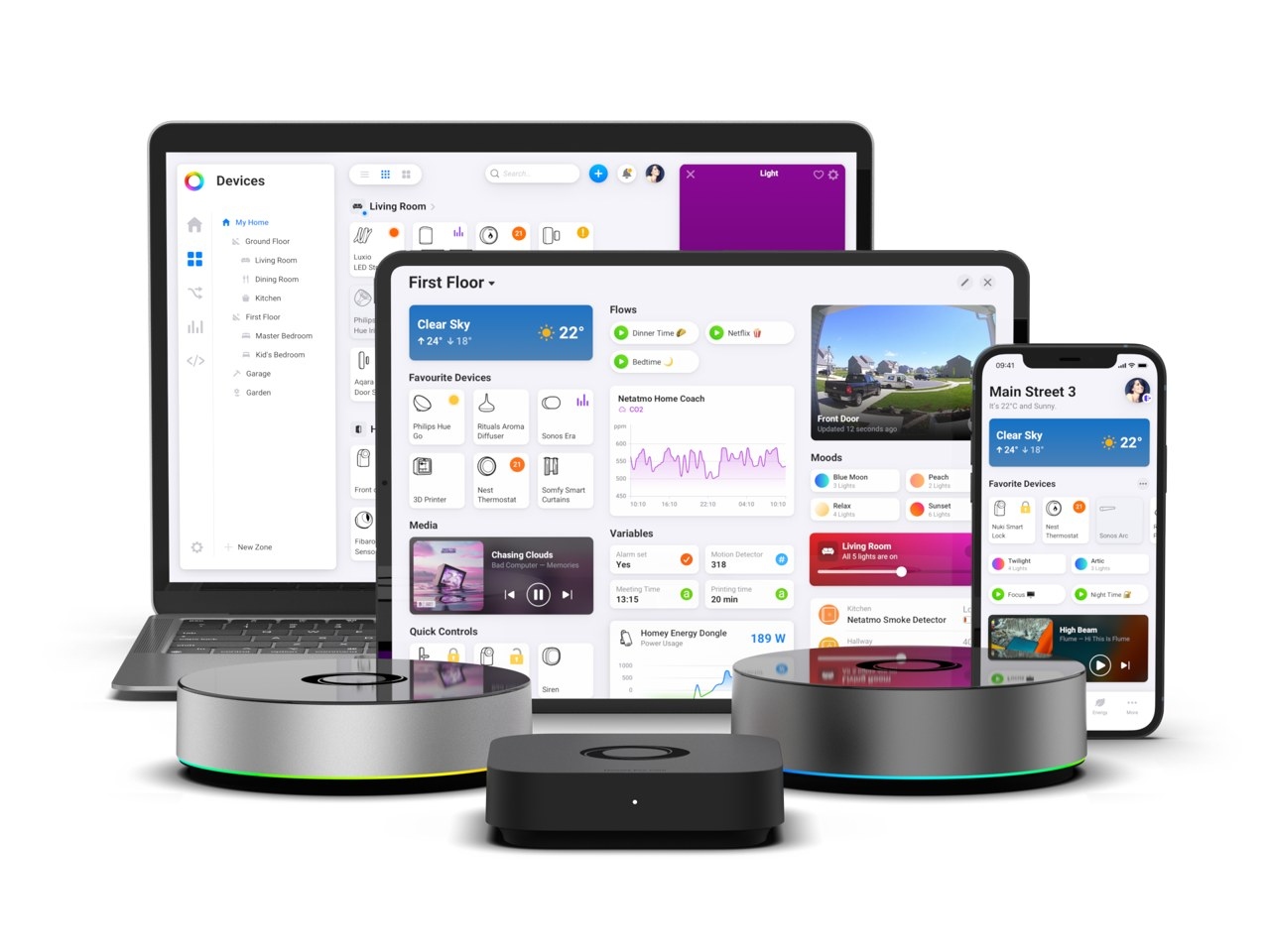
Homey’s Matter Bridge app lets Apple Home access devices that do not support it directly. Once shared, compatible devices can be controlled through the Apple Home app, Siri, scenes and automations.
Supported devices and requirements
Provided Matter Bridge supports the device type, Homey can share devices using:
- Zigbee
- Z-Wave
- Bluetooth LE
- Infrared (IR)
- 433 MHz radio
- Wi-Fi devices supported by Homey apps
Supported categories include lights, thermostats, plugs, locks, blinds, sensors and alarms. For example, a 433 MHz blind, Z-Wave thermostat or IR-controlled fan can appear in Apple Home after being added to Homey.
You will need:
- Homey Pro (2023 — 2026), Homey Pro mini, or Homey Self-Hosted Server
- The Matter Bridge app from the Homey App Store
- At least one device added and configured in Homey
- An Apple Account and the Apple Home app on an iPhone or iPad
- A HomePod, HomePod mini, or Apple TV 4K as a home hub for remote access and Apple Home automations
Homey Pro mini and Homey Self-Hosted Server may also require a Homey Bridge, depending on the device technology. Homey Cloud does not support the Matter Bridge app.
How the connection works
Matter Bridge shares devices using the Matter standard while leaving them paired with, and controlled by, Homey. They appear as accessories alongside your existing Apple Home devices.
Apple Home communicates with Homey across your local network rather than contacting each device directly. Homey translates commands from Apple Home or Siri into the device’s native technology. You manage which devices are exposed in Homey, without re-pairing them or changing their connections.
Set up Matter Bridge in Apple Home
- Add your devices to Homey and confirm that they work.
- Install the Matter Bridge app from the Homey App Store.
- Display the QR code in Matter Bridge settings:
- Homey Mobile App: More → Settings → Matter Bridge
- Homey Web App: Settings → Matter Bridge → Configure
- On your iPhone or iPad, open Apple Home, tap Add Accessory and scan the QR code.
- Give the bridge a name, then tap Continue.
- Return to Homey’s Matter Bridge settings and choose the devices you want visible in Apple Home.
Your selections appear without further pairing. Detailed instructions are available in the support article.
When an Apple home hub is needed
With iOS 18 or later, an iPhone can add and control devices in Apple Home on your home network without a home hub. Earlier iOS versions require a hub to add them. Remote control and Apple Home automations require a HomePod, HomePod mini, or Apple TV 4K.
The community-built HomeKitty app offers another connection method. It also supports Homey Pro (2016 — 2019), which Matter Bridge does not.
Controls and limitations
Within their supported capabilities, shared devices behave like other Apple Home accessories. You can:
- Operate them in the Apple Home app or with Siri
- Group them into rooms with other Apple Home devices
- Include them in scenes and automations
- Control them from an Apple Watch, HomePod, or Mac
Keep these limitations in mind:
- Matter shares standardized capabilities, so some advanced device features remain available only in Homey.
- Some infrared and 433 MHz devices may not report their real-time state.
- Deleting a device from Homey also removes it from Apple Home.
Apple Home suits everyday controls, scenes and Siri commands. Use Homey’s Flows and Advanced Flows for automations requiring more logic or combining devices across technologies.
Matter Bridge also connects to other Matter-compatible platforms, including Google Home and Amazon Alexa.

